Windows 11 has no setting that locks the mouse to one monitor. The free fixes are a hotkey in Dual Monitor Tools, or LockSpot on the Microsoft Store, which keeps the pointer on the monitor of your fullscreen app automatically, free for one app. Locking a whole screen whatever app is in front is a one-time upgrade you can try for 2 minutes.
Creator Kit makes LockSpot.
Can Windows 11 Lock the Mouse to One Monitor on Its Own?
No. Windows 11 has no monitor lock for the mouse. Three settings look like they should help, and it takes about a minute to rule them out:
- Ease cursor movement between displays (Settings → System → Display → Multiple displays) only helps the pointer jump the dead zones between monitors of different sizes. Turning it off never keeps the cursor on one screen.
- Rearranging the displays (Settings → System → Display, then drag the monitor tiles and select Apply) only moves the edge where the pointer crosses. It is not a lock.
- Win+P → PC screen only does keep the mouse on one monitor, because it switches the other displays off. Press Win+P and choose Extend to bring them back.
If you need the second screen to stay on, Windows can’t do it alone. Under the hood, a monitor lock is the documented ClipCursor API, which confines the pointer to a rectangle. A small tool has to set that rectangle for you, by hotkey or automatically. These are the options:
| Method | What it locks | On / off | Free / Paid | Best for |
|---|---|---|---|---|
| Win+P → PC screen only | Nothing: the other screens turn off | Win+P | Free (built in) | When you don’t need the second screen |
| Dual Monitor Tools | The monitor the pointer is on | A hotkey you set | Free (open source) | A manual lock that ignores which app is in front |
| LockSpot Auto-JailOur Pick | Your app’s window; the whole monitor when it is fullscreen | Automatic on focus; Alt-Tab frees it | Free (one app) | The app you work in all day, with no hotkey to remember |
| LockSpot Custom Zone | A box you draw, up to a whole monitor, whatever app is in front | Ctrl+Shift+Z / Ctrl+Shift+U | $3.99 one-time (US price; local prices vary) | A fixed screen or part of an ultrawide; try it free for 2 minutes |
| DisplayFusion | The current monitor or the focused window | A key combination you assign | Paid (Pro from $34 one-time; not in Free) | People who already use it for window management |
| Actual Multiple Monitors | The current monitor, hard or soft lock | A hotkey, or “tight” edges | Paid ($34.95; 30-day trial) | Sticky edges plus a full multi-monitor suite |
Our pick is highlighted because it is the only free option that locks and unlocks by itself as you switch apps. If you want one keypress that pins the pointer to whichever screen it is on, Dual Monitor Tools is the better free choice, and Method 1 shows how.
Method 1: Lock the Cursor to One Monitor With a Hotkey (Dual Monitor Tools)
Dual Monitor Tools is a free, open-source (GPLv3) set of multi-monitor utilities. Version 2.13 was the latest on SourceForge on October 28, 2026 (project updated September 22, 2026). Its Cursor module has the lock this guide is about.
- Download Dual Monitor Tools from its SourceForge page, unzip it and run it. It sits in the notification area.
- Open its options and go to Cursor → General.
- Set a hotkey for Lock cursor onto monitor.
- Move the pointer to the monitor you want and press the hotkey. Press it again to free the cursor.
The Sticky options offer three modes instead: Cursor free to move between screens, Cursor movement between screens is sticky (the pointer resists crossing, with a resistance slider) and Lock cursor onto screen. A player on the Age of Empires forum fixed a borderless game this way, with “Lock cursor onto screen” on a hotkey. Holding Ctrl or Shift can let the pointer cross while locked, if you turn that option on.
The primary-screen catch: Dual Monitor Tools has a Primary Working Area, which by default holds your primary screen. With Allow cursor to return freely (and within) the primary working area ticked, the lock still lets the pointer onto that screen. Untick it, or remove the screen from the area, if the lock seems to leak onto your main monitor.
Where it falls short: the lock is manual. It doesn’t know which app you are using, so you press the hotkey every time you want the other screen.
Method 2: Keep the Mouse on Your App’s Monitor Automatically (Free)
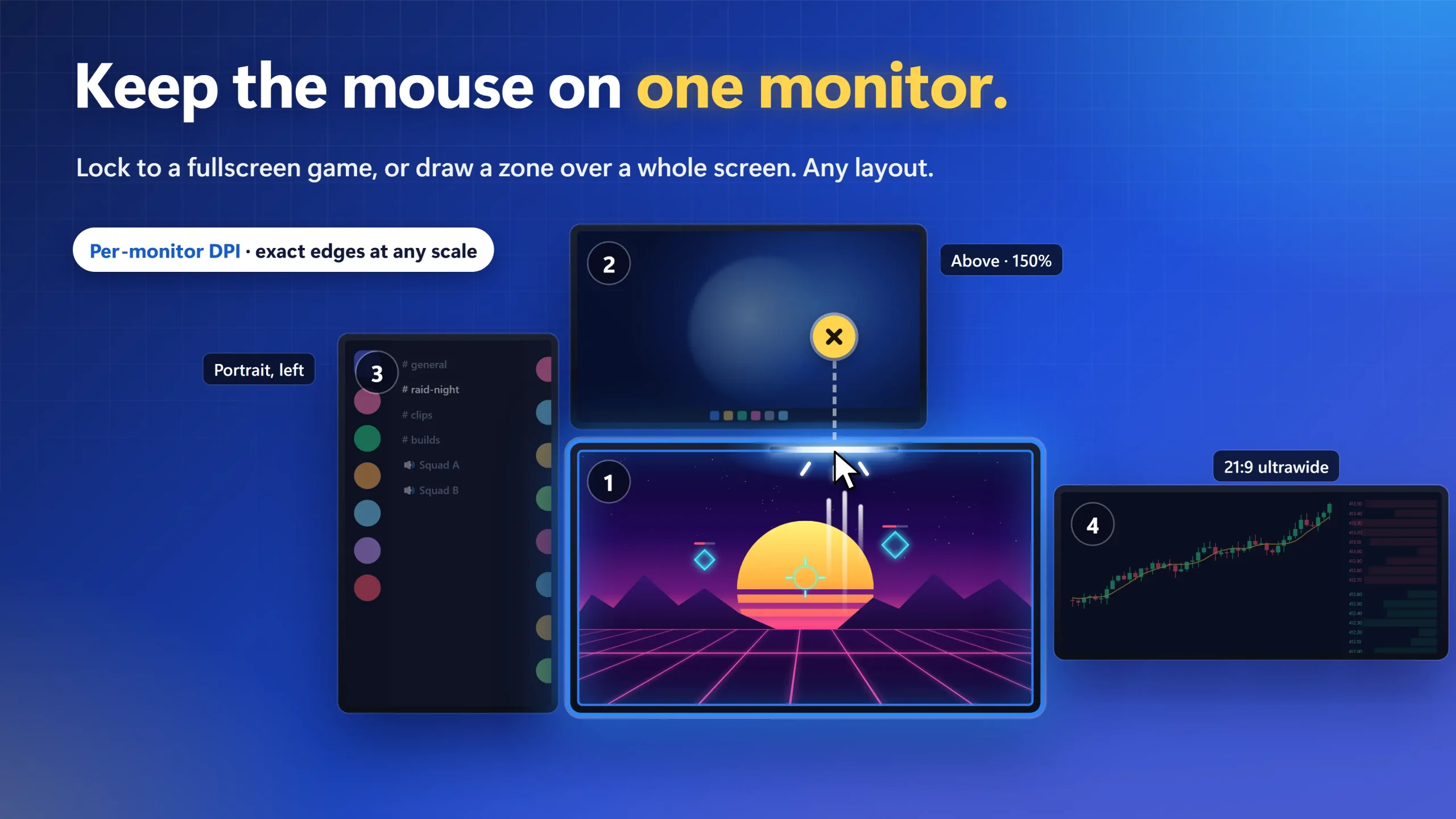
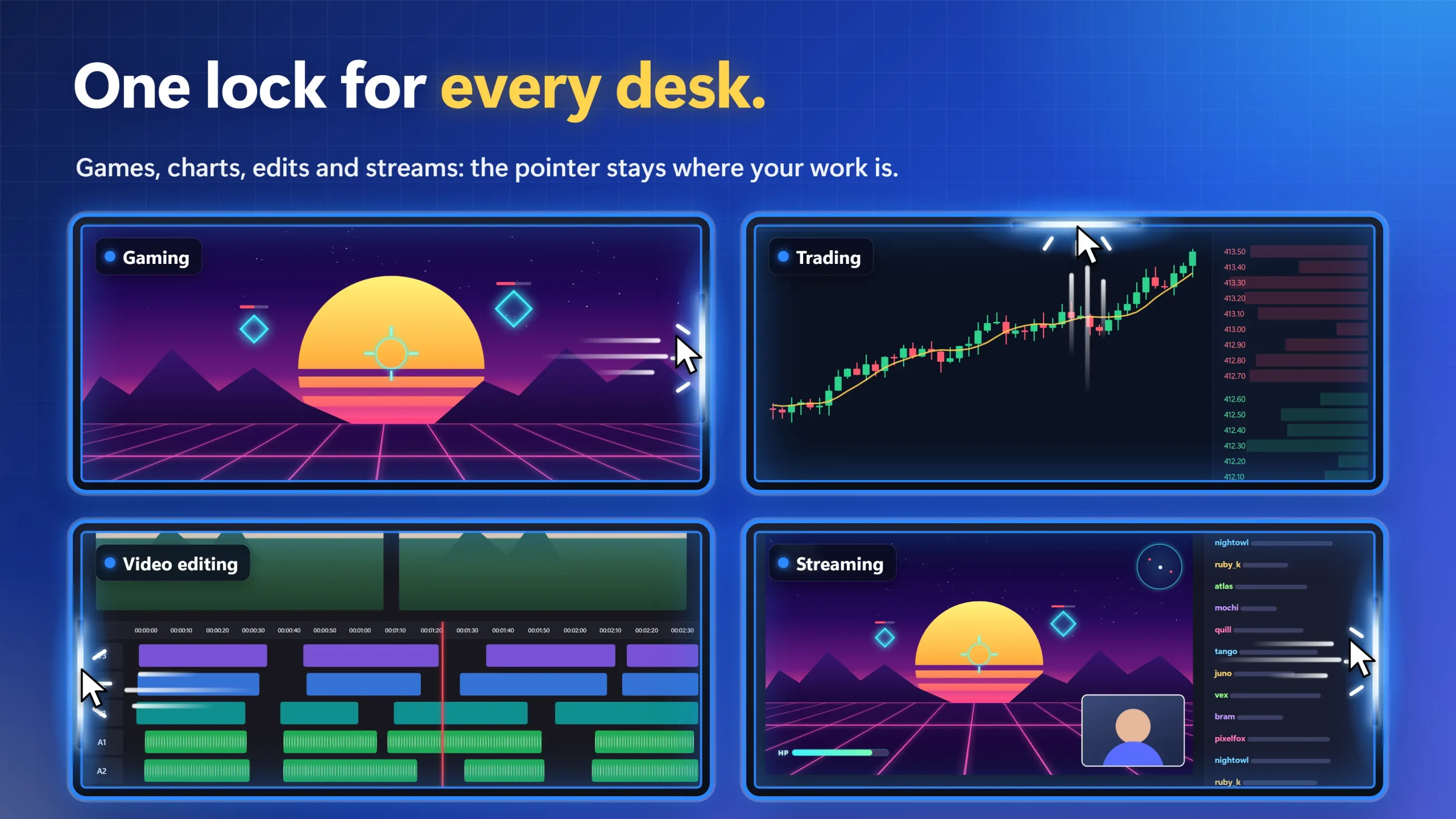
LockSpot, our cursor lock for Windows, does the locking for you. You pick an app once. Whenever that app is in front, LockSpot confines the pointer to its window. Run the app fullscreen or maximized on one monitor, and the mouse stays on that monitor. Alt-Tab to something else and the pointer is free; come back and it locks again. It works for a trading platform on the main screen, a video editor, a remote-desktop or virtual-machine window, or a kiosk app.
- Install LockSpot from the Microsoft Store (Windows 10 version 2004 or later, Windows 11).
- Open the app you want to keep on one screen, and maximize it or make it fullscreen on that monitor.
- Click into that app and press Ctrl+Shift+A. LockSpot adds it to Auto-Jail. You can also pick it from LockSpot’s list of running apps, or type its .exe name.
- Move the pointer toward every edge. It stops at the edge of the window, which is the edge of the monitor.
A maximized window stops above the taskbar; a fullscreen app covers the whole screen. If you move or resize the window, the lock follows it. A 100 ms check puts the lock back if Windows or the app drops it. If the app runs as administrator, run LockSpot as administrator too.
Keep the mouse on your app’s monitor automatically
Pick the app once. LockSpot locks the pointer to it whenever it is in front and frees it the moment you Alt-Tab away.
Free vs Pro: Free for one app, with every hotkey and escape key. Pro is a one-time $3.99 (US price; local prices vary) for unlimited apps, Custom Zones and Cursor Freeze. Try Zones for 2 minutes and Freeze for 60 seconds in the app before you buy.
Method 3: Lock a Whole Screen, Whatever App Is in Front
Sometimes the lock shouldn’t depend on one app: a screen used for several programs, or the left half of an ultrawide. For that, LockSpot draws a Custom Zone, and the pointer stays inside it whatever app is focused.
- Press Ctrl+Shift+Z.
- Drag a box over the whole monitor, or over the part you want. A zone always sits on one monitor; it can’t span two.
- Move the zone or resize it with its handles. Optional on-screen guides show its edges.
- Press Ctrl+Shift+U to release it.
Try a zone free in the app for 2 minutes, once per launch (the Unlock-all hotkey must be on); keeping it is a one-time upgrade. With the upgrade you can save several zones and cycle them with Ctrl+Shift+→.
How to Get the Mouse Out of a Locked Monitor
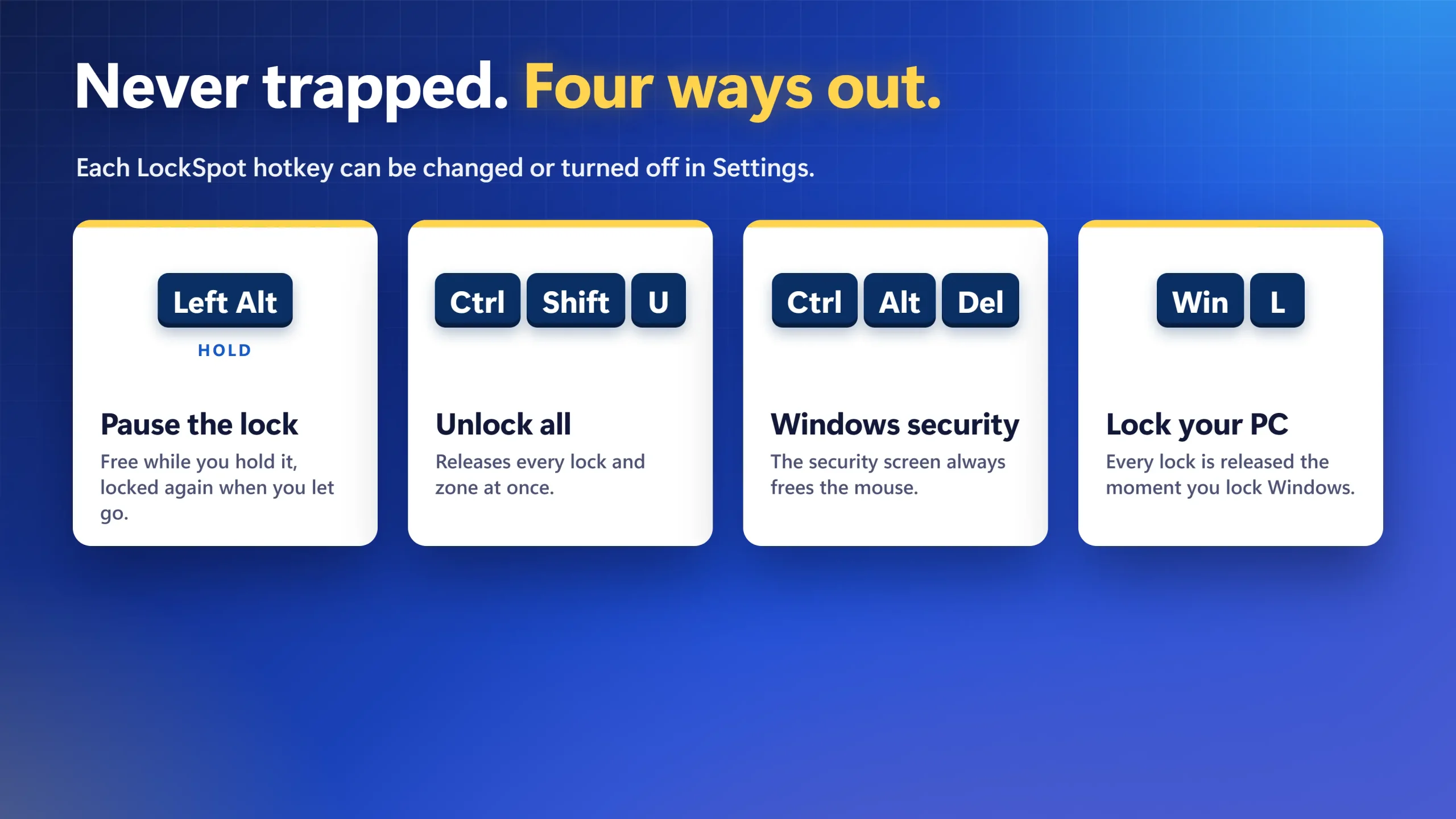
A lock you can’t escape is worse than no lock. With LockSpot there are four ways out:
- Hold Left Alt: the pointer is free while you hold it and locks again when you let go. You can move this escape to Right Alt, Left Shift or Right Ctrl, but it can’t be turned off.
- Ctrl+Shift+U: releases every lock and zone at once.
- Ctrl+Alt+Del: the Windows security screen frees the mouse.
- Win+L: locking Windows releases every lock. Sleep and closing LockSpot do too.
In Dual Monitor Tools, press the lock hotkey again. In DisplayFusion and Actual Multiple Monitors, the same hotkey toggles the lock off.
Method 4: DisplayFusion or Actual Multiple Monitors (Paid Suites)
DisplayFusion has two functions, Lock/Unlock Mouse Cursor to Current Monitor and Lock/Unlock Mouse Cursor to Current Focused Window, which you bind to a key combination in its Functions tab. Its own Free vs Pro table lists the cursor functions as Pro only. Pro costs $34 one-time for one PC, or $49 for a household (displayfusion.com, October 28, 2026). It is a lot of software for one lock, but good value if you also want taskbars, wallpaper and monitor profiles.
Actual Multiple Monitors (and Actual Window Manager) has Lock Mouse in Monitor in two forms: a hard lock you toggle with a hotkey, and a soft lock that pauses the pointer at the monitor edge before letting it cross. One licence is $34.95 with a 30-day trial; version 8.15.4 came out July 2, 2026.
For a side-by-side look at these and the other best cursor lock apps for Windows, including AutoCursorLock, see our full comparison.
Which Method Should You Use?
- You don’t need the second screen right now: Win+P → PC screen only.
- You want one keypress that pins the pointer to whatever screen it is on: Dual Monitor Tools, free.
- You work in one app and want the lock to come and go with it: LockSpot Auto-Jail, free for one app.
- You want a screen locked whatever app is in front: a LockSpot Custom Zone (try it for 2 minutes), or DisplayFusion if you already own it.
- It’s a game: start with the game-side fixes in our guide for when the mouse keeps going to the second monitor while gaming.
When LockSpot Is Not the Right Fit
LockSpot is narrow on purpose. If you want the pointer locked to a screen with a free tool and no app to pick, Dual Monitor Tools does that. If you want window snapping, taskbars and wallpaper too, a suite like DisplayFusion covers more. A LockSpot zone can’t stretch across two monitors, and LockSpot runs only on Windows.
Frequently Asked Questions
Is LockSpot free?
Yes. LockSpot on the Microsoft Store is free for one app, with every hotkey and escape key, so the Auto-Jail monitor lock in Method 2 costs nothing. Pro is a one-time upgrade for unlimited apps, Custom Zones and Cursor Freeze. Try Zones for 2 minutes and Freeze for 60 seconds in the app before you buy.
Does Windows 11 have a setting to lock the mouse to one monitor?
No. Ease cursor movement between displays and the display arrangement change how the pointer crosses between screens, but neither stops it. The only built-in way is Win+P → PC screen only, which turns the other displays off. To keep them on, use a tool that confines the cursor, such as Dual Monitor Tools or LockSpot.
Why does Dual Monitor Tools still let the cursor onto my primary screen?
Dual Monitor Tools keeps a Primary Working Area, which holds the primary screen by default. When Allow cursor to return freely (and within) the primary working area is ticked, the pointer can always enter that screen, even while locked. Untick the option, or remove the screen from the area, in the Cursor options.
Can I lock the mouse to part of an ultrawide monitor?
Yes. A LockSpot Custom Zone keeps the pointer inside a box you draw, such as the left half of an ultrawide, whatever app is in front. A zone always sits on one monitor and can’t span two. You can try a zone free for 2 minutes in the app.
Can I still use my second monitor while the mouse is locked?
Yes. With LockSpot Auto-Jail, Alt-Tab to another app and the pointer is free; switch back and it locks again. You can also hold Left Alt to cross while you hold it, or press Ctrl+Shift+U to release every lock. With Dual Monitor Tools, press the lock hotkey again.
None of these worked — what now?
Check three things. If the app runs as administrator, run LockSpot as administrator too. Make sure you added the app’s real window with Ctrl+Shift+A while it was in front, not its launcher. And if the app sets its own smaller cursor area, LockSpot leaves that in place.
One monitor, one pointer, no hotkey to remember
Install LockSpot, press Ctrl+Shift+A in your fullscreen app, and the mouse stays on that screen whenever the app is in front.
Sources consulted: Microsoft Win32 ClipCursor documentation; Microsoft Support: how to use multiple monitors in Windows; ElevenForum: Ease cursor movement between displays; Dual Monitor Tools Cursor documentation; Age of Empires forum: Dual Monitor Tools lock; DisplayFusion Free vs Pro; DisplayFusion pricing; Actual Multiple Monitors.
About the author: Mashyo is the founder of Creator Kit, the developer of LockSpot. This guide puts the free Windows and third-party options next to the publisher’s own app so you can pick the smallest tool that does the job.
Last reviewed: