To annotate a live lesson on Windows, use an overlay that draws over any app. Install SHARA on the Microsoft Store: its Pen, Laser, Arrow, Text and Ctrl+Space Wheel are free forever, with a mouse or a pen tablet. Every Pro tool, including the Whiteboard, is free for your first 14 days; after that, Pro is a one-time purchase.
Creator Kit makes SHARA.
Which annotation tools work best with a stylus?
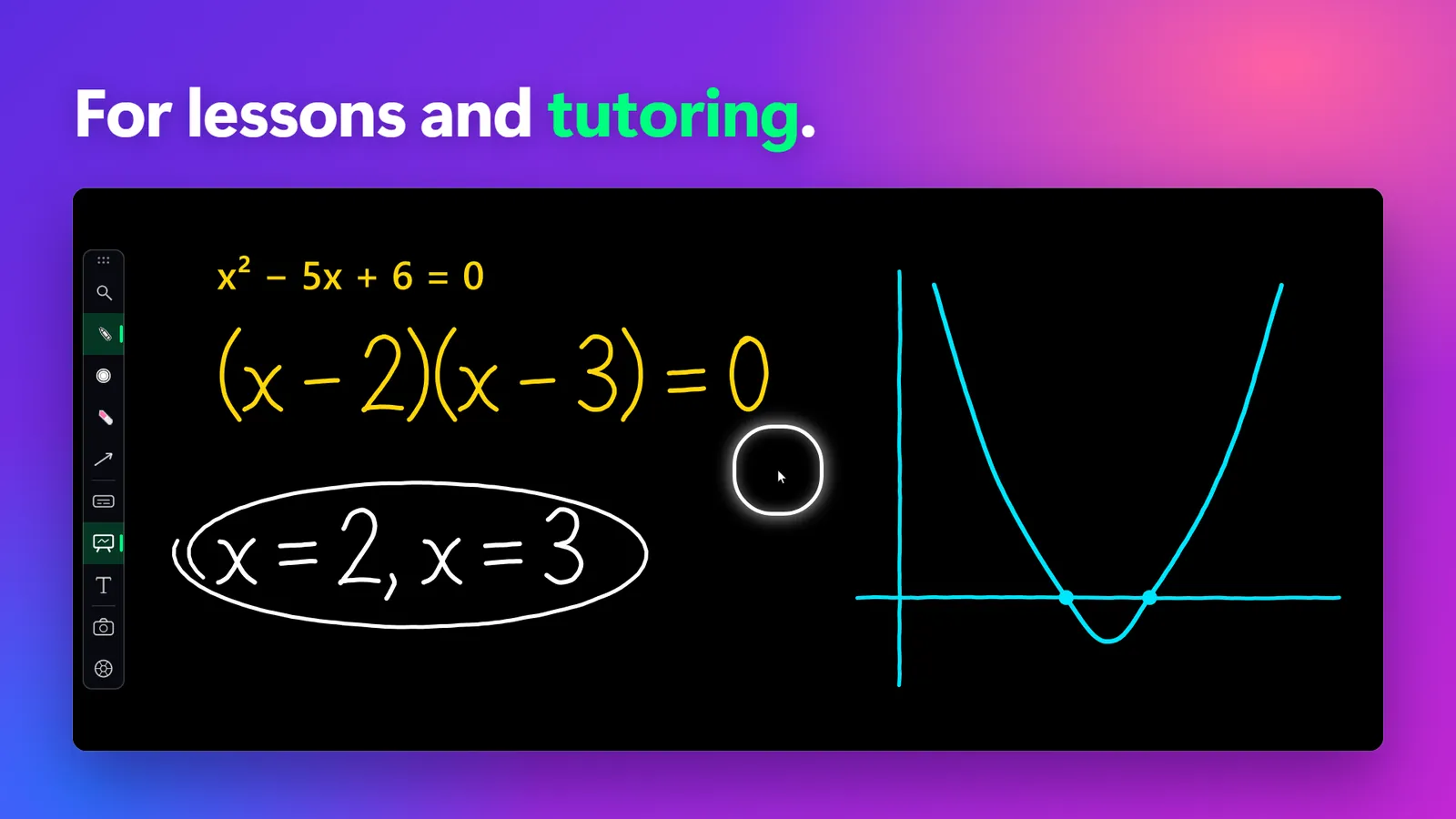
It depends on how much you write by hand. If you write out long equations or notes, pick a tool whose lines follow pen pressure: ppInk (free) and Epic Pen both list pressure support for drawing tablets. If you mostly circle, point and label over slides, a PDF or a browser, speed matters more than pressure, and SHARA’s free Pen, Laser, Arrow and Text work the same with a pen tablet, a pen display or a mouse.
| Tool | Draws over live apps? | Stylus | Board | Free / Paid |
|---|---|---|---|---|
| SHARAOur pick | Yes | Reads pen tablets directly; no pressure | White, black or grid (Pro) | Free Pro $19.99 one-time, US price; local prices vary |
| ZoomIt | Frozen frame (LiveDraw inks over live windows) | Pen and touch input | Whiteboard (W), blackboard (K) | Free |
| ppInk | Yes | Tablets, with pressure | White, black or custom background | Free / Open Source |
| Epic Pen | Yes | Pressure on supported devices | Whiteboard, blackboard (Pro) | Free Basic Pro is a subscription |
SHARA is our pick for teachers who move between apps during a lesson: the core tools stay free, Pro is a one-time purchase, and it reads your pen without extra setup. Its honest limit is pressure, covered in the pros and cons below. ZoomIt is Microsoft’s free option, and its page says drawing works with touch and pen on tablets. Its classic draw mode (Ctrl+2) annotates a frozen frame, so the app underneath pauses while you draw; LiveDraw (Ctrl+Shift+4) inks over live windows.
Set up Windows for your pen first
Five minutes before the first lesson saves a broken demo in front of the class.
- Open Start › Settings › Bluetooth & devices › Pen & Windows Ink. Choose the hand you write with and what the pen’s shortcut button does (Microsoft’s pen guide).
- For a USB drawing tablet, install the maker’s driver. If the driver has a Windows Ink option, leave it on: SHARA reads pens through Windows Ink.
- Make the mouse pointer easier to follow in Settings › Accessibility › Mouse pointer and touch: raise the size and pick a bright colour.
- Draw a test stroke on every screen you will teach on, including the projector or second monitor, and check that the ink lands under the pen tip.
One gap Windows does not close: the pen-tip cursor stays tiny in screen shares and recordings. A teacher asked Microsoft for a pen highlight in April 2026 because students “watching a recorded lesson” could barely see it, and the Microsoft Q&A thread has no official fix. Until there is one, let the ink do the pointing: SHARA’s free Laser leaves a bright trail that fades by itself after about 2.6 seconds, so you can point at a line of working without cleaning up.
Annotate a live lesson with SHARA (free)
SHARA is our app, built for teachers who explain on a live screen. It draws on top of whatever is open while that app keeps running, so you can mark up a slide, switch to a browser and keep going.
- Install it free from SHARA on the Microsoft Store. It runs on Windows 10 (version 2004 or later) and Windows 11, with no account.
- Open your lesson: slides, a PDF, a browser, a spreadsheet or a code editor.
- Hold Ctrl+Space to open the Wheel at your pointer, or tap a tool on the docked toolbar. The toolbar docks to any screen edge, which is easier to reach with a pen; Ctrl+Win+A switches between the two. On PCs with a Chinese input language, the Wheel is Ctrl+Alt+Space.
- Pick a free tool: the Pen (Ctrl+Win+X) to write, the Laser to point, the Arrow (Ctrl+Win+W) to show where to look, or Text (Ctrl+Win+I) for a typed label the back row can read.
- Clean up as you go: Ctrl+Z undoes the last stroke, Ctrl+Win+Y picks the Eraser and Ctrl+Win+B clears everything. The Erase slice of the Wheel also has Hide ink.
- Keep the worked example with Screenshot: it saves to the clipboard, to Pictures\SHARA, or both, ready to post for students.
Every shortcut can be changed in Settings, and SHARA warns you when a new one clashes with another.
Free vs Pro: Free forever: cursor halo, click animation, Pen, Laser, Arrow, Text, Eraser, Screenshot and the Ctrl+Space Wheel. Every Pro tool is free for your first 14 days, with no card and no account. After that, Pro is a one-time purchase ($19.99 in the US; local prices vary).
Teaching with a mouse instead of a stylus
You don’t need a pen tablet to annotate a lesson. Handwriting with a mouse is slow and shaky, so use the tools that don’t depend on it:
- Typed Text labels instead of handwritten words. They stay readable on a projector (free).
- The Arrow instead of a wobbly hand-drawn circle (free). Line, Rectangle and Circle are Pro tools.
- The Laser for pointing at one line at a time. It fades by itself, so there is nothing to erase (free).
- The cursor halo, on from the first launch, so students can find your pointer on a big screen or a call (free).
- A mouse button for the Wheel: SHARA can open the Wheel from a middle or side mouse button. It is off by default; turn it on in Settings.
Need a board? Whiteboard options for a lesson
A board gives you a blank space to work a problem without closing your slides. Here is what each tool offers:
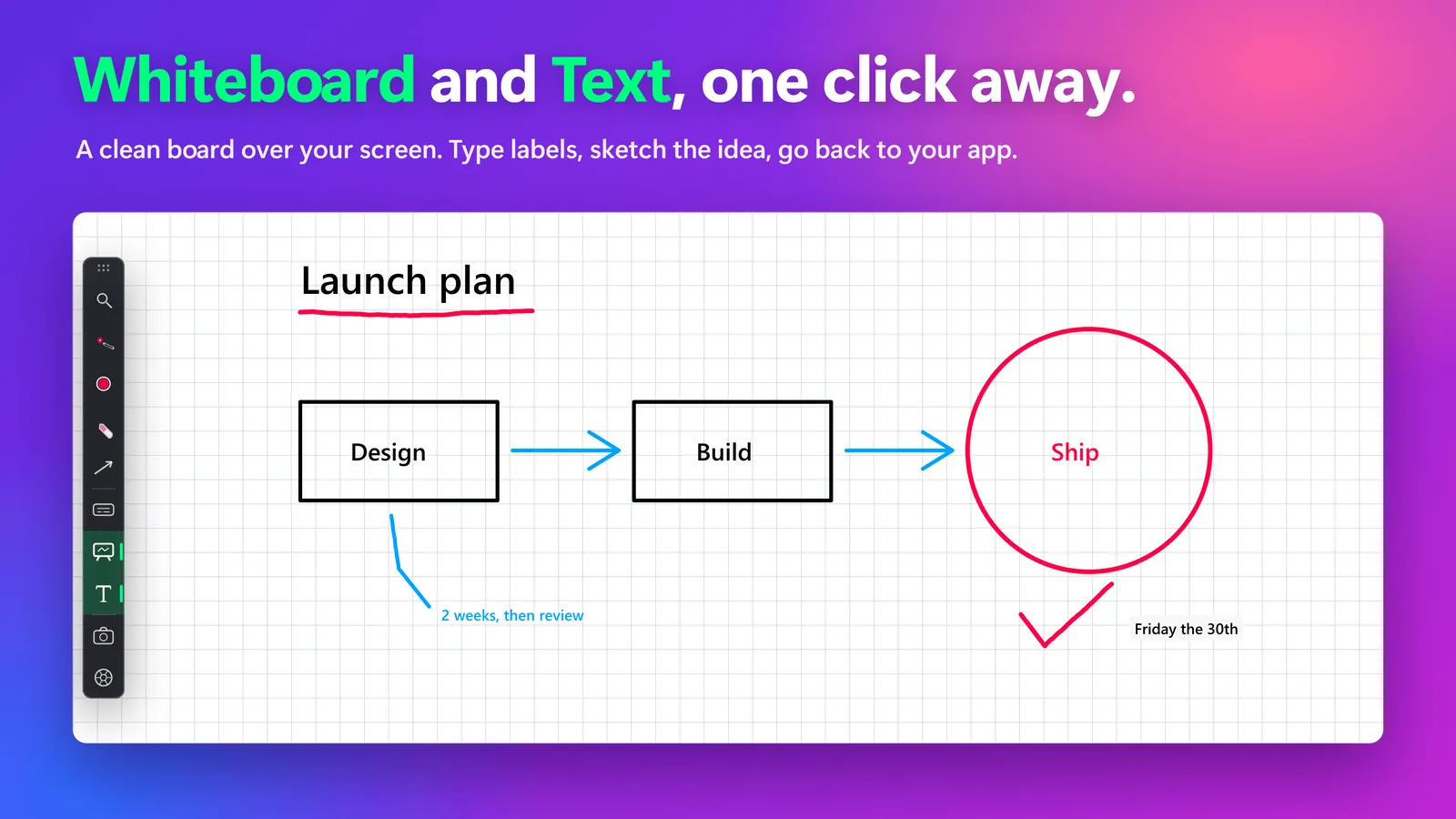
- SHARA Whiteboard: white, black or grid, on Ctrl+Win+K, then back to your app. The Whiteboard is included free for your first 14 days, then it’s a one-time upgrade. Text labels on the board stay free.
- ZoomIt: in draw mode, W turns the screen into a whiteboard and K into a blackboard. Free.
- ppInk: its clear-board button can switch to a white, black or custom background, and it can keep several pages. Free.
- Epic Pen: whiteboard and blackboard are part of Pro, a subscription after a 14-day trial (Epic Pen Pro).
- Microsoft Whiteboard: a free canvas in its own window. You draw in it, not over your other apps, which suits a board the whole class works on together.
Make sure students see the ink when you share or record
- In Teams, Zoom or any meeting app, share your entire screen, not a single window. SHARA draws on the real screen, so its ink appears in screen shares and screen recordings.
- If you don’t want students to see the SHARA toolbar or Wheel, hide them from capture in Settings. The ink stays visible.
- Recording in OBS? Use Display Capture. Window Capture can miss overlays drawn on top of the window.
- If students need to draw too, use the meeting’s own tools: Zoom annotation and Teams annotation let participants mark up shared content.
- Run a two-minute test call before class and draw one stroke on every screen you share.
Pros and cons of each tool for teachers
SHARA
- Pros: Pen, Laser, Arrow, Text, Wheel and cursor halo free forever over any app; reads pen tablets and pen displays directly; Pro is one-time, not a subscription; no account, ads or telemetry.
- Cons: line width doesn’t follow pen pressure; Highlighter, shapes and the Whiteboard are Pro after the first 14 days; no built-in recorder (it sits under OBS or the recorder you already use); Windows only, English only.
ZoomIt
- Pros: free, from Microsoft Sysinternals; pen and touch input; zoom (Ctrl+1), a whiteboard and a blackboard, a break timer (Ctrl+3) and screen recording (Ctrl+5).
- Cons: classic draw mode freezes the screen while you draw; everything runs on memorised hotkeys; no cursor halo.
ppInk
- Pros: free and open source (MIT); pressure-sensitive lines with a drawing tablet; backgrounds and pages for board work (ppInk on GitHub).
- Cons: a dense interface; an August 2025 Windows update broke its Microsoft Ink library, and the project’s fix is a script that needs administrator rights, which many school PCs don’t give teachers.
Epic Pen
- Pros: a simple free Basic edition with pen, highlighter and eraser; its site lists “full pressure sensitivity on supported devices, including Wacom tablets and Microsoft Surface” (Epic Pen features).
- Cons: text, shapes, arrows and the whiteboard are Pro, which is a subscription (yearly or monthly) after a 14-day trial.
When SHARA is not the right fit
- You write long notes by hand and want pressure-sensitive lines: use ppInk or Epic Pen.
- Students must draw on the same board: use Zoom or Teams annotation, or Microsoft Whiteboard.
- You teach from a Mac or a Chromebook: SHARA runs on Windows 10 and 11 only.
Want the wider field? Compare screen annotation software for Windows side by side, see the free Epic Pen alternatives if your school dropped its subscription, or read every way to draw over your screen in Windows, PowerPoint’s own pen included.
FAQ
Is SHARA free?
Yes. Free forever: cursor halo, click animation, Pen, Laser, Arrow, Text, Eraser, Screenshot and the Ctrl+Space Wheel. Every Pro tool is free for your first 14 days, with no card and no account. After that, Pro is a one-time purchase ($19.99 in the US).
Does SHARA support pen pressure?
No. SHARA reads pen tablets and pen displays directly through Windows Ink, but the line width doesn’t follow pen pressure. If pressure-sensitive handwriting matters most, ppInk and Epic Pen both list pressure support for drawing tablets.
Can I annotate a lesson with only a mouse?
Yes. Use typed Text labels, the Arrow and the Laser instead of handwriting, and keep the cursor halo on so students can follow your pointer. SHARA can also open its Wheel from a middle or side mouse button once you turn that on in Settings.
Will students see my annotations in Teams or Zoom?
Yes, if you share your entire screen rather than a single window. SHARA draws on the real screen, so the ink shows in screen shares and recordings. You can hide the toolbar and Wheel from capture while the ink stays visible. Test with a short call before class.
Can I save what I drew for my students?
Yes. SHARA’s free Screenshot tool saves the screen with your ink to the clipboard, to Pictures\SHARA, or both, so you can post the worked example after the lesson.
None of these worked — what now?
If the ink is missing from the share, switch from sharing a window to sharing the entire screen, and use Display Capture in OBS. If the pen doesn’t draw, check Start › Settings › Bluetooth & devices › Pen & Windows Ink and your tablet driver’s Windows Ink option. If your school PC blocks the Microsoft Store, ask IT to approve SHARA (Store ID 9NSBK9J07HS4).
Sources consulted: ZoomIt (Microsoft Learn) · ppInk (GitHub) · Epic Pen features · Epic Pen Pro · Use a pen with Windows (Microsoft Support) · Pen cursor visibility for online teaching (Microsoft Q&A) · SHARA 4.3.3 product behaviour, checked against its code on October 27, 2026.
About the author: Mashyo, founder of Creator Kit, the developer of SHARA. Last reviewed: .