Press Win+Plus (+) to zoom the whole screen with the free Windows Magnifier, or Ctrl+Alt+L for a lens that follows your pointer. To zoom and draw, use free ZoomIt (Ctrl+1) or SHARA, whose Lens, Spotlight and Live Zoom (up to 8×) work over any live app. They’re included free for your first 14 days, then it’s a one-time upgrade.
Creator Kit makes SHARA.
Which screen zoom fits you?
Windows already ships one free way to zoom, and PowerPoint has another for slides. The real question while presenting is whether you also need to point or draw on the zoomed area, and whether the app underneath must keep running while you zoom. This table sorts the options by exactly that.
| Tool | App stays live while zoomed? | Draw on it? | Where it works | Free / Paid | Best for |
|---|---|---|---|---|---|
| SHARAOur Pick | Yes Lens, Spotlight, Live Zoom | Yes Pen, Laser, Arrow, Text free | Any Windows app | Free Magnifier modes Pro: $19.99 one-time, US price; local prices vary | Zooming and pointing in one overlay, across apps |
| Windows Magnifier | Yes | No | Full screen, lens or docked | Free (built in) | A quick zoom with nothing to install |
| ZoomIt | LiveZoom only (Ctrl+1 zooms a still frame) | Yes | Any Windows app | Free | Hotkey-driven technical demos |
| PowerPoint slide zoom | Slides only | Yes PowerPoint pen | Slide Show and Presenter View | Included with PowerPoint | Enlarging one part of a slide |
| Browser or app zoom | Yes | No | One app or web page | Free | Making one page bigger before you share it |
Method 1: Zoom the whole screen with Windows Magnifier (free)
Magnifier is built into Windows 11 and Windows 10, so it works on any PC you present from, including a borrowed laptop or a locked-down work machine. Microsoft lists every key in its Magnifier keyboard shortcuts page.
- Press Win+Plus (+) to turn Magnifier on. Each extra press zooms in further; Win+Minus (−) zooms out. On some keyboards you need Shift to type the plus sign.
- Hold Ctrl+Alt and turn the mouse wheel to zoom in or out without the keyboard.
- Pick a view: Ctrl+Alt+F for full screen, Ctrl+Alt+L for a lens that follows your pointer, or Ctrl+Alt+D for a docked strip. Ctrl+Alt+M cycles through them.
- While zoomed in full screen, hold Ctrl+Alt+Spacebar to glance at the whole desktop, or press Ctrl+Alt+Minus (−) to jump between your zoom level and 1×.
- Press Win+Esc to turn Magnifier off when you are done.
To set how far each step zooms, open Settings › Accessibility › Magnifier (or press Win+Ctrl+M) and change the zoom increment.
- Use it when: you need a fast, reliable zoom and nothing else.
- Do not use it when: you need to circle or point at the zoomed detail. Magnifier only magnifies; it has no pen or laser.
Method 2: Zoom and draw for free with ZoomIt
Microsoft Sysinternals ZoomIt is the classic free screen zoom and annotation tool for presentations. It runs in the tray, works on all versions of Windows, and also ships inside Microsoft PowerToys: if you already use PowerToys, turn on ZoomIt in PowerToys Settings instead of downloading it separately.
- Run ZoomIt and check the hotkeys on its first-run settings screen.
- Press Ctrl+1 to zoom. Scroll the mouse wheel or press the Up/Down arrows to change the level; it starts at 2× by default.
- Left-click to start drawing on the zoomed image. Press R, G, B or Y to change the pen colour; hold Shift for a straight line, Ctrl for a rectangle or Ctrl+Shift for an arrow. Right-click stops drawing.
- Need the app to keep running? Press Ctrl+4 for LiveZoom, and Ctrl+Shift+4 for LiveDraw over live windows.
- Press Esc or right-click to exit and carry on with the demo.
ZoomIt’s standard zoom works on a still capture of the screen, which is perfect for stepping through a slide or a line of code. Its extras are genuinely useful too: a break timer (Ctrl+3), screen recording (Ctrl+5), OCR and DemoType. The trade-off is that everything runs on memorized hotkeys, with no toolbar and no highlighted cursor for the audience to follow.
Method 3: SHARA — a lens, spotlight and live zoom over any app
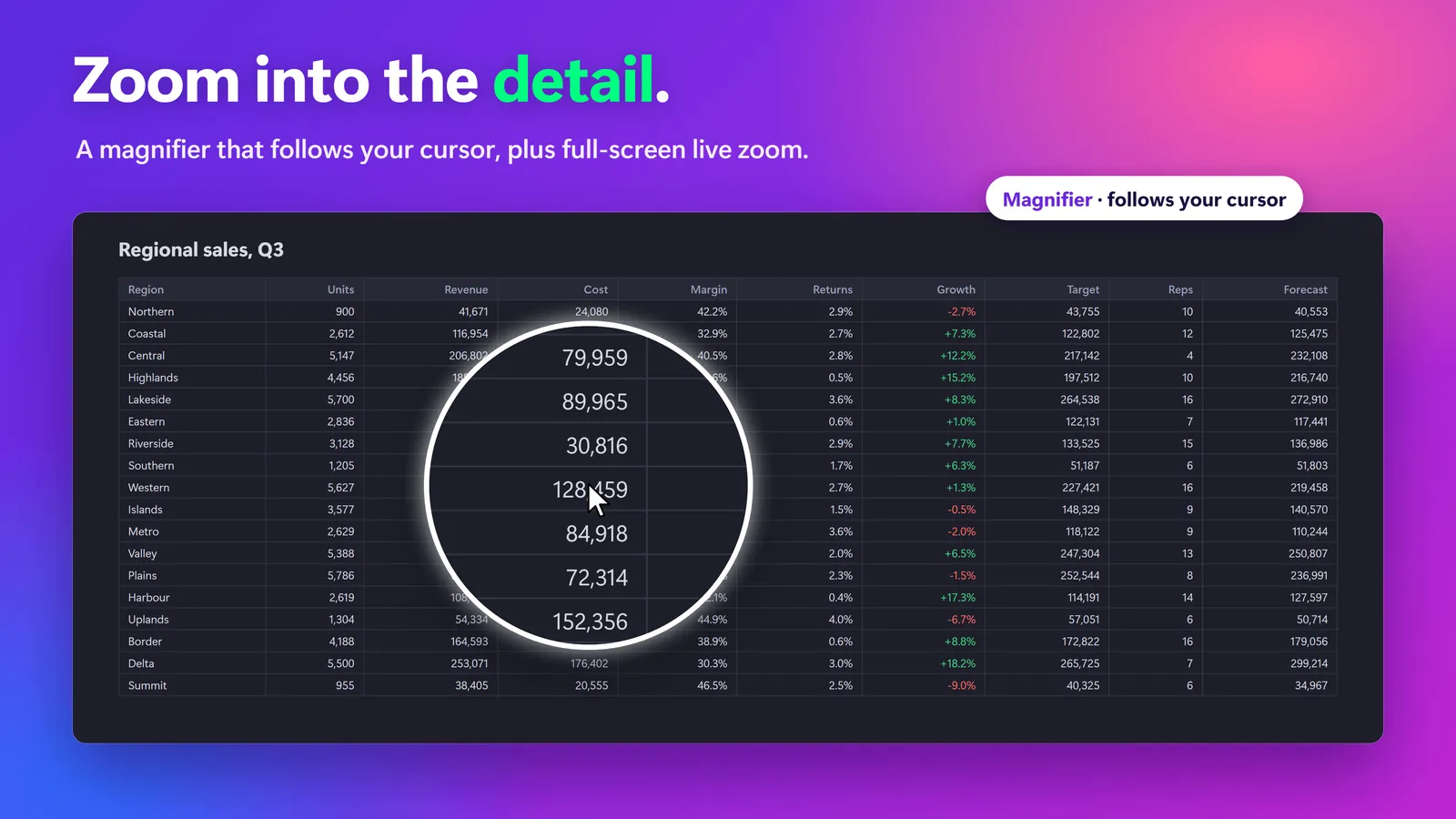
SHARA is a Windows overlay for people who explain a live screen. Its Magnifier has four modes: a Lens that follows your pointer (in the same shape as your cursor halo), a Spotlight that pulls every eye to the area around your pointer, Live Zoom up to 8× while the app keeps running, and a 9:16 Broadcast window for OBS. Because the free Pen, Laser, Arrow and Text sit in the same overlay, you can zoom in and then circle the exact number without switching tools. See every mode on SHARA’s screen zoom and magnifier page.
- Install it from SHARA on the Microsoft Store. Every Pro tool, the Magnifier included, is free for your first 14 days, with no card and no account.
- Open the slide, spreadsheet, browser or code editor you are presenting.
- Press Ctrl+Win+G for the Magnifier, or hold Ctrl+Space and choose Lens, Spotlight or Live Zoom from the Magnifier slice of the Wheel. The docked toolbar has the same Magnifier button.
- Hold Ctrl+Alt and scroll to change the zoom. It starts at 2×, and Live Zoom goes up to 8×.
- Mark what matters with the free tools: Ctrl+Win+X to draw, the Laser for quick pointing (it fades on its own after 2.6 seconds), Ctrl+Z to undo and Ctrl+Win+B to clear.
In SHARA’s settings you can choose a Live or Static magnifier view and Crisp or Smooth image quality, and put the Magnifier on a middle or side mouse button. Every hotkey can be rebound, with conflict detection. One tip: turn Windows Magnifier off (Win+Esc) before you use SHARA, because both zoom with Ctrl+Alt+scroll.
Free vs Pro: Free forever: cursor halo, click animation, Pen, Laser, Arrow, Text, Eraser, Screenshot and the Ctrl+Space Wheel. Every Pro tool is free for your first 14 days, with no card and no account. After that, Pro is a one-time purchase ($19.99 in the US).
When SHARA is not the right fit
- You only zoom now and then: Windows Magnifier is already on your PC and costs nothing.
- You want zoom, drawing, recording and timers free forever: ZoomIt does all four at no cost; SHARA’s magnifier modes need Pro after the trial.
- You need zoom for low vision: Magnifier’s read-aloud and colour inversion (Ctrl+Alt+I) are accessibility tools SHARA doesn’t have.
- You present from a Mac: SHARA runs on Windows 10 (2004 or later) and Windows 11 only.
- Your work PC blocks the Microsoft Store: ask IT, and use Magnifier or PowerPoint’s slide zoom in the meantime.
Method 4: Zoom into part of a slide in PowerPoint
If everything you show lives in one deck, PowerPoint’s own zoom is enough. Microsoft documents it in Magnify a slide in Slide Show view.
- Start the Slide Show.
- Select the magnifying glass icon in the lower-left corner. A bright rectangle appears.
- Move the rectangle over the detail and click to zoom to 200%. Press + (or use a stretch gesture on a touchscreen) to go up to 400%.
- Click and drag with the hand cursor to move around the slide.
- Press Esc, or select the magnifying glass again, to zoom back out.
- Use it when: the detail is on a slide. Presenter View has the same magnifying glass.
- Do not use it when: you switch to Excel, a browser or a live demo. The zoom ends at the edge of the slide show.
Make sure viewers see your zoom in Teams, Zoom or a recording
- Share the entire screen, not a single window. Overlay tools such as ZoomIt and SHARA draw on top of the screen, so a window share can leave them out.
- Do a practice run. Join a test meeting from a second device, or record a few seconds with OBS Display Capture, and try each zoom you plan to use. Capture behavior differs between apps, so check what your viewers actually see before the real session.
- Keep the toolbar off their screen. SHARA can hide its toolbar and Wheel from screen capture while your ink stays visible.
- Zoom in less than you think. 2× is usually enough on a shared 1080p screen; higher levels make viewers lose their place.
Which zoom method should you use?
- Quick zoom, no install: Windows Magnifier (Win+Plus).
- Free zoom plus drawing for technical demos: ZoomIt, standalone or inside PowerToys.
- Slides only: PowerPoint’s magnifying glass in Slide Show.
- Zoom, spotlight and pointing across live apps in one overlay: SHARA, free to try for 14 days, with the Pen, Laser and Arrow free forever.
Mostly need to mark things up rather than enlarge them? Start with our guide to drawing on your screen in Windows 11, or compare full overlays in the screen annotation software roundup for Windows. If you came from Epic Pen, which lists no zoom tool, our Epic Pen alternatives with zoom and spotlight compare the switch, and when the audience mainly loses track of your pointer, make your mouse pointer easier to follow first.
FAQ
How do I zoom in on my screen in Windows 11?
Press Win+Plus (+) to turn on Windows Magnifier and zoom in; Win+Minus (−) zooms out and Win+Esc turns it off. Hold Ctrl+Alt and scroll to zoom with the mouse, and press Ctrl+Alt+L for a lens that follows your pointer. To change the zoom step, open Settings › Accessibility › Magnifier.
Is there a free screen zoom and annotation tool for presentations?
Yes. ZoomIt from Microsoft Sysinternals is free: Ctrl+1 zooms, a left-click starts drawing on the zoomed image, and Ctrl+4 starts LiveZoom while apps keep running. SHARA’s Pen, Laser, Arrow and Text are free forever over any app, and its Lens, Spotlight and Live Zoom are free for the first 14 days.
Does PowerToys have a screen magnifier?
PowerToys includes ZoomIt as one of its utilities. Turn it on in PowerToys Settings, then press Ctrl+1 to zoom and draw or Ctrl+4 for LiveZoom. ZoomIt is also still available as a standalone download from Sysinternals.
Does Epic Pen have a zoom or magnifier?
Epic Pen’s official feature and Pro pages list no zoom or magnifier tool (checked October 27, 2026). Its Pro plan adds a highlighted cursor, text, shapes and a whiteboard. For zoom plus ink, use ZoomIt (free) or SHARA.
Is SHARA free?
Yes. The cursor halo, click animation, Pen, Laser, Arrow, Text, Eraser, Screenshot and the Ctrl+Space Wheel are free forever. Every Pro tool, including the Lens, Spotlight and Live Zoom, is free for your first 14 days with no card and no account; after that, Pro is a one-time purchase, not a subscription.
None of these worked — what now?
If Win+Plus does nothing, your keyboard may need Shift for the plus sign, so open Magnifier from Settings › Accessibility › Magnifier instead. If a zoom hotkey clashes, run one zoom tool at a time: Windows Magnifier and SHARA both use Ctrl+Alt+scroll. If viewers can’t see the zoom, share your entire screen rather than one window. If your work PC blocks installs, PowerPoint’s slide zoom and Magnifier need nothing new.
Sources consulted: Keyboard shortcuts for Magnifier and Use Magnifier (Microsoft Support); Magnify a slide in Slide Show view (Microsoft Support); ZoomIt (Sysinternals) and ZoomIt in PowerToys (Microsoft Learn); Epic Pen Pro. All checked October 27, 2026. SHARA facts come from the app itself.
About the author: Mashyo is the founder of Creator Kit and the developer of SHARA, and builds practical Windows tools for presenters, teachers and creators. Last reviewed: .