Most DisplayFusion jobs now have a free alternative on Windows 11. The taskbar on every monitor and per-monitor wallpaper are built in, PowerToys FancyZones handles window layouts, and Dual Monitor Tools adds a hotkey cursor lock. To lock the mouse to a game automatically, LockSpot is free for one game; Pro adds unlimited games.
Creator Kit makes SHARA.
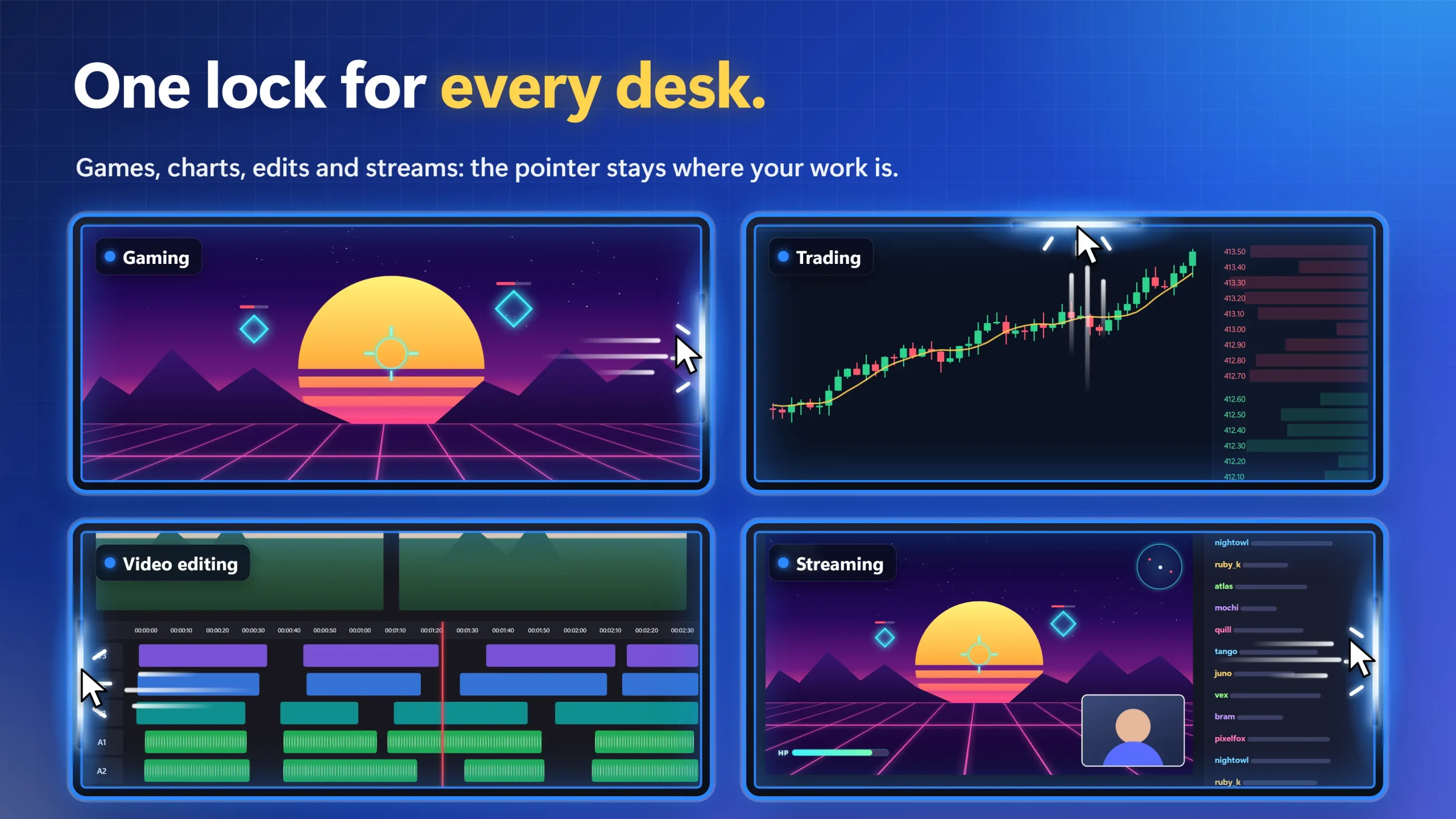
Which DisplayFusion Feature Do You Actually Need?
DisplayFusion is a large multi-monitor suite, and its free edition leaves out several of the features people search for. DisplayFusion’s own Free vs Pro comparison lists the cursor lock, a taskbar on every monitor, monitor profiles, custom functions and triggers as Pro only. Find the job you want done, then use the free tool in the right-hand column.
| What you want DisplayFusion for | In DisplayFusion Free? | Free alternative |
|---|---|---|
| A taskbar on every monitor | No, Pro only | Windows 11: Show my taskbar on all displays |
| A different wallpaper on each monitor | Yes | Windows 11 Background settings, or Dual Monitor Tools |
| Window layouts and snapping | Partly: snapping to monitor edges is free; custom functions are Pro | Windows Snap layouts plus PowerToys FancyZones |
| Move a window to the other monitor with a hotkey | Yes, with the pre-configured functions | Windows 11: Win+Shift+Left or Right Arrow |
| Lock the mouse to a game or window | No, Pro only | LockSpot: automatic, free for one game |
| Lock the mouse to the current monitor with a hotkey | No, Pro only | Dual Monitor Tools |
| Wrap the cursor around screen edges | No, Pro only | PowerToys CursorWrap |
| Monitor profiles and triggers | No, Pro only | No free equivalent: DisplayFusion Pro or Actual Window Manager (both paid) |
DisplayFusion Free Alternatives Compared
| Tool | Free / Paid | Cursor lock | Taskbar on each monitor | Window layouts | Install source |
|---|---|---|---|---|---|
| LockSpotBest for cursor lock | Free for 1 game; Pro $3.99 one-time (US price; local prices vary) | Automatic: locks to the game whenever it has focus | No | No | Microsoft Store |
| Windows 11 settings | Free, built in | No | Yes | Snap layouts | Built in |
| PowerToys | Free, open source | No (CursorWrap only wraps the edges) | No | FancyZones and Workspaces | GitHub, WinGet or Microsoft Store |
| Dual Monitor Tools | Free, open source (GPLv3) | Hotkey: lock onto a monitor, or edge resistance | No | Move windows between monitors | SourceForge ZIP |
| DisplayFusion Free | Free; Pro from $34 per machine (lifetime licence) | Pro only, by hotkey | Pro only | Snap to monitor edges; custom functions are Pro | Vendor installer or Steam |
| Actual Window Manager | Paid: $59.95 single licence; 60-day trial | Window or monitor | Yes | Yes | Vendor installer |
Our pick is highlighted for one reason: LockSpot is the only tool here that locks the cursor to a game on its own, with no hotkey to press each session. For taskbars, wallpaper and window layouts, the free Windows and PowerToys options win.
1. Windows 11’s Built-In Multi-Monitor Settings (Free)
Windows 11 now does several jobs that used to need DisplayFusion. Try these first: they cost nothing and need no install.
- Taskbar on every monitor: right-click the taskbar › Taskbar settings › Taskbar behaviors › tick Show my taskbar on all displays. In DisplayFusion this is a Pro feature.
- A different wallpaper on each monitor: Settings › Personalization › Background, set the background to Picture, then right-click an image and choose the monitor it belongs on. This option isn’t available while you use multiple desktops.
- Move a window to the other monitor: press Win+Shift+Left Arrow or Win+Shift+Right Arrow.
- Snap layouts: press Win+Z, or hover over a window’s maximize button, and pick a layout.
- Windows back where they were after undocking: Settings › System › Display › Multiple displays › tick Remember window locations based on monitor connection.
Pros: free, already installed, no extra background app, works on managed work PCs where you can’t install software.
Cons: no cursor lock of any kind. Ease cursor movement between displays only helps the pointer cross offset monitor edges; it never keeps it on one screen. No monitor profiles, and on its own the taskbar can’t move to a non-primary monitor (a Microsoft Q&A community answer, not official documentation).
2. LockSpot: Free Automatic Cursor Lock for One Game
The cursor lock is the DisplayFusion feature people most often go looking for, and it is Pro only there. DisplayFusion’s mouse cursor functions lock the pointer to the focused window or the current monitor when you press a hotkey or a TitleBar button, and you press it again to unlock.
Before you install anything, spend 60 seconds on the free checks: switch the game to exclusive fullscreen if it offers it, turn on the game’s own cursor-lock or “confine mouse” option, and check which display is primary. The full checklist is in our guide for when the mouse keeps going to the second monitor while gaming, and borderless problems are covered in why the cursor isn’t locking to your game. If the cursor still escapes, Windows has no per-game lock; a ClipCursor-based tool such as LockSpot locks it automatically, free for one game.
- Install LockSpot from the Microsoft Store.
- Start the game and press Ctrl+Shift+A to add it. You can also pick it from the running-apps list or type its .exe name.
- Play. Whenever the game has focus, the pointer stays inside its window. Alt-Tab frees it; switch back and it locks again.
- If the game runs as administrator, run LockSpot as administrator too.
The difference from DisplayFusion’s lock is that you pick the game once and LockSpot follows focus, so there is nothing to press each session. It uses Windows’ documented ClipCursor API, with no launch options, keyboard hooks or injection. A 100 ms watchdog re-applies the lock if Windows or the game drops it, including in borderless windowed mode, and the lock follows the window when it moves or resizes.
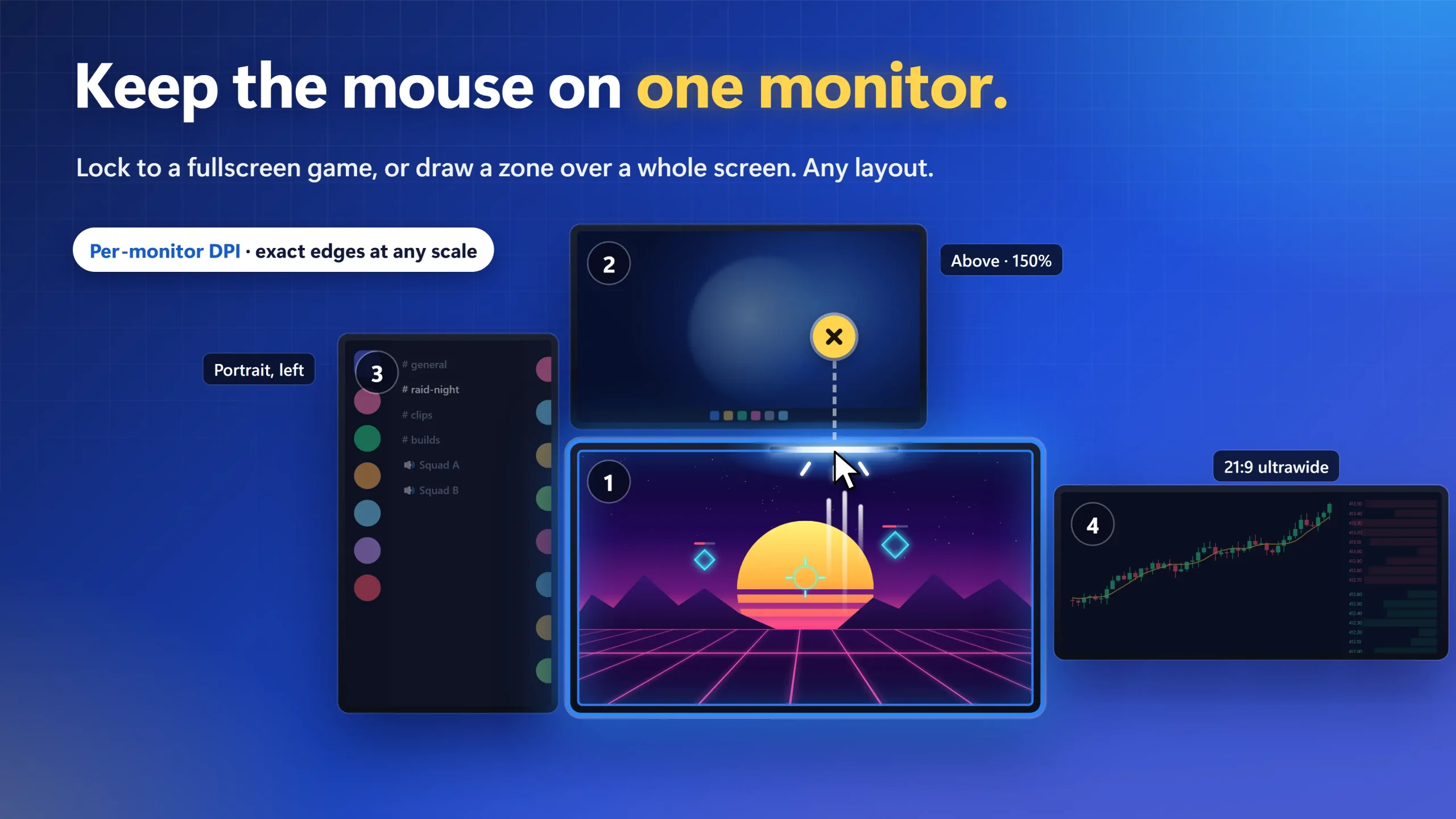
LockSpot has no separate “lock to monitor” button. To keep the mouse on one screen, Auto-Jail a fullscreen game (free), or draw a Custom Zone over the whole screen. Try a zone free in the app for 2 minutes; keeping it is a one-time upgrade. Each zone covers one monitor.
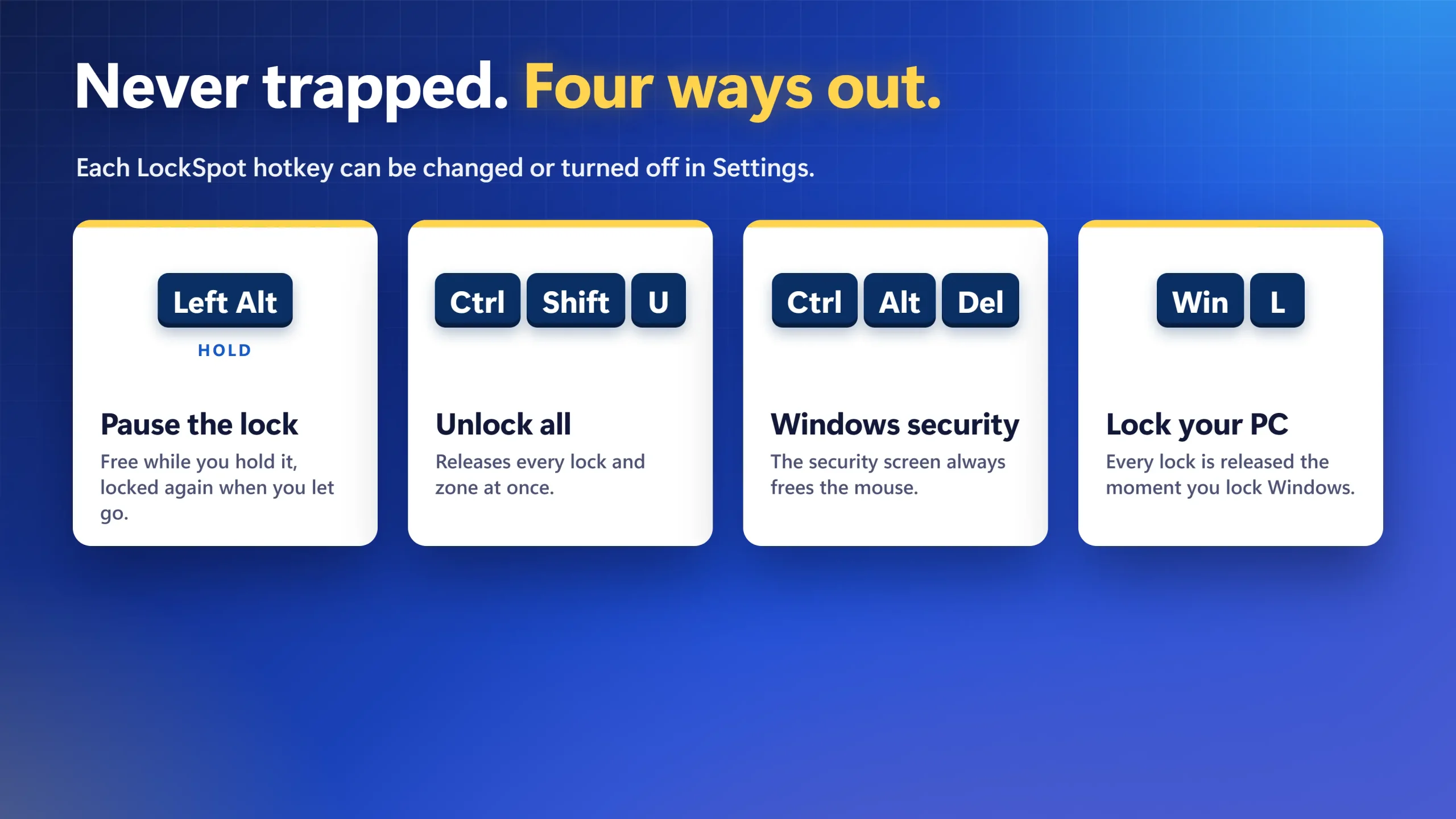
You are never trapped. Hold Left Alt to pass through the lock (it locks again when you let go), press Ctrl+Shift+U to unlock everything, or press Win+L. Ctrl+Alt+Del also drops the lock. Every hotkey is listed on the LockSpot page.
Pros: automatic per-game lock, free for one game, Microsoft Store install and updates, Alt-Tab still works, no account, ads or telemetry.
Cons: it only manages the cursor (no taskbars, wallpaper or window layouts). The free tier covers one game. Each zone stays on one monitor, and there are no per-game profiles. Windows only.
Free vs Pro: Free for one game, with every hotkey and escape key. Pro is a one-time $3.99 (US) for unlimited games, Custom Zones and Cursor Freeze. Try Zones for 2 minutes and Freeze for 60 seconds in the app before you buy.
Lock one game free before paying for a full multi-monitor suite
If the cursor lock is the only DisplayFusion feature you need, LockSpot does that one job automatically. Add the game once; the lock follows focus and Alt-Tab still works.
3. Microsoft PowerToys (Free, Open Source)
PowerToys is Microsoft’s free utility pack and the closest free match for DisplayFusion’s window tools. The parts that matter on a multi-monitor desk:
- FancyZones: custom window layouts for each monitor. Press Win+Shift+` to open the layout editor, then hold Shift while you drag a window to drop it into a zone.
- Workspaces: launch a set of apps to saved positions with one click.
- CursorWrap: moving past one screen edge brings the cursor back on the opposite side. DisplayFusion’s mouse wrapping is a Pro feature.
- Mouse Jump: moves the pointer across large or multiple screens from a preview.
- Power Display: brightness, contrast and input source for external monitors from one flyout.
Pros: free, open source, maintained by Microsoft, with frequent releases and documentation on Microsoft Learn.
Cons: no taskbar on each monitor, no per-monitor wallpaper and no way to lock the cursor to a monitor or game. It is often blocked on managed work PCs (user reports on Microsoft Tech Community).
4. Dual Monitor Tools (Free, Open Source)
Dual Monitor Tools is the closest free all-rounder. Its SourceForge page lists hotkeys to move windows between monitors, launching apps on a chosen monitor, locking the cursor onto a monitor or adding resistance between monitors, a different wallpaper per monitor (or one spanned image) on a timer, and a mirror of the primary screen on the secondary. Version 2.13 is a GPLv3 download, and the project was last updated on September 22, 2026.
Its cursor lock works on a hotkey. On the Age of Empires forum, a player whose borderless game wouldn’t scroll fixed it by assigning a hotkey to “Lock cursor onto screen” in the Cursor settings, and confirmed it worked. You can see how it compares with automatic tools in our full cursor lock comparison for Windows 11.
Pros: free, open source, light, covers cursor, window and wallpaper jobs in one download.
Cons: the cursor lock is manual, so you press the hotkey each time and it doesn’t follow a game. There’s no taskbar on each monitor, the interface is dated, and it comes as a ZIP rather than a Store install.
5. DisplayFusion Free (You May Not Need to Switch)
If you already run DisplayFusion, check the free edition before you uninstall it. It keeps a different image on each monitor, hotkeys for the pre-configured functions that move, size and span windows, snapping to monitor edges and scrolling over inactive windows. Every download also has a 30-day Pro trial built in.
What drops away at the end of the trial: the cursor lock and cursor-moving functions, the taskbar on every monitor, monitor profiles, custom functions, triggers, mouse wrapping and monitor fading. DisplayFusion Pro costs $34 per machine (Pro Standard), $49 for every computer in your home (Pro Personal) or $39.99 on Steam, each as a lifetime licence with no subscription.
Pros: nothing new to learn, a fair one-time price if you use many features, the broadest feature set in this list.
Cons: the features people most want are Pro, and the settings are a lot to manage for a single job.
6. Actual Window Manager (Paid Alternative Suite)
If you want another full suite rather than free single-job tools, Actual Window Manager is the closest match. It adds a taskbar on each display, and its Lock Mouse feature keeps the pointer in a specific window or monitor. Version 8.15.4 shipped on July 2, 2026. A single licence costs $59.95, with a 60-day trial.
Pros: the full suite, with a long trial.
Cons: it costs more than DisplayFusion Pro Standard, it isn’t free, and it has an even larger settings tree.
When LockSpot Is Not the Right Fit
- You want taskbars, wallpaper, window layouts or monitor profiles. LockSpot does none of those. Use the Windows 11 settings and PowerToys, or keep DisplayFusion.
- You want one cursor area across two monitors. A LockSpot zone stays on one monitor.
- You can’t use the Microsoft Store, for example on a managed work PC. Dual Monitor Tools may run from its ZIP; otherwise ask IT.
- You need a promise about anti-cheat. LockSpot only sets the Windows cursor clip, with no hooks or injection, but no tool can promise what a game’s rules allow. Check them for your game.
Which DisplayFusion Alternative Should You Choose?
- Taskbar and wallpaper on every screen: Windows 11 settings. Free, and already on your PC.
- Window layouts and app positions: PowerToys FancyZones and Workspaces.
- A cursor lock that follows your game: LockSpot, free for one game.
- A manual hotkey lock to the current monitor: Dual Monitor Tools.
- Monitor profiles, triggers and scripting: stay with DisplayFusion Pro, or try Actual Window Manager.
Is there a free version of DisplayFusion?
Yes. DisplayFusion Free keeps per-monitor wallpaper, hotkeys for the pre-configured window functions and snapping to monitor edges, and every download includes a 30-day Pro trial. The cursor lock, the taskbar on every monitor, monitor profiles, custom functions and triggers are Pro only.
Is LockSpot free?
Yes. LockSpot is free for one game, with every hotkey and escape key. Pro is a one-time $3.99 (US) for unlimited games, Custom Zones and Cursor Freeze. Try Zones for 2 minutes and Freeze for 60 seconds in the app before you buy.
What is the best free DisplayFusion alternative for locking the mouse?
For a game, LockSpot locks the cursor automatically whenever the game has focus and is free for one game. For a manual lock to the current monitor, Dual Monitor Tools is free and open source and works on a hotkey.
Can PowerToys replace DisplayFusion?
Partly. PowerToys FancyZones and Workspaces cover window layouts, and CursorWrap covers mouse wrapping. PowerToys has no taskbar on each monitor, no per-monitor wallpaper and no cursor lock, so pair it with the Windows 11 settings, and add LockSpot or Dual Monitor Tools if you need the lock.
Can Windows 11 show the taskbar on every monitor without DisplayFusion?
Yes. Right-click the taskbar, open Taskbar settings, expand Taskbar behaviors and tick Show my taskbar on all displays. It is free and built into Windows 11.
None of these worked — what now?
If a game still loses the cursor, check whether it runs as administrator; LockSpot then needs to run as administrator too. Make sure the game is the window in front, because the lock applies only while it has focus. If a window tool fails, check whether the app is on the FancyZones list of apps that can’t be zoned in the PowerToys documentation.
Keep the mouse in your game, free for one game
Pick the game once. LockSpot locks the cursor whenever it has focus, frees it on Alt-Tab and locks it again when you come back. Hold Left Alt to pass through at any time.
Sources consulted: DisplayFusion Free vs Pro; DisplayFusion pricing; DisplayFusion mouse cursor functions; Dual Monitor Tools on SourceForge; Age of Empires forum: Dual Monitor Tools cursor lock; Actual Window Manager; PowerToys FancyZones; PowerToys mouse utilities; Microsoft: customize the taskbar; Microsoft: change the desktop background; Microsoft: use multiple monitors; Microsoft Win32 ClipCursor documentation.
About the author: Mashyo is the founder of Creator Kit, the developer of LockSpot. Competitor information links to official project and vendor pages so every claim can be checked.
Last reviewed: