To show keystrokes on screen in Windows for free, press Win+Ctrl+O: the built-in On-Screen Keyboard lights up each key you press. For recordings, free overlays such as KeyViz or Carnac show keys as captions. SHARA shows every shortcut beside your cursor. Its keystroke pill is included free for your first 14 days, then it’s a one-time upgrade.
Creator Kit makes SHARA.
Show Keystrokes With the Built-In On-Screen Keyboard
Windows has no keystroke overlay for tutorials, but it ships a tool that comes close. While the On-Screen Keyboard is open, each key you press on your physical keyboard lights up on it, so viewers can see which keys you used. It costs nothing and needs no install, which makes it the fastest test on a locked-down work PC.
- Press Win+Ctrl+O. Or open Settings › Accessibility › Keyboard and turn on On-Screen Keyboard (Windows 10: Settings › Ease of Access › Keyboard › Use the On-Screen Keyboard).
- Drag the keyboard to a part of the screen your viewers can see but that doesn’t cover your work.
- Use your shortcuts as normal. The matching keys light up on the on-screen layout.
- Close it with its X button before you type anything private.
The limits show quickly in a recording. The keyboard covers a large part of the screen, each key lights up only for a moment, and viewers have to scan a whole layout to spot a shortcut. It doesn’t show mouse clicks, and it lights up every letter you type, passwords included. For tutorials, an overlay that prints the shortcut as text is easier to follow.
Keystroke Visualizers for Windows Compared
Here is how the six options compare on what they show, how they handle passwords, where viewers can see them, and what they cost:
| Tool | Shows | Mouse Clicks | Password Handling | Zoom & Teams | Free / Paid | Best For |
|---|---|---|---|---|---|---|
| SHARAOur Pick | Shortcuts, typed words, clicks and scroll in a pill by the cursor | Pauses completely in password fields | Free Keys free 14 days, then $19.99 one-time; US price, local prices vary | Tutorials and calls where viewers follow the pointer | ||
| On-Screen KeyboardBuilt in | A full keyboard; pressed keys light up | Lights up every key; close it first | Free | A quick check on any PC | ||
| KeyViz | Styled key captions | Key filters and a hotkey | Free (GPL-3.0) | Good-looking key captions | ||
| Carnac | Key captions in a corner | Silent mode (Ctrl+Alt+P) | Free (MS-PL) | Classic presenter setups | ||
| KeyCastOW | Key captions | Not listed | Hotkey turns the display off | Free (MIT) | A tiny portable tool | |
| Input Overlay | Keyboard, mouse and gamepad as an OBS source | Shows only in your OBS output | (OBS only) | Free (open source) | Streamers and gameplay videos |
Show Shortcuts Next to Your Cursor With SHARA
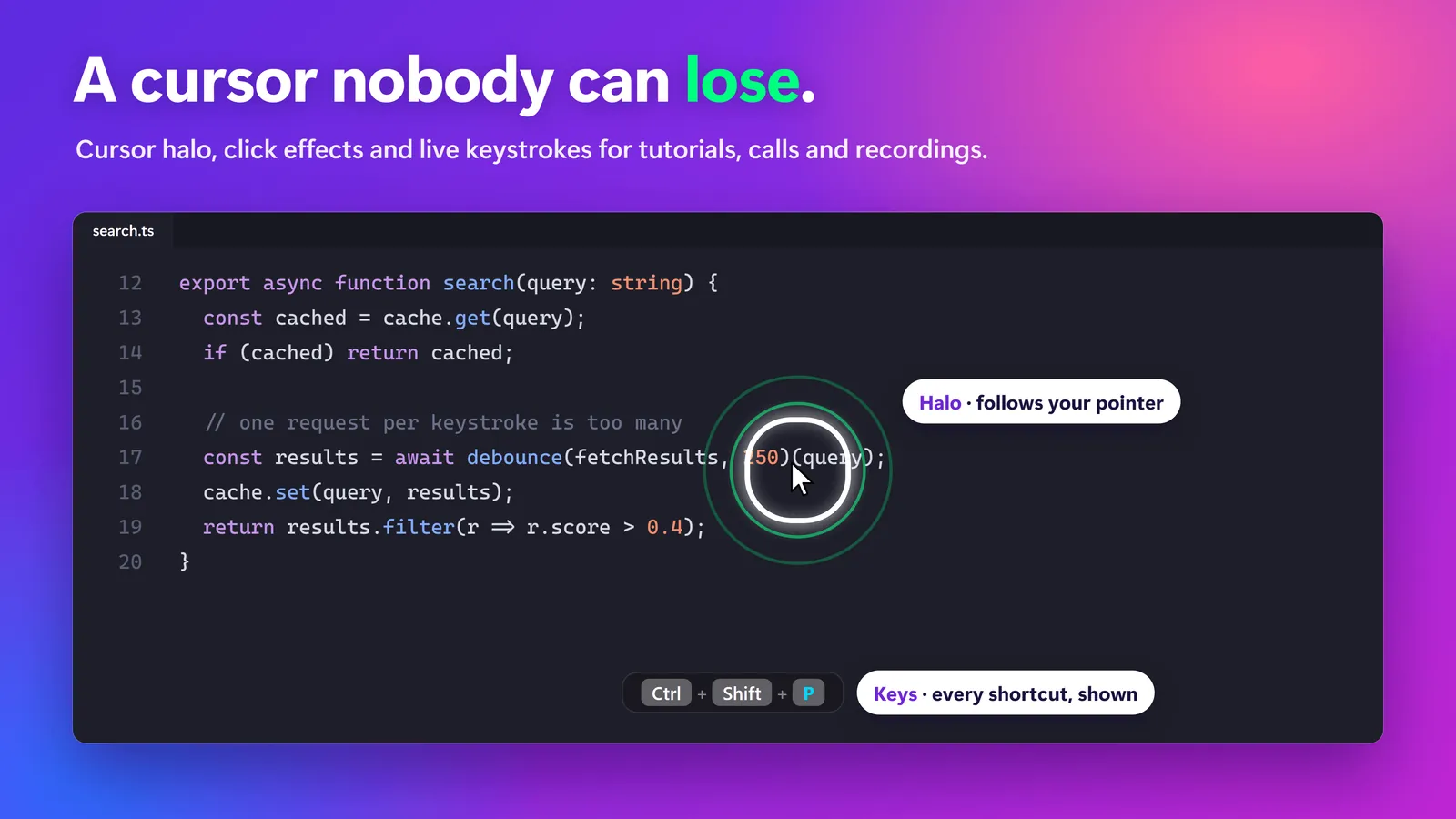
Most keystroke tools put the keys in a screen corner, so viewers look away from the action to read them. SHARA, the Windows overlay we make, puts a keystroke pill next to the pointer instead. It shows the shortcuts, typed words, clicks and scroll you use, and it can follow the pointer or sit at one of three anchor positions. Learn more about how SHARA’s keystroke visualizer works.
- Install SHARA on the Microsoft Store. Every install gets all Pro tools for 14 days, with no card and no account.
- Press Ctrl+Win+T to turn the keystroke pill on. It is off by default, and you can rebind the hotkey.
- Choose whether the pill follows the pointer or stays at an anchor position.
- Share or record your screen, not a single window, in Teams, Zoom or OBS. SHARA draws on the real screen, so viewers see the pill and the halo.
When the cursor is in a password field, the pill pauses completely and drops those keys, so nothing about the password reaches the screen. That protection is never behind the paywall. The same app gives you a free cursor halo that helps you highlight the mouse pointer in Windows, plus a free Pen, Laser, Arrow and Text on the Ctrl+Space Wheel.
| Pros | Cons |
|---|---|
Shortcuts appear next to the pointer, where viewers already look Shows typed words, clicks and scroll as well as shortcuts Pauses completely in password fields Halo, Pen, Laser, Arrow, Text and the Wheel stay free forever One-time upgrade, no subscription | The keystroke pill is a Pro tool once the 14-day trial ends Not open source Windows 10 (2004+) and 11 only; English interface Doesn’t record video: pair it with OBS or your call app |
If your viewers mostly lose the pointer rather than the shortcut, compare the best cursor highlighter apps for Windows first.
Free vs Pro: Free forever: cursor halo, click animation, Pen, Laser, Arrow, Text, Eraser, Screenshot and the Ctrl+Space Wheel. Every Pro tool is free for your first 14 days, with no card and no account. After that, Pro is a one-time purchase ($19.99 in the US).
Free Open-Source Keystroke Overlays
If you want keystrokes on screen for free, with no time limit, these three open-source overlays show your keys as captions over any app. All three are visible in screen shares and recordings because they draw on the desktop.
KeyViz
KeyViz is a free, open-source (GPL-3.0) keystroke visualizer for Windows and macOS; on Windows you install it from the .msi on its GitHub page. You can style the keys (colours for modifier and regular keys, size, layout, border, background and animations), show mouse clicks and scroll next to the cursor, and control which keys appear with a hotkey or custom filters. The latest release on 27 October 2026 was v2.1.1-beta, from 1 April 2026.
| Pros | Cons |
|---|---|
Free with no time limit, and actively developed The most styling options of the free tools Shows mouse clicks and scroll | The current release is labelled beta Keys only: no cursor halo or screen pen Set up its filters before you type a password on stream |
Carnac
Carnac, from the Code52 project, is a free (MS-PL) keyboard display built for presentations and screencasts. It shows keys and mouse clicks, and Ctrl+Alt+P switches on Silent mode so it stops showing what you type. Install it from the release zip (Setup.exe) or with Chocolatey (cinst carnac). It needs .NET Framework 4.5.2, and the latest release is 2.3.13, from 20 June 2020.
| Pros | Cons |
|---|---|
Free and open source A Silent mode hotkey for private typing Shows mouse clicks as well as keys | No new release since June 2020 Needs .NET Framework 4.5.2 Captions sit away from the pointer |
KeyCastOW
KeyCastOW is a free (MIT) keystroke display for screencasts. It is a portable program of about 100 KB that depends only on Windows system files, has many display settings, and a hotkey turns the display on and off. Its GitHub page lists no tagged releases, so expect an older, quiet project.
| Pros | Cons |
|---|---|
Tiny and portable: nothing to install Many settings for the caption look | No tagged releases on GitHub Mouse click display is not listed on its page |
Show Keystrokes Only in Your OBS Stream
If you stream or record with OBS Studio and don’t want keys on your own desktop, use a plugin instead of an overlay. Input Overlay by univrsal adds a source that shows keyboard, mouse and gamepad input inside your OBS scene. Version 5.0.5 (updated 7 May 2024) supports 64-bit Windows and Linux. Because it lives in OBS, viewers on Zoom or Teams never see it.
If you use a desktop overlay (SHARA, KeyViz, Carnac or KeyCastOW) with OBS instead, record with Display Capture. Window Capture records one app window and can miss overlays drawn on top of it.
How to Keep Passwords Off Screen
A tool that shows every key will also show what you type into a login box. Check how your tool handles it before you go live:
- SHARA: the pill pauses completely in password fields and drops those keys. You don’t need to do anything.
- KeyViz: set up its key filters, or use its hotkey to hide keys before you sign in.
- Carnac: press Ctrl+Alt+P for Silent mode, and again when you’re done.
- KeyCastOW: press its hotkey to turn the display off.
- On-Screen Keyboard: close it; it lights up every key.
Whatever you use, make a short test recording, sign in to a dummy account, and watch it back before you record for real.
Which Keystroke Display Should You Choose?
- Choose SHARA if you record software or CAD tutorials, or present on Zoom and Teams, and want viewers to read each shortcut right where the pointer is, with password fields handled for you.
- Choose KeyViz if you want free, styled key captions with no time limit.
- Choose Carnac or KeyCastOW if you want a simple free caption and don’t mind an older project.
- Choose Input Overlay if you stream with OBS and want keys only in the stream, including a gamepad.
- Use the On-Screen Keyboard if you need a one-off answer on a PC where you can’t install anything.
Many tutorials need more than keys. If you also want to circle a menu or underline a line of code while you talk, see how to draw on your screen in Windows while you explain.
When SHARA Is Not the Right Fit
- You need the keystroke display free forever: KeyViz or Carnac never expire, while SHARA’s pill is a Pro tool after 14 days.
- You record on a Mac: SHARA is Windows only. KeyViz also runs on macOS.
- You want keys only in an OBS stream, or you need gamepad input: Input Overlay fits better.
- You need open-source software for policy reasons: all three free overlays are open source; SHARA is not.
Frequently Asked Questions
Does Windows have a built-in way to show keystrokes on screen?
Not a keystroke overlay, but the On-Screen Keyboard comes close. Press Win+Ctrl+O, or turn it on in Settings › Accessibility › Keyboard, and each key you press lights up on it. It doesn’t show mouse clicks and it lights up every letter, so close it before typing a password.
Is SHARA free?
Yes. Free forever: cursor halo, click animation, Pen, Laser, Arrow, Text, Eraser, Screenshot and the Ctrl+Space Wheel. Every Pro tool, including the keystroke pill, is free for your first 14 days, with no card and no account. After that, Pro is a one-time purchase ($19.99 in the US). Get SHARA on the Microsoft Store.
How do I stop a keystroke display from showing my password?
SHARA’s keystroke pill pauses completely in password fields, so it shows nothing while you type there. With other tools, turn the display off before you sign in: Carnac’s Silent mode is Ctrl+Alt+P, KeyViz has key filters and a hotkey, and KeyCastOW has a hotkey to hide it.
Will viewers see my keystrokes in Zoom, Teams or OBS?
Desktop overlays such as SHARA, KeyViz, Carnac and KeyCastOW draw on the screen, so viewers see them when you share or record the whole screen. In OBS, use Display Capture. The Input Overlay plugin shows keys only inside OBS, so Zoom and Teams viewers won’t see it.
None of these worked — what now?
First share or record the whole screen instead of one window, because window sharing can leave overlays out. In OBS, switch from Window Capture to Display Capture. If the keys still don’t appear, try a different tool from the table above, or use the Input Overlay plugin, which draws the keys inside OBS itself.
Sources consulted: Microsoft Support: Use the On-Screen Keyboard; Microsoft Support: Windows keyboard shortcuts for accessibility; KeyViz on GitHub; Carnac on GitHub; KeyCastOW on GitHub; Input Overlay on the OBS resources site.
About the author: Mashyo is the founder of Creator Kit, the developer of SHARA. This guide puts the free Windows and open-source options next to our own app so you can pick the one that fits your recording.
Last reviewed: .