The best cursor lock for Windows 11 depends on the job. LockSpot is the best Microsoft Store choice for automatically locking one game free, with custom zones and Cursor Freeze in Pro. AutoCursorLock is the best free open-source automatic lock. Dual Monitor Tools is best for a manual monitor-wide hotkey lock. DisplayFusion is best when cursor locking is only one part of a larger multi-monitor workflow.
Best Cursor Lock Apps by Use Case
This comparison was updated on July 2026 using official project pages, vendor documentation, and current pricing pages. It focuses on the specific thing most gamers search for: stopping the mouse from leaving a game, window, monitor, or custom area on a multi-monitor Windows setup.
Disclosure: Creator Kit develops LockSpot and publishes this comparison. Competitor strengths, official links, pricing, and LockSpot limitations are included so the recommendation is useful even if LockSpot is not the right fit for your setup.
| Your priority | Best fit | Why |
|---|---|---|
| One game, automatic focus lock, Microsoft Store install | LockSpot FreeTop Pick | Add the game once, lock on focus, release on Alt-Tab, no setup-heavy suite |
| Multiple games plus saved custom zones | LockSpot Pro | One-time $3.99 upgrade adds unlimited apps, saved zones, and Cursor Freeze |
| Free open-source automatic window lock | AutoCursorLock | Locks selected windows while focused and unlocks on Alt-Tab |
| Free manual monitor-wide hotkey lock | Dual Monitor Tools | Mature multi-monitor utility with cursor monitor lock and resistance |
| Advanced monitor profiles, triggers, and desktop automation | DisplayFusion | Broad paid suite with cursor functions as one feature among many |
Full Cursor Lock Comparison
| Tool | Price checked July 2026 | Automatic app lock | Window / monitor lock | Custom region | Install source |
|---|---|---|---|---|---|
| LockSpotBest Store Pick | Free for 1 app; Pro $3.99 one time | Yes, Smart Auto-Jail follows app focus | Window and custom zones | Yes, 2-minute preview; saved zones in Pro | Microsoft Store |
| Dual Monitor Tools | Free, open source | No automatic app-following lock in the core cursor module | Monitor lock and monitor resistance | No arbitrary custom cursor region documented | SourceForge MSI or portable download |
| AutoCursorLock | Free, open source | Yes, selected app focus | Window border or whole monitor | No arbitrary custom region documented | GitHub release |
| DisplayFusion | Pro Standard $34 per machine; Personal $49 | Possible with functions, hotkeys, and automation | Focused window or current monitor | No arbitrary cursor region in the current cursor-functions guide | Vendor installer or Steam |
Prices and downloads can change. Check the official pages before purchasing or recommending a tool to a team. SourceForge listed Dual Monitor Tools at more than 3,200 downloads for the week and a July 7, 2026 project update when this article was reviewed.
LockSpot: Best Microsoft Store Cursor Lock for Games
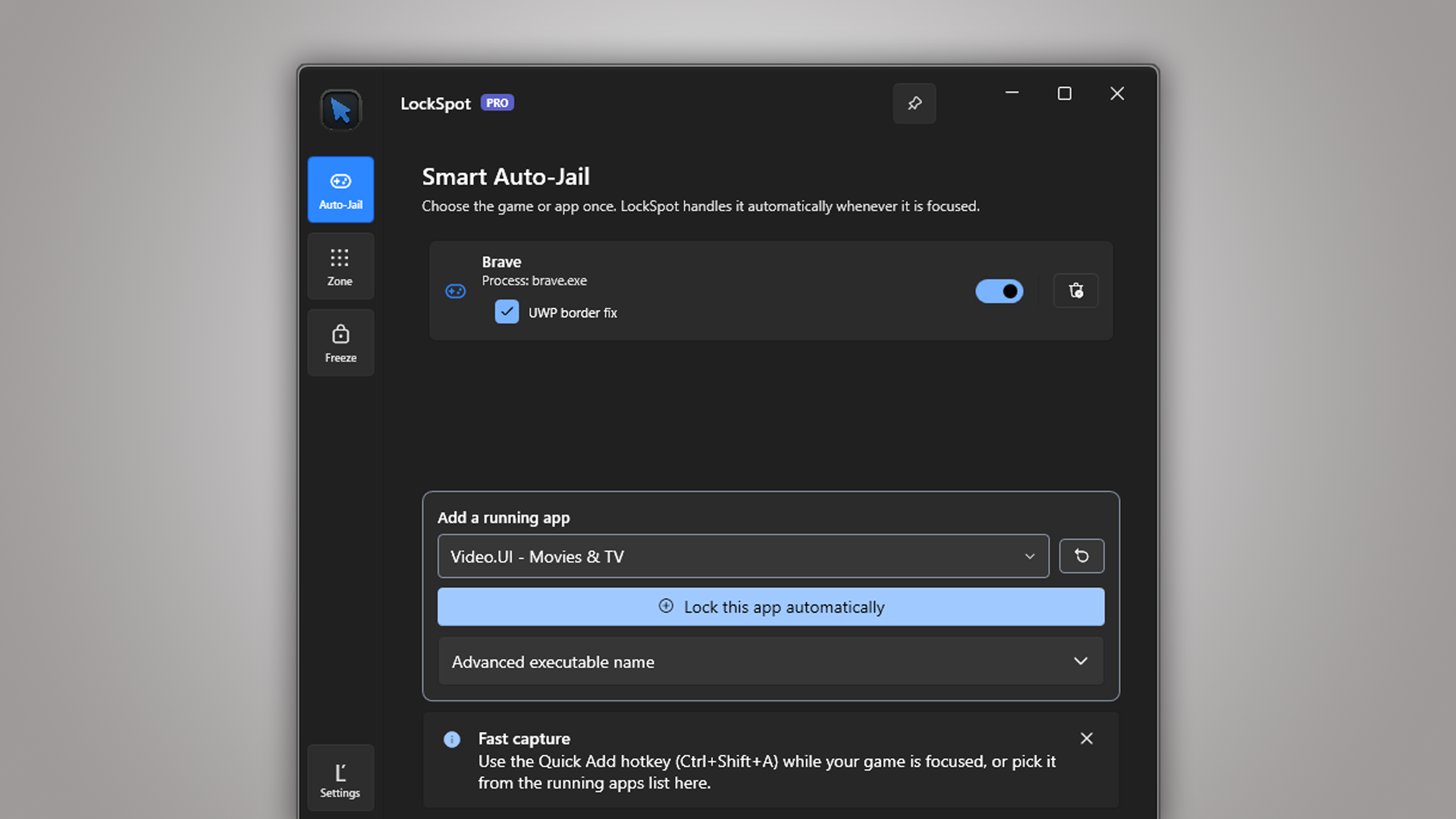
LockSpot is built around application focus. Add a game once, and Smart Auto-Jail confines the cursor whenever that game is active. Alt-Tab away and the boundary drops. Return to the game and it reapplies automatically.
Where LockSpot Wins
- Microsoft Store installation and updates
- One app included free, enough to fix one problem game
- Quick Add captures the focused game instead of its launcher
- Auto-Jail releases when the game loses focus and reapplies when it returns
- Custom Zone Lock with a two-minute free preview; saved zones in Pro
- Cursor Freeze, unlock phrase, unlimited apps, and saved zones in Pro
- No game injection, input simulation, keyboard blocking, or launcher wrapper
Where LockSpot Is Not the Best Fit
LockSpot is Windows-only and intentionally narrow. If you want wallpaper management, taskbars, monitor profiles, large automation chains, or a general multi-monitor suite, DisplayFusion or Dual Monitor Tools covers more ground. If your only priority is open-source software with no Store dependency, AutoCursorLock is the more natural comparison.
Dual Monitor Tools: Best Free Manual Monitor Lock
Dual Monitor Tools is a mature open-source suite for Windows users with multiple monitors. Its SourceForge page lists features for moving windows between monitors, launching apps on specific displays, locking the cursor onto a monitor, adding resistance between monitors, wallpaper tools, and screen capture.
Choose DMT when your goal is “keep the cursor on this monitor until I press a hotkey.” It is less direct if your goal is “automatically follow this specific game window every time I play.”
Best DMT use case: a free manual monitor wall for work, browsing, and games where a whole-screen lock is enough.
AutoCursorLock: Best Free Open-Source Automatic Game Lock
AutoCursorLock is the closest free open-source alternative to LockSpot’s automatic game behavior. Its GitHub README describes locking the cursor to a selected window or monitor while an application is in focus, unlocking on Alt-Tab, and relocking when focus returns.
Choose AutoCursorLock if you want automatic focus behavior, open-source code, and no paid upgrade. Choose LockSpot instead if you prefer Microsoft Store distribution, guided setup, custom zones, Cursor Freeze, and a more polished one-game-free path.
DisplayFusion: Best Advanced Multi-Monitor Suite
DisplayFusion’s official Mouse Cursor Functions guide documents cursor functions that lock the pointer to the current focused window or current monitor. The larger product also covers monitor profiles, window positioning, taskbars, wallpaper, scripted functions, and automation.
The tradeoff is cost and complexity. Current DisplayFusion Pro pricing lists $34 for Pro Standard on one machine and $49 for Pro Personal across personal computers in one household. That can be good value for a power user, but it is more than most players need if the only job is stopping one game from losing the mouse.
The Honest Recommendation
Start with the smallest tool that solves the actual cursor problem. If one Windows 11 game keeps throwing the mouse onto another monitor, install LockSpot and use the free Auto-Jail slot. If you want a free open-source automatic utility and are comfortable with GitHub releases, try AutoCursorLock. If you want a manual monitor hotkey, use Dual Monitor Tools. If cursor locking is one small part of a broader display automation workflow, evaluate DisplayFusion.
Lock one game free before paying for a full multi-monitor suite
LockSpot is built for the common gaming problem: the cursor leaves the active game window and clicks another monitor. Add the game once, let Auto-Jail follow focus, and keep Alt-Tab behavior intact.
Frequently Asked Questions
What is the best free cursor lock for Windows 11 gaming?
LockSpot Free is the easiest Microsoft Store choice for one game. AutoCursorLock is the strongest free open-source automatic option. Dual Monitor Tools is best for a free manual monitor-wide lock.
Is Dual Monitor Tools better than LockSpot?
Dual Monitor Tools is better for free manual monitor locking and broader multi-monitor utilities. LockSpot is better for Store-installed, focus-aware game locking with custom zones and a guided one-app-free setup.
Does DisplayFusion lock the mouse to a window?
Yes. DisplayFusion documents functions to lock and unlock the mouse cursor to the current focused window or current monitor. It is a broader paid suite, not just a cursor-lock app.
Does PowerToys lock the cursor to one game?
No direct per-game cursor lock is currently part of PowerToys. Microsoft’s current PowerToys mouse utilities cover CursorWrap, Find My Mouse, Mouse Highlighter, Mouse Jump, and Crosshairs; those are not the same as game-window confinement.
Sources consulted: Dual Monitor Tools on SourceForge; AutoCursorLock on GitHub; DisplayFusion cursor functions; DisplayFusion pricing; Microsoft PowerToys mouse utilities; Microsoft Win32 ClipCursor documentation.
About the author: Mashyo is the founder of Creator Kit, which develops LockSpot. Competitor information links to official project and vendor pages so claims can be independently checked.
Last reviewed: