If your mouse keeps escaping to a second monitor while gaming, first toggle the game from Fullscreen to Windowed and back to Fullscreen. Then, check for an in-game “lock cursor” option and temporarily disable overlays. If the cursor still escapes, LockSpot can automatically confine it to the active game window whenever it has focus—and release it instantly when you Alt+Tab. One app is included entirely free.
Why Does the Mouse Leave the Game Window?
A game normally asks Windows to confine the pointer while its window is active. On Windows, this is commonly handled through cursor-clipping behavior such as the documented ClipCursor API. The cursor can escape when the game changes display mode, an overlay interrupts focus, the visible window and its calculated boundary disagree, or the game simply fails to reapply confinement.
Multi-monitor users notice the failure immediately: the invisible Windows pointer crosses onto the other display, the next click lands on Discord, a browser, or the desktop, and the game minimizes or stops reading mouse input. Microsoft support threads document the same symptom across multiple fullscreen games on Windows 11.
Seven Fixes, From Fastest to Most Reliable
| Fix Method | Setup Speed | Reliability | Best for |
|---|---|---|---|
| 1. In-Game Toggle (Borderless/Fullscreen) | Instant | Low (often slips again) | Fast temporary resets |
| 2. In-Game Cursor Lock Settings | Instant | Medium (game-dependent) | Games with native restrictions |
| 3. Disable Background Overlays | 2 Mins | Medium | Resolving sudden window conflicts |
| 4. Primary Monitor Alignment | 2 Mins | Low | Basic desktop organization |
| 5. GPU & Windows Updates | 10 Mins | Medium | Fixing bugs after system upgrades |
| 6. Match Permissions (Run as Admin) | 1 Min | Medium | Administrative mismatch resolutions |
| 7. LockSpot (Smart Auto-Jail)Top Pick | 1 Min | High (Automatic confinement) | Set-it-and-forget-it cursor lock |
1. Reset the Game’s Fullscreen Cursor Capture
- Open the game’s Video or Display settings.
- Change Fullscreen to Windowed or Borderless.
- Apply the setting.
- Switch back to Fullscreen and apply again.
- Restart the game if the setting does not take effect immediately.
This forces the game to request cursor capture again. It is also the first fix Epic recommends for Fortnite players whose pointer jumps between monitors.
2. Enable the Game’s Cursor-Lock Setting
Look under Controls, Mouse, Gameplay, or Accessibility for an option named Lock Cursor to Window, Confine Mouse, Clamp Mouse Cursor, or Restrict Cursor. The wording varies. Turn it on, apply the change, then test both gameplay and inventory or map screens.
3. Test Without Xbox Game Bar and Other Overlays
Xbox Game Bar, Discord, Steam, GPU overlays, capture utilities, and mouse software can temporarily change focus. Close them for one test session. If the problem disappears, re-enable them one at a time instead of permanently uninstalling everything.
4. Check Which Monitor Is Primary
Go to Settings → System → Display, select the gaming monitor, and verify that it is your main display. Arrange the monitor rectangles so they match the physical layout. Misalignment can reduce the shared edge, but it is not a true cursor lock and should not be presented as a permanent fix.
5. Update the Game, Windows, and Your GPU Driver
If cursor capture broke immediately after an update, check for a newer hotfix before rolling anything back. Update one component at a time and retest. That preserves a clear cause-and-effect trail.
6. Match Permission Levels
Windows may prevent a normal desktop utility from constraining an elevated administrator window. If you intentionally run the game as administrator, a cursor-lock utility may need the same permission level. Avoid running games elevated unless they genuinely require it.
7. Automatically Lock the Cursor When the Game Has Focus
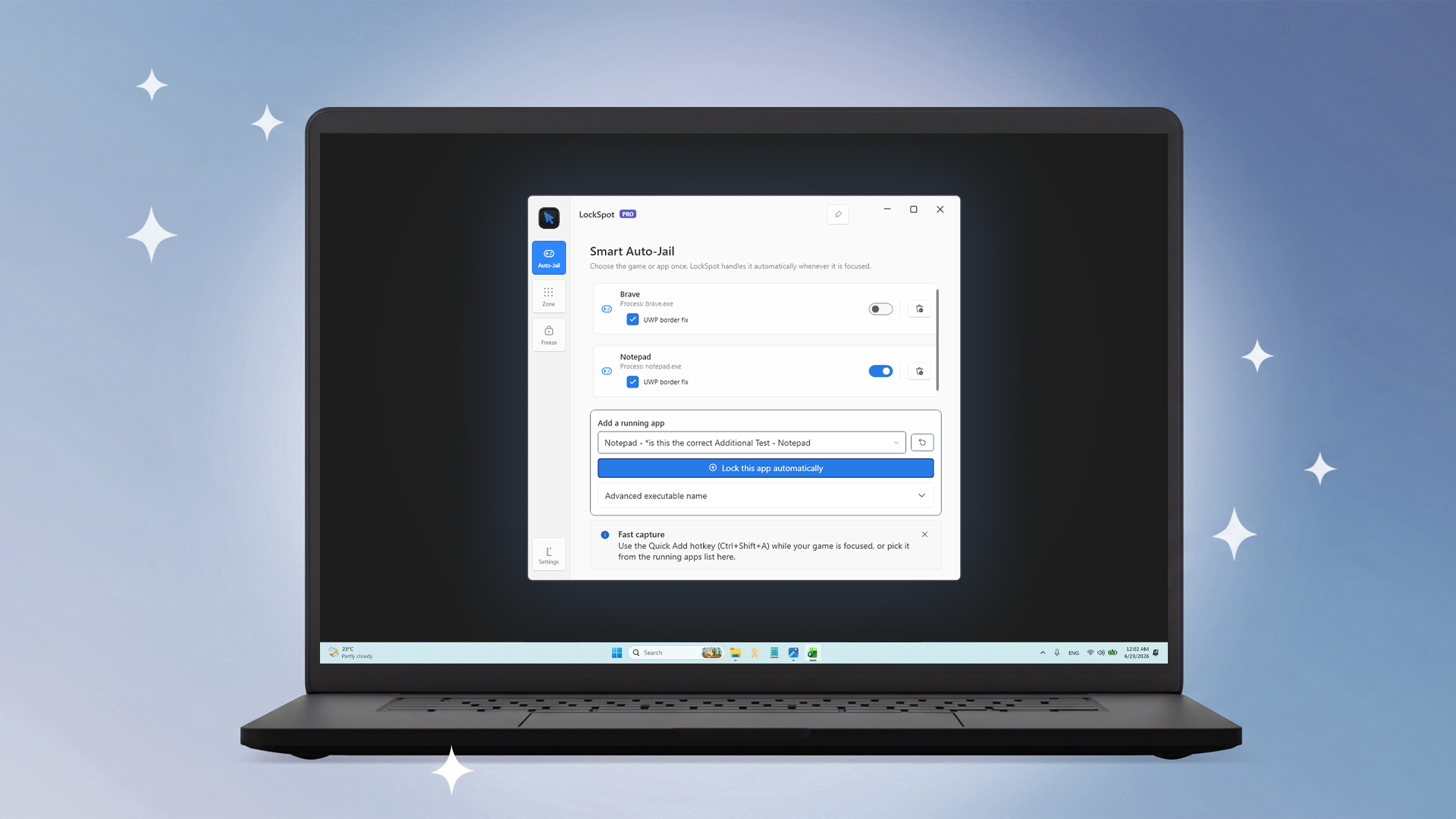
If the game’s own capture fails, use an application-aware lock instead of manually disabling your second monitor. LockSpot’s Smart Auto-Jail watches the focused application and confines the cursor to that window only while it is active.
How to Lock the Mouse to a Game With LockSpot
- Install LockSpot from the Microsoft Store.
- Launch the game and leave it running.
- Open LockSpot’s Auto-Jail tab.
- Choose the game under Add a running app and select Lock this app automatically.
- Return to the game and move the pointer toward every monitor edge to verify the boundary.
The faster method is to focus the actual game and press LockSpot’s Quick Add focused app hotkey, Ctrl+Shift+A by default. This avoids accidentally selecting a launcher instead of the game process.
Safety controls: Alt-Tab releases an Auto-Jail lock automatically. Holding the default Left Alt override suspends it for up to three seconds, and Ctrl+Shift+U releases every LockSpot boundary. All shortcuts are configurable.
Does LockSpot Add Input Lag or Control the Game?
LockSpot confines the Windows pointer. It does not move your mouse, replay input, lock the keyboard, inject code into the game, or launch the game through a wrapper. Its job is deliberately narrow: maintain the cursor rectangle while the selected app is focused.
Confine your cursor automatically to any active game window
LockSpot runs in the background and locks your pointer to any designated game window on launch, then instantly releases it on Alt+Tab.
Frequently Asked Questions
Why does clicking my second monitor minimize the game?
The click changes focus from the game to another window or the desktop. Exclusive fullscreen games may minimize; borderless games may remain visible but stop receiving mouse input.
Can Windows lock the mouse to one monitor without software?
Windows Display settings can change monitor alignment, but they do not provide a dependable per-game cursor lock. Games must request confinement themselves, or a utility must apply it.
Can I still use my second monitor?
Yes. Alt-Tab away from an Auto-Jailed game and LockSpot releases the pointer. When you return, it reapplies the boundary automatically.
Sources consulted: Microsoft Q&A: fullscreen games and second-monitor cursor escape; Microsoft Win32 ClipCursor documentation.
About the author: Mashyo is the founder of Creator Kit, the developer of LockSpot. This guide distinguishes free Windows and game-level fixes from the publisher’s own product so readers can choose the least invasive solution that works.
Last reviewed: . References checked against Microsoft’s Win32 documentation, current Microsoft support discussions, and the LockSpot 1.0 application behavior.