Windows 11 has no built-in pixel ruler, but two free tools measure anything on screen. In SIVA (free, Microsoft Store), press Ctrl+Shift+X, drag roughly over an element and the box snaps to its exact edges; press H on each element to label every gap. Measuring stays free forever. Microsoft’s PowerToys Screen Ruler (Win+Ctrl+Shift+M) is the other free option.
Creator Kit makes SIVA.
Does Windows 11 Have a Built-In Measure Tool?
No. Windows 11 tells you your screen’s resolution and scale (Settings › System › Display), but it has no tool that measures a button, an image or the gap between two elements. To measure pixels on screen you need a small free utility. Two are worth installing:
- SIVA (our app): drag roughly and it snaps to the element’s edges, labels every gap in a row at once, and freezes menus and tooltips so you can measure them.
- PowerToys Screen Ruler (Microsoft, open source): a quick ruler for one box or one spacing at a time.
Both are free. If you want a wider look at every option, see our comparison of the best screen rulers for Windows 11.
Method 1: Snap to an Element’s Exact Edges With SIVA (Free)
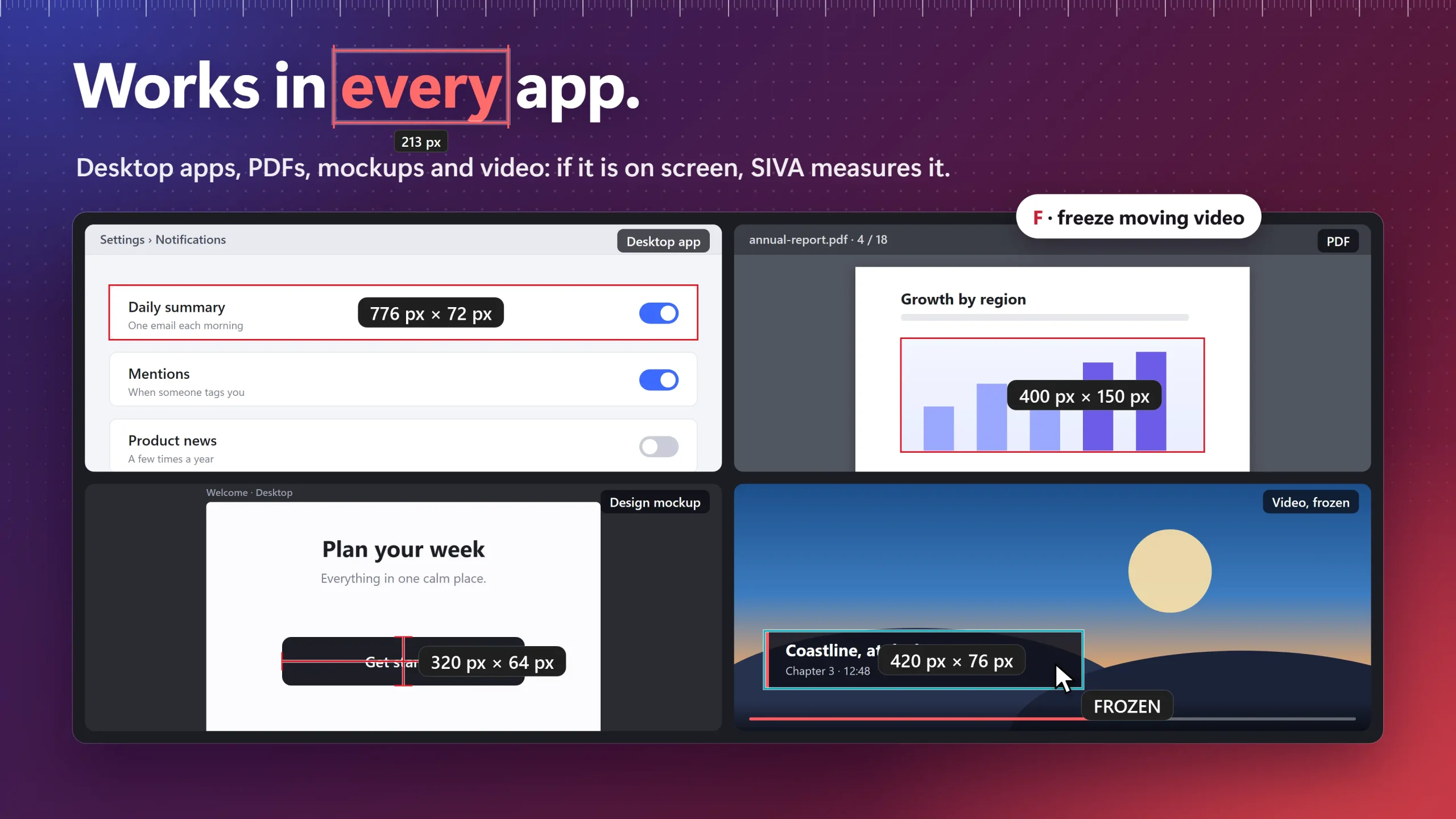
SIVA reads the colour edges under your cursor, so you don’t have to line anything up by hand. It works over any app: browsers, design tools, PDFs, desktop apps and video.
- Install SIVA on the Microsoft Store. No account is needed.
- Open the window you want to measure and press Ctrl+Shift+X. SIVA’s overlay opens on every monitor.
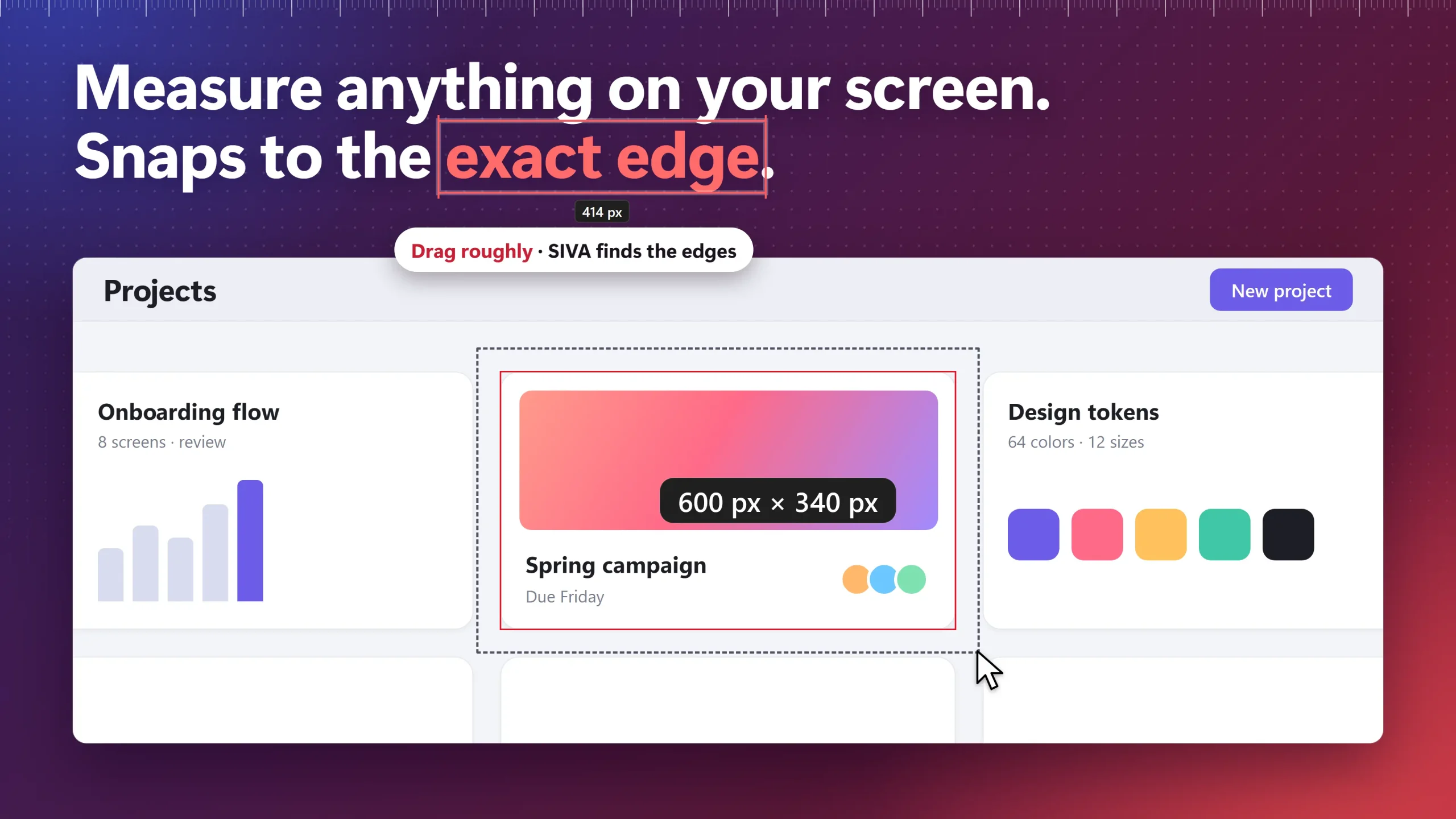
- Hover over an element. SIVA shows its size, and the gaps to its neighbours appear automatically.
- Drag a rough box around the element. When you let go, the box snaps to the element’s real edges. Hold Ctrl while dragging to flip snapping and draw a free box instead.
- Click to pin the measurement, so it stays on screen while you measure the next element.
- Press C to copy the size as plain text (“320 px x 240 px”), Shift+C for the width only or Alt+C for the height.
- Press Ctrl+Shift+X again to close the overlay.
Snap missing an edge on a gradient or a soft shadow? Press T to cycle the edge tolerance (Low, Medium, High) and drag again. A higher tolerance ignores small colour changes, such as a gradient.
Measure any element on screen in one drag
SIVA snaps to the exact edges, labels every width and gap in a row, and freezes menus and tooltips so you can measure them. It works offline in any app.
Free vs Pro: Measuring is free forever: snapping, pins, guides, rails, freeze, colour picker and plain screenshots. All Pro tools are free for 14 days from first launch, then Pro is a one-time $9.99 (US).
Measure Every Gap in a Row at Once
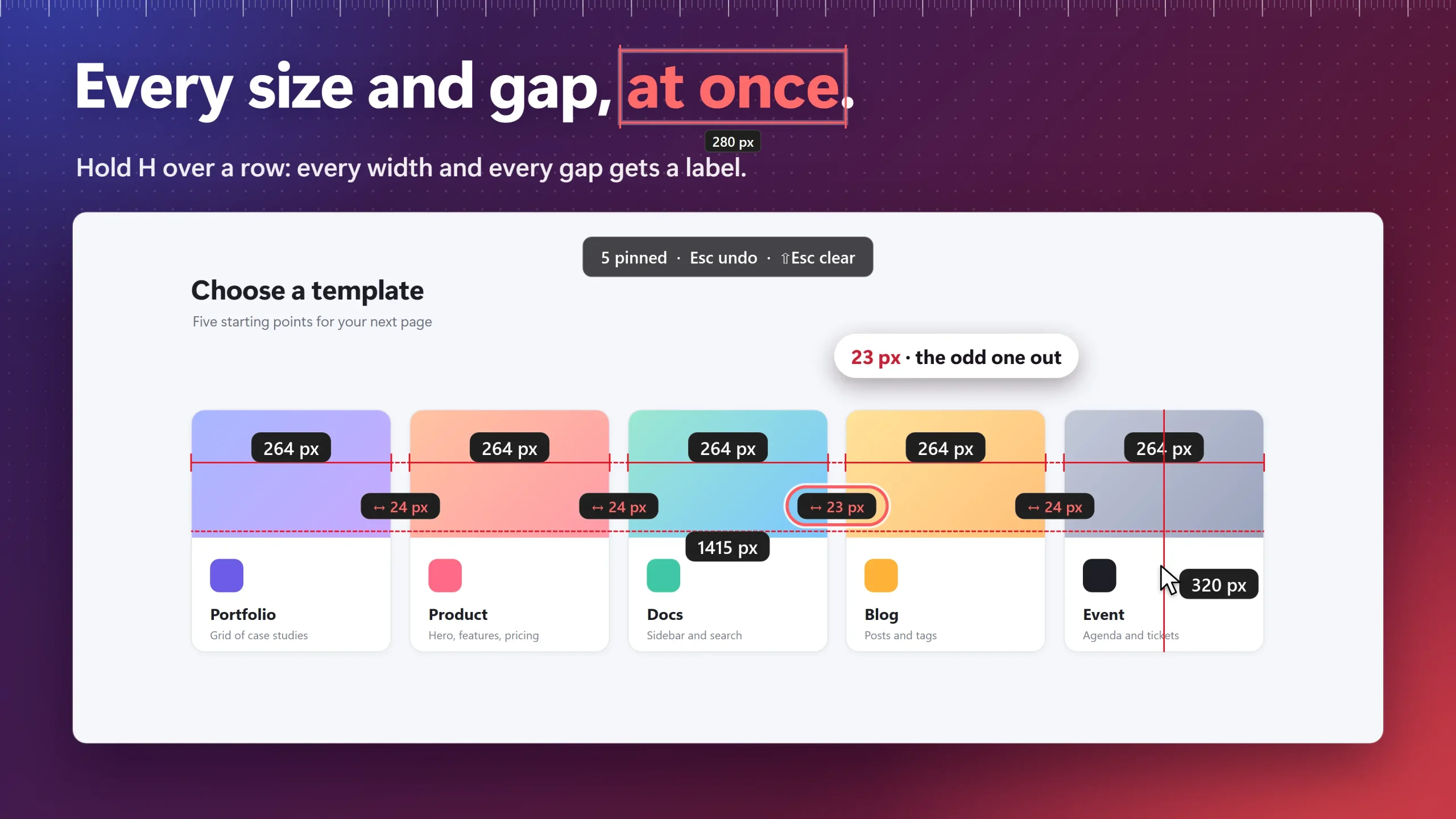
When one gap in a row of cards, buttons or icons looks off, measuring each gap one by one is slow, and it is easy to miss the odd one. SIVA’s rails label the whole row in one pass:
- Open SIVA with Ctrl+Shift+X and point at the first element in the row.
- Press H, then move to the next element and press H again. Repeat for each element in the row.
- SIVA labels every width, every gap and the total length of the row. A 23 px gap among 24 px gaps stands out at a glance.
- For a column, press V on each element instead.
Measure Menus, Tooltips and Video Frames That Won’t Hold Still
Dropdown menus and tooltips close as soon as you move the mouse to measure them, and video keeps moving. With the menu or frame on screen, press F. SIVA freezes the frame it measures, so you can drag, pin and copy sizes from that still image. The video or app behind it keeps running as normal.
Three more free tools help with layout checks:
- Alt-drag is a tape measure: it shows the straight-line distance between any two points.
- Hold G to place guides, then line elements up against them.
- S saves a plain screenshot of what you pinned or hovered.
Method 2: Microsoft’s Free Ruler Utility (Win+Ctrl+Shift+M)
Screen Ruler is one of the free, open-source PowerToys utilities from Microsoft. It suits quick checks if you already use PowerToys.
- Install PowerToys from the Microsoft Store or Microsoft’s install page, or run
winget install --id Microsoft.PowerToys --source winget. - Open PowerToys Settings and make sure Screen Ruler is turned on.
- Press Win+Ctrl+Shift+M to open the toolbar.
- Pick a tool (or press Ctrl+1 to Ctrl+4): Bounds to drag a box (hold Shift to keep boxes on screen), Spacing for horizontal and vertical at once, or Horizontal or Vertical alone.
- Click to copy the measurement to the clipboard. Press Esc to close.
Tip: if a spacing line stops short on a gradient or shadow, scroll up with the mouse wheel. Each tick raises the pixel tolerance by 15. In Settings you can set the tolerance (0–255) and add a second unit: inches, centimetres, millimetres or display-independent pixels (DIP).
Pros: free and open source, made by Microsoft, and the DIP unit adjusts for display scaling. Cons: it measures one box or spacing at a time, it can’t label a whole row of gaps, and it installs the whole PowerToys suite, which some work PCs block.
Which Free Tool Should You Use?
| Tool | Free / Paid | Snaps to Edges | Every Gap in a Row | Menus and Tooltips | Units | Install |
|---|---|---|---|---|---|---|
| SIVAOur Pick | Free Pro $9.99 one-time (US price; local prices vary) | Drag roughly | H / V rails | F freezes | px, in, cm, mm | Microsoft Store |
| PowerToys Screen Ruler | Free (open source) | Edge detection | one at a time | single snapshot by default | px + in, cm, mm or DIP | Store, GitHub, WinGet |
Why SIVA is our pick: it answers the usual layout question (“which gap is off?”) in one pass, and its snap works from a rough drag. PowerToys Screen Ruler is a fine quick ruler, but it measures one thing at a time.
When SIVA is not the right fit: you already run PowerToys and only need the odd single measurement; you need to measure angles (SIVA measures distance only); or your PC blocks the Microsoft Store. SIVA’s own cons: its inch and centimetre values are estimates from your screen’s reported DPI, its app is in English only, and copying sizes as CSS or Tailwind is part of Pro.
Why Your Pixel Measurement Looks Wrong on a Scaled Display
Many laptops run Windows 11 at 125% or 150% scale, so the screen draws everything larger than its design size. A button built as 100 px wide in CSS covers 150 screen pixels at 150% scale, and a screen ruler reports those 150 pixels. That is correct for the screen, but it won’t match the design file.
- Open Settings › System › Display and read Scale under Scale & layout.
- Divide your measurement by the scale: 150 px at 150% = 100 px in the design.
- Or measure the page with the browser zoom at 100% on a monitor set to 100% scale.
PowerToys can show DIP values that do this division for you. SIVA runs one overlay per monitor and reads each monitor’s own DPI, so every screen is measured at its own scale. For a deeper look at SIVA’s keys and features, see the SIVA screen ruler page.
Frequently Asked Questions
Is SIVA free?
Yes. Measuring is free forever: snapping, pins, guides, rails, freeze, colour picker and plain screenshots. All Pro tools are free for 14 days from first launch, then Pro is a one-time $9.99 (US). Get SIVA on the Microsoft Store; no account is needed.
Does Windows 11 have a built-in pixel ruler?
No. Settings › System › Display shows your resolution and scale, but Windows 11 can’t measure an element on screen. Microsoft’s free PowerToys Screen Ruler (Win+Ctrl+Shift+M) is an add-on you install separately, and SIVA is a free Microsoft Store app.
How do I measure the distance between two points on my screen?
In SIVA, hold Alt and drag from one point to the other: the tape measure shows the straight-line distance. In PowerToys Screen Ruler, use the Horizontal or Vertical tool, or Spacing for both at once.
Can I measure in inches or centimetres instead of pixels?
Yes, as an estimate. SIVA can show px, in, cm or mm, estimated from your screen’s reported DPI. PowerToys Screen Ruler can add inches, centimetres, millimetres or DIP next to pixels. Check a physical size with a real ruler before you rely on it.
None of these worked — what now?
If the numbers look too big, check Settings › System › Display › Scale and divide by it (150 px at 150% = 100 px). If SIVA misses an edge, press T to change the tolerance, or hold Ctrl while dragging to draw a free box. If H, F or C do nothing, click the SIVA overlay first: single-letter keys work only while it has focus. Still stuck? Write to support@creatorkit.mashyo.com.
Stop guessing pixel sizes on Windows
Press Ctrl+Shift+X, drag roughly, and read the exact size. Then press H across a row to check every gap at once.
Sources consulted: Microsoft Learn: PowerToys Screen Ruler; Microsoft Learn: Install PowerToys; PowerToys releases on GitHub; Microsoft Support: change your screen resolution and layout.
About the author: Mashyo is the founder of Creator Kit, the developer of SIVA. This guide gives the free Microsoft option its own steps so readers can pick the tool that fits the job.
Last reviewed: