Windows 11 has a free color picker in Snipping Tool: press Print Screen, choose Color picker and click any pixel to copy its HEX, RGB or HSL code. PowerToys Color Picker (Win+Shift+C) adds a color history and custom formats. To pick colors while you measure, SIVA (free) gives you a Ctrl pixel loupe and copies Hex, RGB, HSL or Vec4.
Creator Kit makes SIVA.
Windows 11 Color Pickers Compared
All three tools below are free and read the real pixel under your cursor, so the code you copy is the color Windows is drawing on screen. They differ in where they live, which formats they copy and what else they do.
| Tool | Free / Paid | Install | Shortcut | Copies | Zoom | Best for |
|---|---|---|---|---|---|---|
| SIVAOur pick | Free Pro: $9.99 one-time (US price; local prices vary) | Microsoft Store app | Ctrl+Shift+X, then hold Ctrl | Hex, RGB, HSL, Vec4 | 11×11 loupe | Picking colors while you measure sizes and gaps |
| Snipping Tool | Free | Built into Windows 11 | Print Screen › Color picker | HEX, RGB, HSL | Scroll or Ctrl +/- | A quick code with nothing to install |
| PowerToys Color Picker | Free (open source) | PowerToys suite | Win+Shift+C | HEX by default, plus custom formats | Scroll (freezes the image) | Color history, fine-tuning and custom formats |
Why SIVA is our pick: it is the only one of the three that measures too, so you get the color and the size of the same element from one overlay, and it is the only one with Vec4 built in, for shader and game-engine work. If you only need one hex code and Snipping Tool already shows Color picker, use that.
Method 1: Snipping Tool’s Built-In Color Picker (No Install)
Microsoft added a color picker to Snipping Tool in version 11.2504.38.0 and announced it for all Windows 11 PCs in July 2025. It copies HEX, RGB or HSL.
- Press Print Screen (or Win+Shift+S) to open the Snipping Tool capture toolbar. You can also open Snipping Tool from Start.
- Select Color picker on the toolbar.
- Choose HEX, RGB or HSL as the format.
- Scroll on the pointer, or press Ctrl + and Ctrl –, to zoom in on small details.
- Click the pixel. The code goes to your clipboard, ready to paste.
Don’t see Color picker? Update Snipping Tool from the Microsoft Store first. Microsoft’s current Snipping Tool support page lists Color picker as a Copilot+ PC feature, so some PCs may not show it even after the update. If yours doesn’t, use one of the next two methods.
Pros: already on your PC, nothing to configure, three common formats. Cons: it may be missing on some PCs, and it only picks colors: no sizes, no Vec4.
Method 2: SIVA, a Pixel-Exact Color Picker That Also Measures
SIVA, our screen ruler and pixel measure app, has a color picker built into its measuring overlay. It runs offline, needs no account, and the picker is part of the free tier.
- Install SIVA from the Microsoft Store (Windows 10 or 11).
- Press Ctrl+Shift+X to start SIVA over any app: a browser, a PDF, a design mockup or a video.
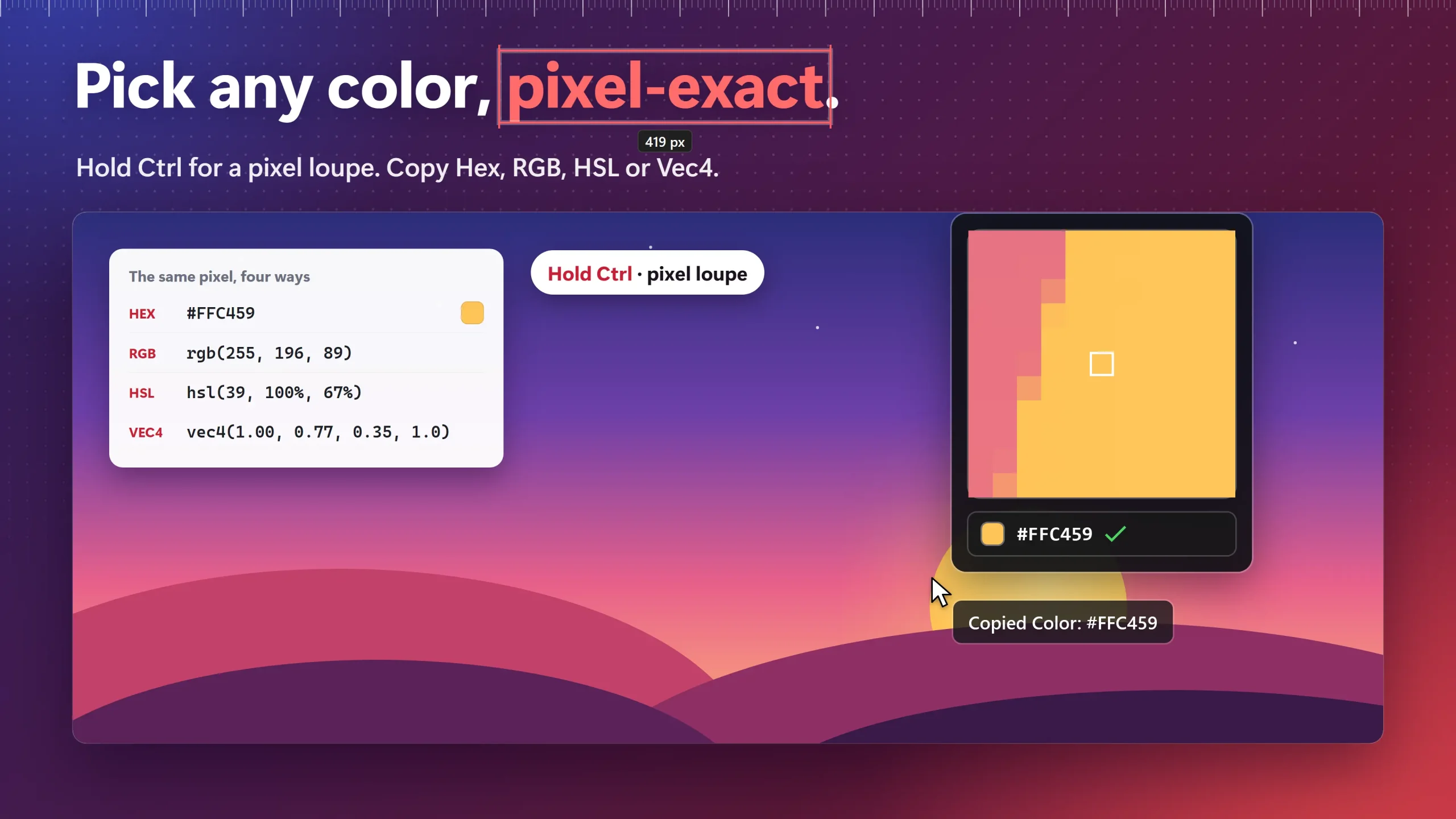
- Hold Ctrl. An 11×11 pixel loupe appears under the cursor, so you can land on the exact pixel instead of an anti-aliased edge.
- While holding Ctrl, press C (Ctrl+C). SIVA copies the color as Hex by default; it can also copy RGB, HSL or Vec4.
- Paste the code into your CSS, Figma, PowerPoint or shader. Press Ctrl+Shift+X again to close SIVA.
The same overlay measures the element you just sampled. Hover to see its size, drag roughly and the box snaps to the real edges, and press C to copy the size as plain text (“320 px x 240 px”). Press F to freeze the frame SIVA measures when a tooltip or hover menu disappears too fast. SIVA is hidden from screen shares by default, so you can sample colors during a call without the overlay showing.
Pros: pixel loupe, four formats including Vec4, color and size from one tool, offline. Cons: a separate install from the Microsoft Store, English only, and if you only want a hex code once, Snipping Tool is quicker.
Free vs Pro: Measuring is free forever: snapping, pins, guides, rails, freeze, colour picker and plain screenshots. All Pro tools are free for 14 days from first launch, then Pro is a one-time $9.99 (US).
Pick any color and measure it, in one overlay
Hold Ctrl for a pixel loupe, copy Hex, RGB, HSL or Vec4, and read the size of the same element without switching tools.
Method 3: PowerToys Color Picker (Win+Shift+C)
PowerToys Color Picker is part of Microsoft’s free, open-source PowerToys suite. Its strength is what happens after the pick: a color history, a fine-tuning editor and custom formats.
- Install Microsoft PowerToys from the Microsoft Store.
- Open PowerToys Settings and turn on Color Picker.
- Press Win+Shift+C. Scroll up to zoom; the image freezes so you can aim.
- Left-click to copy the color and open the editor, or click the scroll wheel to copy it and close. Right-click cancels.
- The code is copied in the Default color format (HEX unless you change it in settings).
The editor keeps your last 20 colors, lets you fine-tune a color’s HSV, RGB and HEX values, and exports the history. In settings you can add custom formats, for example a new Color(R, G, B) line for your code.
Pros: history, editor and custom formats; free and open source. Cons: you install the whole PowerToys suite, the shortcut doesn’t work over an app run as administrator unless PowerToys is too, HDR and wide-color-gamut formats aren’t supported, and PowerToys is often blocked on managed work PCs.
Picked Color Looks Wrong? 3 Checks
- You hit an edge pixel. Text and icon edges are anti-aliased, so one pixel off gives a blend of two colors. Zoom in first (SIVA’s Ctrl loupe, scroll in PowerToys or Snipping Tool) and pick from the middle of the shape.
- You picked the hover state. Buttons change color under the cursor. In PowerToys, Microsoft’s tip is to point near the element, scroll to zoom (which freezes the image), then pick the element in the enlarged view.
- HDR is on. PowerToys Color Picker doesn’t support HDR or wide-color-gamut formats, so values read on an HDR display can differ from the design file. Check the color on an SDR display, or against the source file.
Which Color Picker Should You Choose?
- One hex code, right now: Snipping Tool, if it shows Color picker on your PC.
- Many colors for a palette: PowerToys Color Picker, for its history and export.
- Colors and sizes for a UI or a bug report: SIVA. Compare it with the other measuring tools in our best screen rulers for Windows 11 roundup.
When SIVA Is Not the Right Fit
If you want a saved palette or a color editor, PowerToys does that and SIVA doesn’t try to. If your PC blocks Microsoft Store installs, SIVA can’t be installed either; ask your IT team. And if Snipping Tool already gives you the code you need, there is no reason to add an app.
Frequently Asked Questions
Does Windows 11 have a built-in color picker?
Yes. Snipping Tool has a Color picker on its capture toolbar (press Print Screen) that copies HEX, RGB or HSL. Microsoft announced it for all Windows 11 PCs in July 2025, but its support page now lists it as a Copilot+ PC feature, so update Snipping Tool and check your toolbar. If it is missing, PowerToys Color Picker or SIVA are free alternatives.
What is the PowerToys Color Picker shortcut?
Win+Shift+C, after you turn on Color Picker in PowerToys Settings. You can change the shortcut, and choose whether it opens the editor or lets you pick a color first.
How do I get the hex code of a color in an image or website?
Open the image or page on screen, then use any of the three pickers: Snipping Tool’s Color picker, PowerToys (Win+Shift+C) or SIVA (Ctrl+Shift+X, hold Ctrl, press C). Each reads the pixel on screen, so it works in browsers, PDFs, photos and apps alike. Zoom in first so you pick the center of the shape, not an edge.
Is SIVA free?
Yes. Measuring is free forever: snapping, pins, guides, rails, freeze, colour picker and plain screenshots. All Pro tools are free for 14 days from first launch, then Pro is a one-time $9.99 (US). Get it from the SIVA Microsoft Store page.
None of these worked — what now?
If Snipping Tool shows no Color picker, update it from the Microsoft Store; Microsoft lists the picker as a Copilot+ PC feature, so it may not appear on every PC. If PowerToys is blocked at work or its shortcut does nothing over an app run as administrator, run PowerToys as administrator or ask IT. SIVA is a Microsoft Store app; if the Store is blocked too, ask your IT team to approve one of these tools.
Get the exact color of any pixel, free
SIVA starts with Ctrl+Shift+X over any app. Hold Ctrl, press C, and paste the code where you need it.
Sources consulted: Microsoft Learn: Color Picker utility in PowerToys; Windows Experience Blog: Snipping Tool color picker for Windows 11 PCs (July 2025); Windows Insider Blog: Snipping Tool 11.2504.38.0 color picker (May 2025); Microsoft Support: Use Snipping Tool to capture screenshots.
About the author: Mashyo is the founder of Creator Kit, the developer of SIVA. This guide puts the free tools built into Windows first, so you install nothing you don’t need.
Last reviewed: .