Windows Magnifier (Windows key + Plus) is the free ZoomIt alternative built into Windows, but it can’t draw. For free zoom and drawing in one app, use ppInk. SHARA draws over live apps free and adds a cursor-following lens: Lens, Spotlight and Live Zoom (up to 8×) are included free for your first 14 days, then it’s a one-time upgrade.
Creator Kit makes SHARA.
Why Look for a ZoomIt Alternative?
ZoomIt is Microsoft’s free Sysinternals tool for technical demos. Ctrl+1 zooms, Ctrl+2 draws without zooming, Ctrl+3 starts a break timer, Ctrl+4 turns on LiveZoom and Ctrl+Shift+4 turns on LiveDraw. It also records the screen (Ctrl+5), copies text with OCR (Ctrl+Alt+6) and types scripted demos (Ctrl+7). It is free, it runs on Windows 11, and it ships both standalone and inside PowerToys.
So why switch? Four reasons come up again and again:
- The classic zoom is a frozen snapshot. Ctrl+1 magnifies a still image of your screen, so videos and live apps stop moving until you exit. LiveZoom (Ctrl+4) fixes that, but many presenters never find it.
- Everything is a hotkey. Pen colours are letters (R, G, B, Y, O, P), shapes are held modifiers (Shift line, Ctrl rectangle, Tab ellipse, Ctrl+Shift arrow), and there is no toolbar to click.
- No cursor cues. ZoomIt zooms the whole screen; it has no halo or click highlight to show viewers where you are.
- Blocked downloads at work. PowerToys is often blocked on managed PCs, so some readers need a Microsoft Store app instead.
If you only need ink and never zoom, our guide to every way to draw on screen in Windows 11, built-in and free covers more drawing tools. This page is about tools that do both jobs: zoom in, then mark what matters.
ZoomIt Alternatives Compared
ZoomIt is the benchmark row. The highlighted row is our pick because it pairs free live ink with a lens that follows your cursor, opened from a toolbar or the Ctrl+Space Wheel instead of memorised keys. We make it, so weigh that.
| Tool | Live zoom (no freeze) | Draws over live apps | Lens follows cursor | Free / Paid | Best for |
|---|---|---|---|---|---|
| ZoomItBase | (Ctrl+4) | (LiveDraw) | Free | Hotkey demos, OCR, timers, recording | |
| SHARAOur Pick | (up to 8×) | (free) | Free Zoom: 14-day trial, then $19.99 one-time; US price, local prices vary | Presenters who want custom magnifiers and more than just hotkeys for control | |
| Windows Magnifier | (Lens view) | Free (built in) | Zoom only, nothing to install | ||
| ppInk | Free (MIT) | Open-source teaching toolbox | |||
| Draw on Screen | Scroll-wheel zoom | Free (webcam extras paid) | Simple toolbar plus webcam overlay | ||
| PowerPoint Slide Show | Slides only | Slides only | Paid (with PowerPoint) | Presenting a deck | |
| Epic Pen | Free (Pro: subscription) | Pen-tablet handwriting |
1. SHARA: Free Drawing, Plus a Lens That Follows Your Cursor
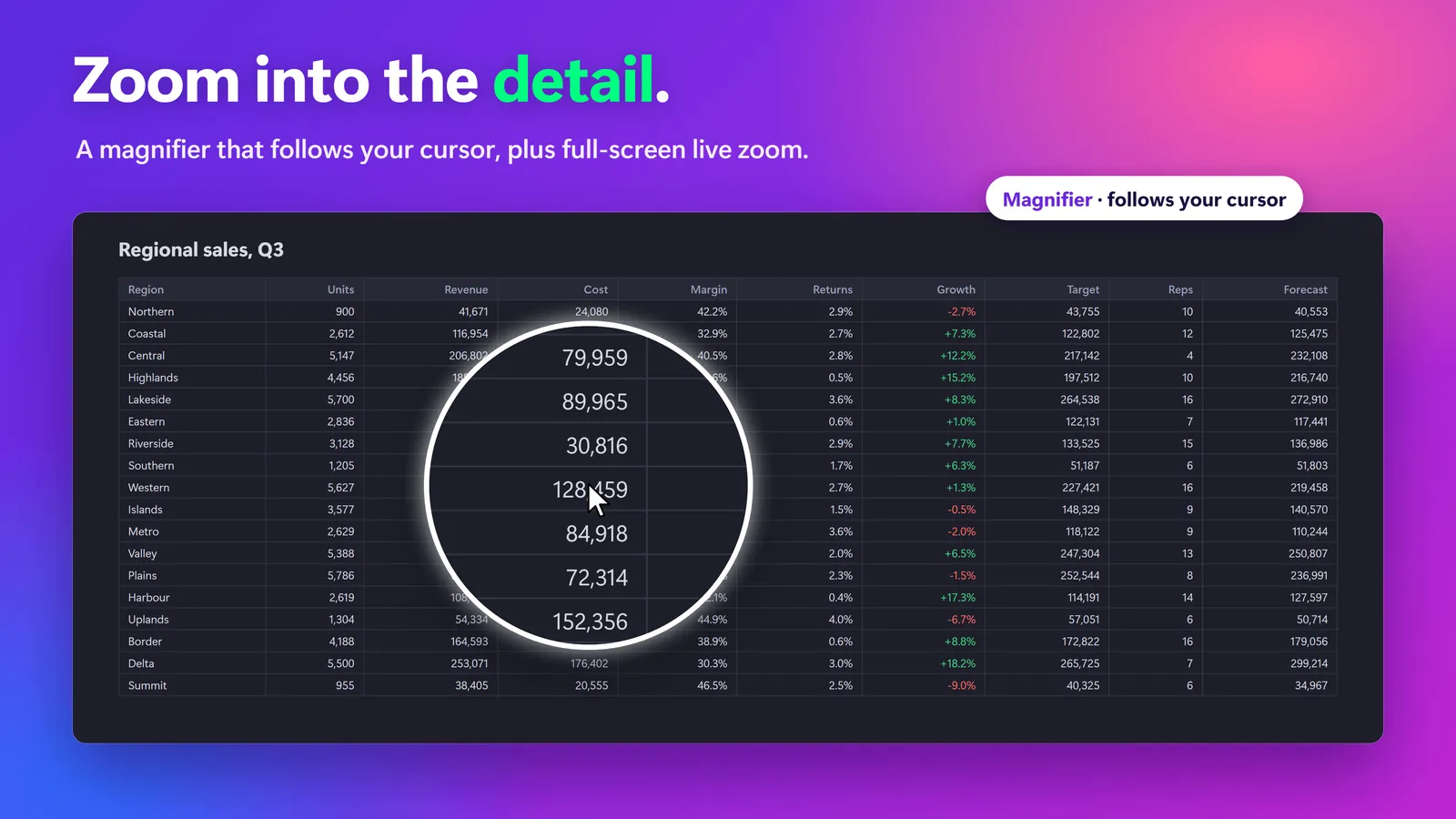
SHARA is a Windows overlay that draws on the real screen, so your ink shows over PowerPoint, browsers, code editors and PDFs, and in Teams, Zoom or OBS when you share or record the screen. Pen, Laser, Arrow, Text and Eraser are free forever. The magnifier has four modes: Lens (follows your cursor), Spotlight, Live Zoom (full screen, up to 8×) and Broadcast (a 9:16 window you capture in OBS). It runs Live or Static, with Crisp or Smooth image quality.
How to zoom and draw with SHARA:
- Install SHARA on the Microsoft Store. No account is needed, and every Pro tool is on for 14 days from the first launch.
- Hold Ctrl+Space to open the Wheel at your cursor (or use the docked toolbar) and pick Pen, Laser, Arrow or Text. Ctrl+Z undoes a stroke.
- Press Ctrl+Win+G to turn the magnifier on, and pick Lens, Spotlight, Live Zoom or Broadcast from the Wheel’s Magnifier slice.
- Hold Ctrl+Alt and scroll to zoom in or out. The default is 2×.
Windows Magnifier also uses Ctrl+Alt+scroll. If you run both, rebind one: every SHARA hotkey can be changed, and Settings warns you about conflicts. The free cursor halo also helps viewers follow you between zooms; see these ways to highlight your mouse pointer on Windows for the built-in options. For each magnifier mode in detail, see how SHARA’s screen zoom modes work.
| Pros vs. ZoomIt | Cons |
|---|---|
Pen, Laser, Arrow, Text and Eraser are free forever over live apps A lens that follows your cursor, plus full-screen Live Zoom up to 8× Wheel or docked toolbar, so no colour keys to memorise Microsoft Store app, with no account and no telemetry One-time upgrade, no subscription | The magnifier modes are paid after the 14-day trial No screen recording, OCR, break timer or DemoType Line width doesn’t follow pen pressure Windows only, English only |
Free vs Pro: Free forever: cursor halo, click animation, Pen, Laser, Arrow, Text, Eraser, Screenshot and the Ctrl+Space Wheel. Every Pro tool is free for your first 14 days, with no card and no account. After that, Pro is a one-time purchase ($19.99 in the US; local prices vary).
2. Windows Magnifier: The Free Zoom Already on Your PC
If you only need to zoom, you don’t need to install anything. Windows Magnifier is built into Windows 10 and 11, and its Lens view is a free magnifying glass that moves with your pointer.
- Press Windows key + Plus (+) to turn Magnifier on and zoom in. Windows key + Minus (−) zooms out.
- Press Ctrl+Alt+L for Lens view, Ctrl+Alt+F for full screen or Ctrl+Alt+D for docked. Ctrl+Alt+M cycles through them.
- Hold Ctrl+Alt and scroll to change the zoom with the mouse.
- Press Windows key + Esc to turn it off. Its options are in Settings › Accessibility › Magnifier.
On several monitors, Magnifier zooms only the display your pointer is on by default. The catch: Magnifier is an accessibility tool, so it has no pen, arrow or text. Pair it with any free drawing overlay and you have a zero-cost ZoomIt replacement.
| Pros | Cons |
|---|---|
Built in and free, so it works on locked-down PCs Live zoom with a lens that follows the pointer | No drawing, arrows or text at all Built for low vision, not demos: no presenter controls |
3. ppInk: The Free Open-Source Zoom-and-Draw Toolbox
ppInk is an MIT-licensed fork of gInk, and its latest GitHub release is v1.9.100. It is the closest free match to ZoomIt’s mix: a dynamic magnifier that follows the cursor live, a frozen enlargement mode that blows up a snapshot of an area, and a full drawing kit with lines, rectangles, ellipses, arrows, text, numbered steps and clip-art stamps. A pointer mode lets clicks pass through to the apps underneath.
The trade-offs are a dense interface and some upkeep: the project warns that a Windows update broke Microsoft’s ink library, and its fix script needs admin rights.
| Pros | Cons |
|---|---|
Free and open source, with live and frozen magnifiers The deepest set of drawing tools here | Busy toolbar with a learning curve Ink-library fix after a Windows update needs admin rights |
4. Draw on Screen: Free Toolbar With Scroll-Wheel Zoom
Draw on Screen keeps a pen, eraser, laser, line, box, spotlight and a zoom tool in one compact toolbar; you “zoom in on any portion of your screen with your scroll wheel.” All annotation tools and one webcam overlay are free. The paid plan (a €19.99 one-time offer or €9.99 a year, for up to five computers) adds more webcam overlays, with a 3-day trial. Its latest GitHub release is 0.0.33 (April 5, 2026).
| Pros | Cons |
|---|---|
Zoom, spotlight and drawing free in one toolbar Webcam overlay for tutorial videos | The site doesn’t say whether the zoom stays live No recording or OCR; pair it with OBS |
5. PowerPoint Slide Show: Zoom and Pen Inside Your Deck
If your demo is a slide deck, PowerPoint already has a zoom and a pen. In Slide Show view, select the magnifying glass in the lower-left corner, click the area you want, and it zooms to 200%; press + to go up to 400%, and Esc to exit. The pen, highlighter and laser sit in the same toolbar, and holding Ctrl while you drag turns the mouse into a laser pointer.
The limit is the slide itself. Once you Alt-Tab to a live app, a browser or code, PowerPoint’s zoom and ink stay behind.
| Pros | Cons |
|---|---|
Nothing extra to install if you present from PowerPoint Zoom, pen and laser in one slide show toolbar | Works only inside a running slide show Needs a paid PowerPoint licence |
6. Epic Pen: Drawing Only, No Zoom
Epic Pen is on most ZoomIt lists, but it solves only half the job. Epic Pen Basic is free forever for freehand ink. Pro adds text, clean shapes and arrows, a whiteboard and blackboard, fading ink and a highlighted cursor, as a monthly or yearly subscription after a 14-day trial, with no one-time option. Its Pro page lists no zoom or magnifier. If the subscription is why you’re looking, compare these Epic Pen alternatives with one-time pricing.
| Pros | Cons |
|---|---|
Simple, familiar pen for tablets Free Basic tier with no time limit | No zoom or magnifier Shapes, text and whiteboard need a subscription |
ZoomIt vs Epic Pen: Which One Do You Need?
They answer different questions. ZoomIt is for “make this small detail readable”: it zooms, then lets you draw, with free recording, OCR and a break timer. Epic Pen is for “let me write on the screen”: it draws over any app but never magnifies. If you need both, ZoomIt alone covers more for free; if you want both with a clickable toolbar, ppInk (free) or SHARA (free ink, zoom in the trial) put zoom and ink in one app.
When SHARA Is Not the Right Fit
- You need recording, OCR or DemoType. SHARA isn’t a screen recorder. Stay with ZoomIt, or pair SHARA with OBS.
- You only zoom and never draw. Windows Magnifier is free and already installed.
- You want zoom free forever. SHARA’s magnifier is paid after the trial; ppInk’s is free.
- Your PC blocks Microsoft Store installs. Ask IT; the standalone ZoomIt download or Windows Magnifier may be your only options.
Which ZoomIt Alternative Should You Choose?
- Choose SHARA if you present over live apps and want free ink plus a lens that follows your cursor, from a toolbar or Wheel instead of hotkeys.
- Choose Windows Magnifier if zoom is all you need and you can’t install software.
- Choose ppInk if you want zoom and drawing free and open source, and don’t mind a busy toolbar.
- Choose Draw on Screen if you record tutorials and want a webcam overlay next to your ink.
- Stay with ZoomIt if hotkeys don’t bother you and you use its recording, OCR, timer or DemoType.
Need ink without zoom? Our roundup of the best screen annotation software for Windows compares more drawing tools side by side.
Frequently Asked Questions
What is the best free ZoomIt alternative?
For zoom and drawing in one free app, ppInk: it has a live magnifier that follows the cursor plus lines, shapes, arrows and text. If you only need zoom, Windows Magnifier is free and built in (Windows key + Plus). SHARA’s drawing tools are free forever, and its cursor-following lens is included in the 14-day trial.
Is SHARA free?
Yes. Free forever: cursor halo, click animation, Pen, Laser, Arrow, Text, Eraser, Screenshot and the Ctrl+Space Wheel. Every Pro tool, including Lens, Spotlight and Live Zoom, is free for your first 14 days, with no card and no account. After that, Pro is a one-time purchase.
Can I zoom and draw without freezing the screen?
Yes. In ZoomIt, use LiveZoom (Ctrl+4) and LiveDraw (Ctrl+Shift+4) instead of the classic Ctrl+1 zoom, which magnifies a still snapshot. ppInk’s dynamic magnifier and SHARA’s Lens and Live Zoom also stay live while apps keep running.
Is ZoomIt still free, and does it work on Windows 11?
Yes. ZoomIt is a free Microsoft Sysinternals tool that works on all versions of Windows. You can download it standalone from Sysinternals or turn it on inside PowerToys.
None of these worked. What now?
If a hotkey does nothing, another app probably owns it: Windows Magnifier and SHARA both use Ctrl+Alt+scroll, so rebind one in SHARA’s settings. If ZoomIt freezes your video, switch from Ctrl+1 to LiveZoom (Ctrl+4). If your work PC blocks PowerToys, try the standalone ZoomIt download or a Microsoft Store app; if the Store is blocked too, ask your IT team.
Sources consulted: ZoomIt (Sysinternals, Microsoft Learn); ZoomIt in PowerToys (Microsoft Learn); Magnifier keyboard shortcuts (Microsoft Support); Magnify a slide in Slide Show view (Microsoft Support); Turn your mouse into a laser pointer (Microsoft Support); ppInk on GitHub; Draw on Screen and its releases; Epic Pen Pro; SHARA 4.3.3 application behaviour.
About the author: Mashyo is the founder of Creator Kit, the developer of SHARA. This guide separates free built-in options and third-party tools from our own app, so you can pick the least you need.
Last reviewed: .