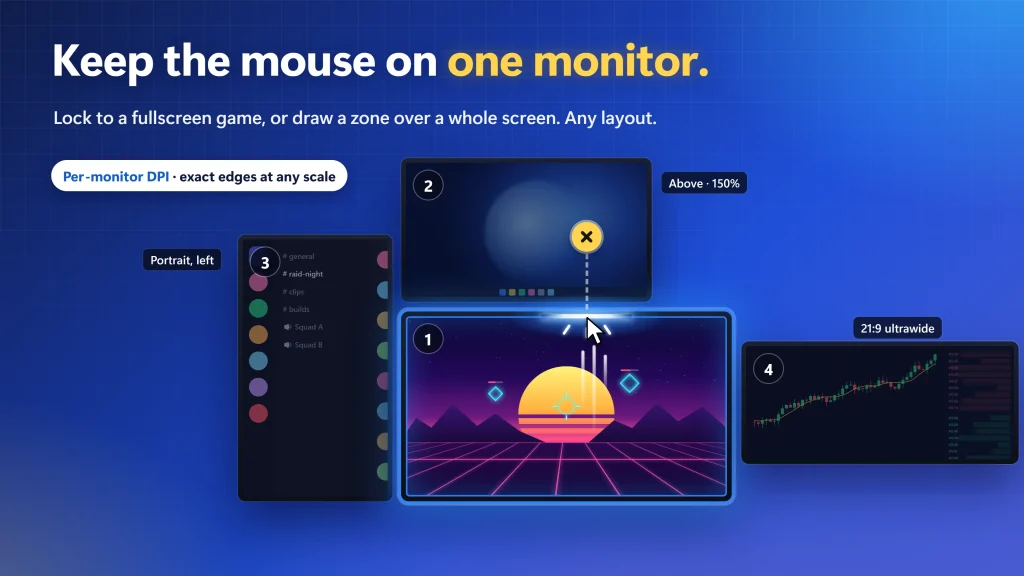
The closest AutoCursorLock alternative is LockSpot on the Microsoft Store: pick your game once from a list and the cursor stays inside it whenever the game is in focus. It is free for one game. For free, unlimited games, SnakeByte’s Cursor Lock works through shortcuts; Dual Monitor Tools and Lock Cursor Tools lock by hotkey.
Disclosure: Creator Kit makes LockSpot.
Before You Switch: 60 Seconds of Checks
If AutoCursorLock stopped holding your game, rule out the game first. These checks are free.
- Try exclusive Fullscreen. In the game’s Video or Display settings, switch from Borderless to Fullscreen. Borderless doesn’t confine the cursor; exclusive fullscreen usually does.
- Look for the game’s own option. Some games have a setting that confines the mouse to the window. Turn it on.
- Set the gaming monitor as main. Open Settings › System › Display, select the monitor you play on, then open Multiple displays and tick Make this my main display.
If the cursor still escapes, Windows has no per-game lock; a ClipCursor-based tool such as LockSpot locks it automatically, free for one game. For the full list of Windows-side fixes, see why the mouse keeps going to the second monitor while gaming.
Why People Look for an AutoCursorLock Alternative
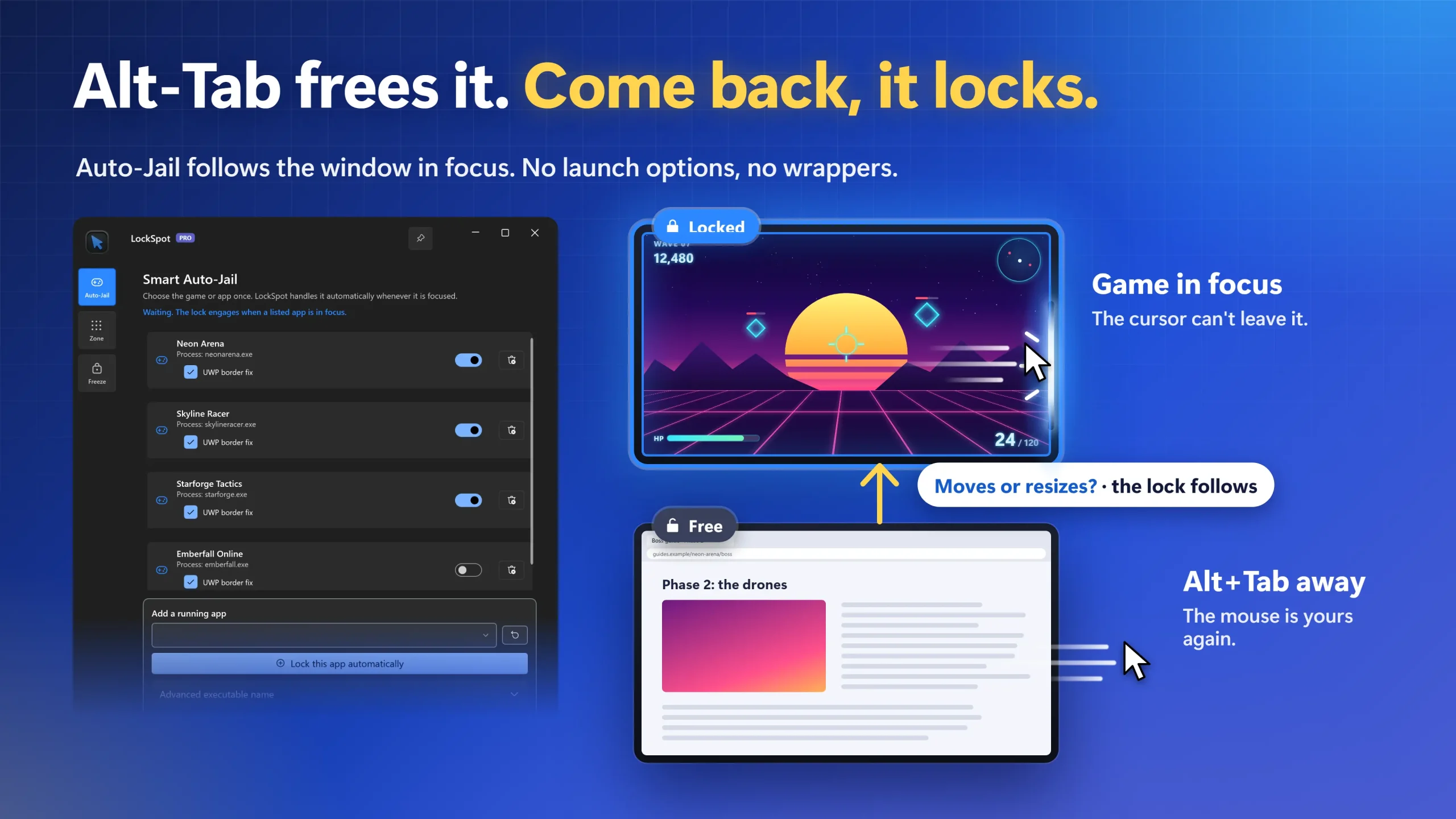
AutoCursorLock is a good free tool: pick a running process and it locks the cursor to that window, or its monitor, while the game is in focus. Alt-Tab unlocks it; coming back relocks it.
Three things send people looking:
- Updates have stopped for now. The latest release is v2.2.1, from February 14, 2025, and the repository has had no commits since.
- Some games don’t hold. Open GitHub issues report that it does not work for Helldivers 2 (since May 2025) and Naruto to Boruto: Shinobi Striker (since August 2025).
- The game must be running to add it. Processes come from the running list; adding an .exe by path is still an open request.
AutoCursorLock Alternatives Compared
| Tool | Free / Paid | How it locks | How you pick the game | Get it from |
|---|---|---|---|---|
| LockSpotOur Pick | Free for 1 game Pro $3.99 one-time (US price; local prices vary) | Automatic, on focus; Alt-Tab frees it | Running-apps list, typed .exe name, or Ctrl+Shift+A | Microsoft Store |
| AutoCursorLock | Free, open source | Automatic, on focus; window or whole monitor | Running-process list | GitHub release |
| Cursor Lock (SnakeByte) | Free (donations) | Automatic, on focus; window or whole screen | A shortcut that launches the game | Developer site |
| Dual Monitor Tools | Free, open source (GPLv3) | Manual hotkey, to one monitor | No per-game setup | SourceForge |
| Lock Cursor Tools | Free (freeware) | Manual hotkey: area, monitor or window | Click the window in its list | Developer site |
| DisplayFusion | Paid: Pro from $34 one-time | Functions: lock to the focused window or monitor | Hotkeys or automation you build | Vendor installer or Steam |
Automatic Locks: the Closest Match to AutoCursorLock
These lock the cursor on their own whenever the game is in front, as AutoCursorLock does.
1. LockSpot: Pick the Game Once, Free for One Game
LockSpot also follows focus. The differences are setup and install:
- Install LockSpot from the Microsoft Store and open it.
- Start your game, then open the Auto-Jail page in LockSpot.
- Pick the game from the list of running apps. If it isn’t running yet, type its .exe name instead. Or bring the game to the front and press Ctrl+Shift+A.
- Switch back to the game. The cursor stays inside it.
The lock follows the window when it moves or resizes, and works in borderless windowed. If the game runs as administrator, run LockSpot as administrator too.
Pros
- Microsoft Store install and updates (latest: October 6, 2026)
- Three ways to add a game, including by .exe name before it runs
- A 100 ms watchdog re-applies the lock if Windows or the game drops it
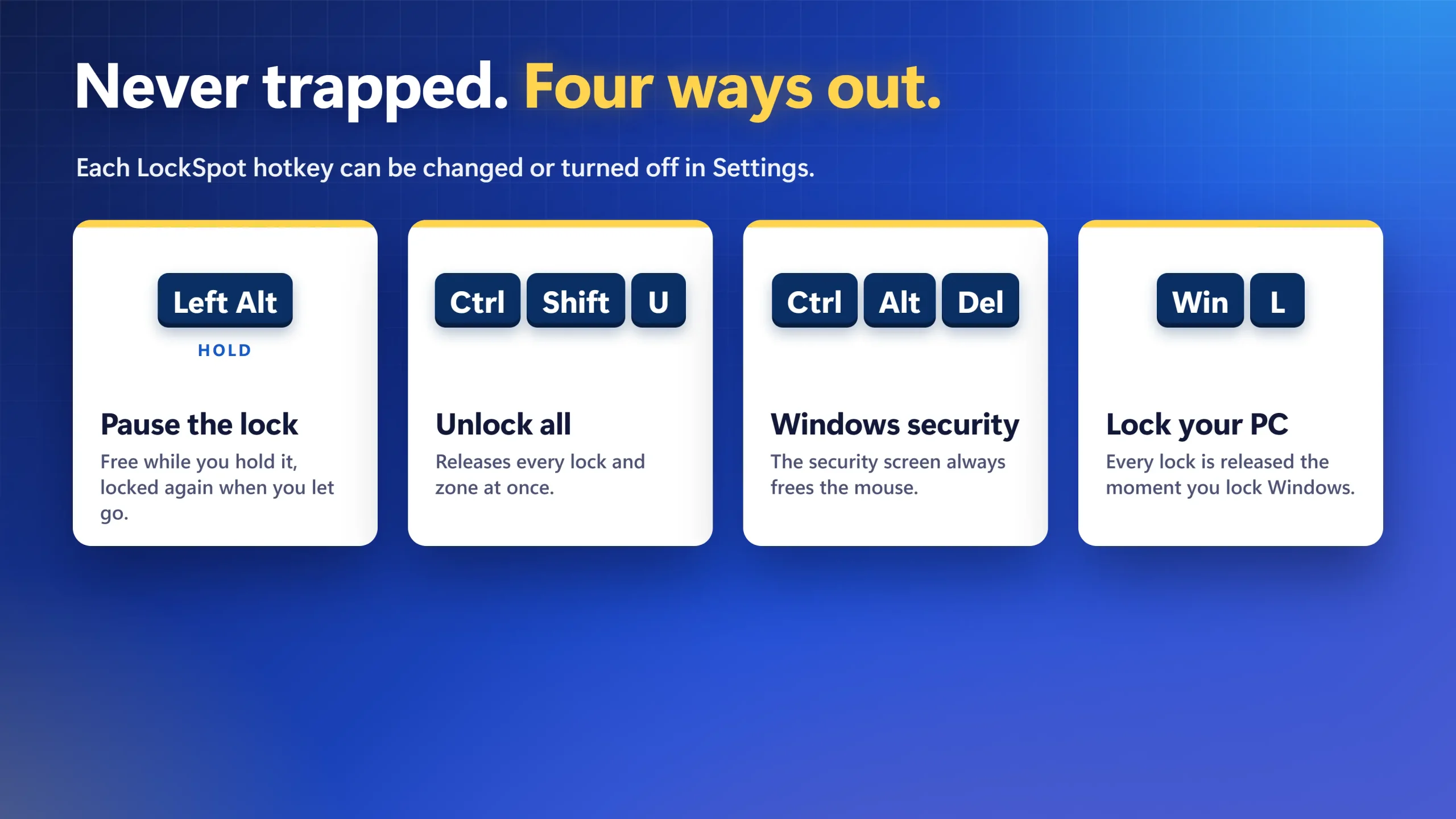
- Hold Left Alt to reach the other monitor; Ctrl+Shift+U unlocks everything
- Windows’ ClipCursor API only: no launch options, wrappers, hooks or injection
Cons
- Free covers one game; more games need the one-time Pro upgrade
- Not open source
- No separate monitor lock: Auto-Jail a fullscreen game, or draw a Custom Zone (Pro)
- Windows 10 (2004) or later only, in English
More on the app and its settings is on the LockSpot cursor lock page.
Keep your cursor in the game without launch options
Pick the game once from a list. LockSpot locks the cursor whenever it is in focus, frees it on Alt-Tab, and locks it again when you come back.
Free vs Pro: Free for one game, with every hotkey and escape key. Pro is a one-time $3.99 (US) for unlimited games, Custom Zones and Cursor Freeze. Try Zones for 2 minutes and Freeze for 60 seconds in the app before you buy.
No account · Windows 10/11
2. SnakeByte’s Cursor Lock: Free, Shortcut-Based
Cursor Lock by SnakeByte Studios by SnakeByte Studios is the free classic. It locks while the game has focus, to the window borders or the whole screen. Setup differs: its helper creates a shortcut, and you start the game through it. It can open a launcher and lock a different program.
Pros: free for any number of games; very light; handles launchers; custom hotkeys.
Cons: you launch through its shortcut every time, and some games need extra arguments. The latest version is 2.6.1 (September 15, 2013), and the page lists Windows up to 7.
Hotkey Locks: Free, but You Switch Them On
These don’t watch focus. A hotkey locks and unlocks, so the lock doesn’t release itself on Alt-Tab.
3. Dual Monitor Tools: Lock the Cursor to One Monitor
Dual Monitor Tools is a free, open-source (GPLv3) multi-monitor suite. It can lock the cursor onto a monitor or add resistance between monitors. Version 2.13 shipped September 22, 2026. An Age of Empires forum poster confirmed that the hotkey monitor lock fixed borderless scrolling for them.
Pros: free and maintained; locks to a whole monitor; more multi-monitor tools.
Cons: no automatic per-game lock; a full suite for one job.
4. Lock Cursor Tools: Lock to an Area, Monitor or Window
Lock Cursor Tools from Digola is freeware (version 10.1). It confines the cursor to an area you mark, a monitor, or part of an app’s window picked from a list. A keyboard shortcut or its taskbar icon toggles the lock.
Pros: free; custom area, monitor or window; simple.
Cons: manual, not tied to the game’s focus.
Paid option: if you already run a multi-monitor suite, DisplayFusion can lock the cursor to the focused window or current monitor. Pro starts at $34 one-time per machine, a lot for one feature. For the full field, including more paid tools, see our cursor lock apps compared for Windows 11.
When LockSpot Is Not the Right Fit
- You want open-source code you can read and build. AutoCursorLock or Dual Monitor Tools fit better.
- You need several games locked automatically for free. AutoCursorLock and SnakeByte’s Cursor Lock have no game limit.
- You only want a whole-monitor lock you toggle yourself. Dual Monitor Tools does that free.
- Your PC blocks the Microsoft Store. Ask your IT team, or use a tool from its developer’s site.
Which AutoCursorLock Alternative Should You Choose?
- Automatic, Store install, add games before they run: LockSpot.
- Automatic and free for many games, shortcuts are fine: SnakeByte’s Cursor Lock.
- A free hotkey that keeps the mouse on one monitor: Dual Monitor Tools.
- A free hotkey lock to a drawn area: Lock Cursor Tools.
- AutoCursorLock still holds your game: keep it.
If the lock engages but the cursor still slips out in borderless mode, the guide on the mouse cursor not locking to the game in Windows 11 covers Game Bar, overlays and permission fixes.
Frequently Asked Questions
Is LockSpot free?
Yes. Free for one game, with every hotkey and escape key. Pro is a one-time $3.99 (US) for unlimited games, Custom Zones and Cursor Freeze. Try Zones for 2 minutes and Freeze for 60 seconds in the app before you buy. Install it from LockSpot on the Microsoft Store.
Is AutoCursorLock still maintained?
Its latest release is v2.2.1, from February 14, 2025, with no commits since, as of October 28, 2026. It still installs and works for many games, and its GitHub issues stay open for reports.
Does LockSpot need launch options or a shortcut?
No. You pick the game once from the running-apps list, by its .exe name, or with Ctrl+Shift+A. LockSpot locks it whenever it is focused, however you start the game.
Will a cursor lock app get me banned?
LockSpot only sets the Windows cursor clip through the documented ClipCursor API, with no hooks, injection or simulated input. We can’t promise how any anti-cheat system will treat it, so check your game’s rules first.
Can I still use my second monitor while the game is locked?
Yes. Alt-Tab away and LockSpot frees the cursor; come back and it locks again. To reach the other monitor without leaving the game, hold Left Alt, and the lock returns when you let go.
None of these worked. What now?
Check whether the game runs as administrator; if it does, run the lock tool as administrator too. Then test once with every overlay closed, and try exclusive Fullscreen. If the cursor still escapes, report the game to the tool’s developer.
Stop the mouse leaving your game, automatically
Pick your game once and play. Alt-Tab still works, and holding Left Alt always lets you out.
No account · Windows 10/11
Sources consulted: AutoCursorLock on GitHub (README, releases, commits and issues); Cursor Lock by SnakeByte Studios; Dual Monitor Tools on SourceForge; Lock Cursor Tools by Digola; DisplayFusion pricing; Age of Empires forum: Dual Monitor Tools monitor lock; ElevenForum: change the main display in Windows 11; Microsoft Win32 ClipCursor documentation.
About the author: Mashyo is the founder of Creator Kit, the developer of LockSpot. Competitor details link to each project’s official page so every claim can be checked.
Last reviewed: