On one monitor, the built-in fix is PowerPoint Live in Teams, which Microsoft says shows your notes beside the slides. For Zoom, Meet or any other share, MIRAY floats your .pptx speaker notes over the slides and stays out of the shared screen. It is free for about 300 words a session. Get MIRAY on the Microsoft Store.
Creator Kit makes MIRAY.
Why Your PowerPoint Notes Disappear on One Monitor
PowerPoint’s Presenter View is built for two screens. Microsoft’s own steps tell you to extend your displays so the audience sees only the slides on the second screen while your notes stay on your device. With one monitor there is no second screen, so the slides and the notes compete for the same space.
Sharing your whole screen makes it worse: whatever sits on that screen, including a notes window, is in the share. The ways below solve it differently, and one of them works in every meeting tool.
Four Ways to See Your Notes on One Monitor
| Method | Works in | Monitors | Free / Paid | Notes stay private |
|---|---|---|---|---|
| PowerPoint Live | Microsoft Teams only | 1 | Part of Teams and PowerPoint (.pptx or .ppsx files) | Yes, per Microsoft |
| Presenter View | Any meeting tool | 2 | Part of PowerPoint | Yes, if you share only the slideshow screen |
| Printed or phone notes | Anywhere | 1 | Free | Yes, but your eyes leave the screen |
| MIRAYOur app | Zoom, Teams, Meet, any share | 1 | Free (about 300 words a session) Pro $19.99 once (US price; local prices vary) | Yes, hidden from screen share (Windows 10 2004+, not over Remote Desktop) |
1. PowerPoint Live in Teams (Free, Teams Only)
If your meeting is in Microsoft Teams, start here. Microsoft’s page says PowerPoint Live shows your slides in the meeting with your speaker notes beside them, and that its presenter view puts attendee video, raised hands and reactions in the same place, which it calls especially helpful when you present from a single screen.
- Join the meeting and select Share in the meeting controls.
- Under PowerPoint Live, select your file. If it is not listed, choose Browse OneDrive or Browse my computer.
- If presenter view is hidden on a small screen, select More options > Show presenter view, or press Ctrl+Shift+X in the sharing window.
Where it falls short: it works only in Teams, and only with .pptx or .ppsx files. It is not supported in Teams live events, and anonymous participants cannot present with it. Meeting recordings do not capture the videos, animations or annotations from a PowerPoint Live session. Some university help pages still say you need two monitors to see notes, so open a test meeting alone and check what you actually see before the real one.
2. Presenter View With a Second Monitor (Any Meeting Tool)
This is the classic method and it works in Zoom, Teams, Meet and anything else, because you share only the screen that shows the slideshow. It needs a second display, which a laptop-only presenter may not have.
- On Windows 10, go to Settings > System > Display and choose Extend these displays.
- In PowerPoint, open the Slide Show tab and select Use Presenter View in the Monitors group.
- Start the show with From Beginning. The slides appear on the second screen and your notes stay on the first.
- In your meeting tool, share the screen that shows the slides, not the one with your notes.
Microsoft’s guide for this method is Present on multiple monitors (and view speaker notes privately) on support.microsoft.com.
3. A Floating Notes Overlay on One Monitor (MIRAY)
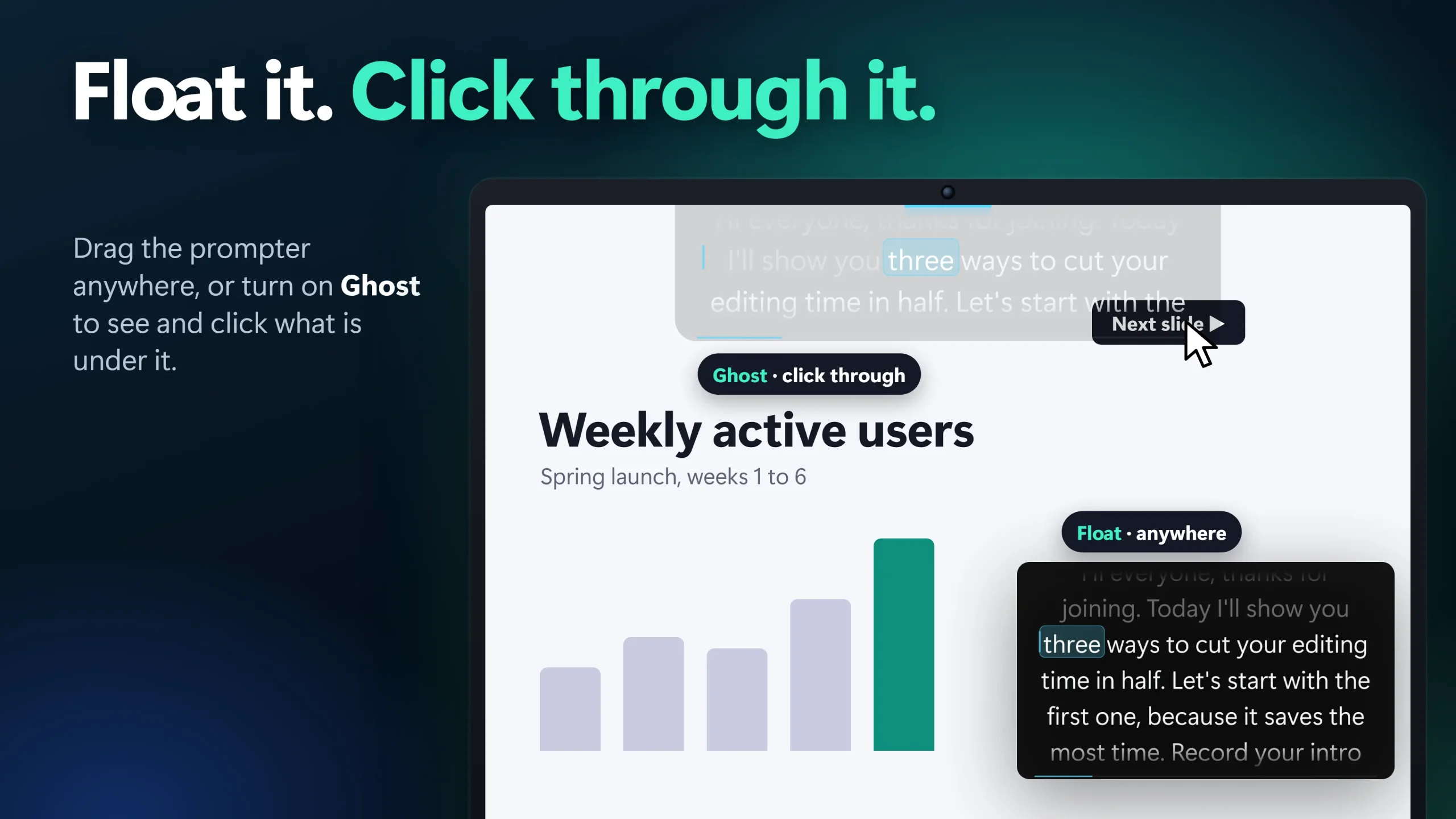
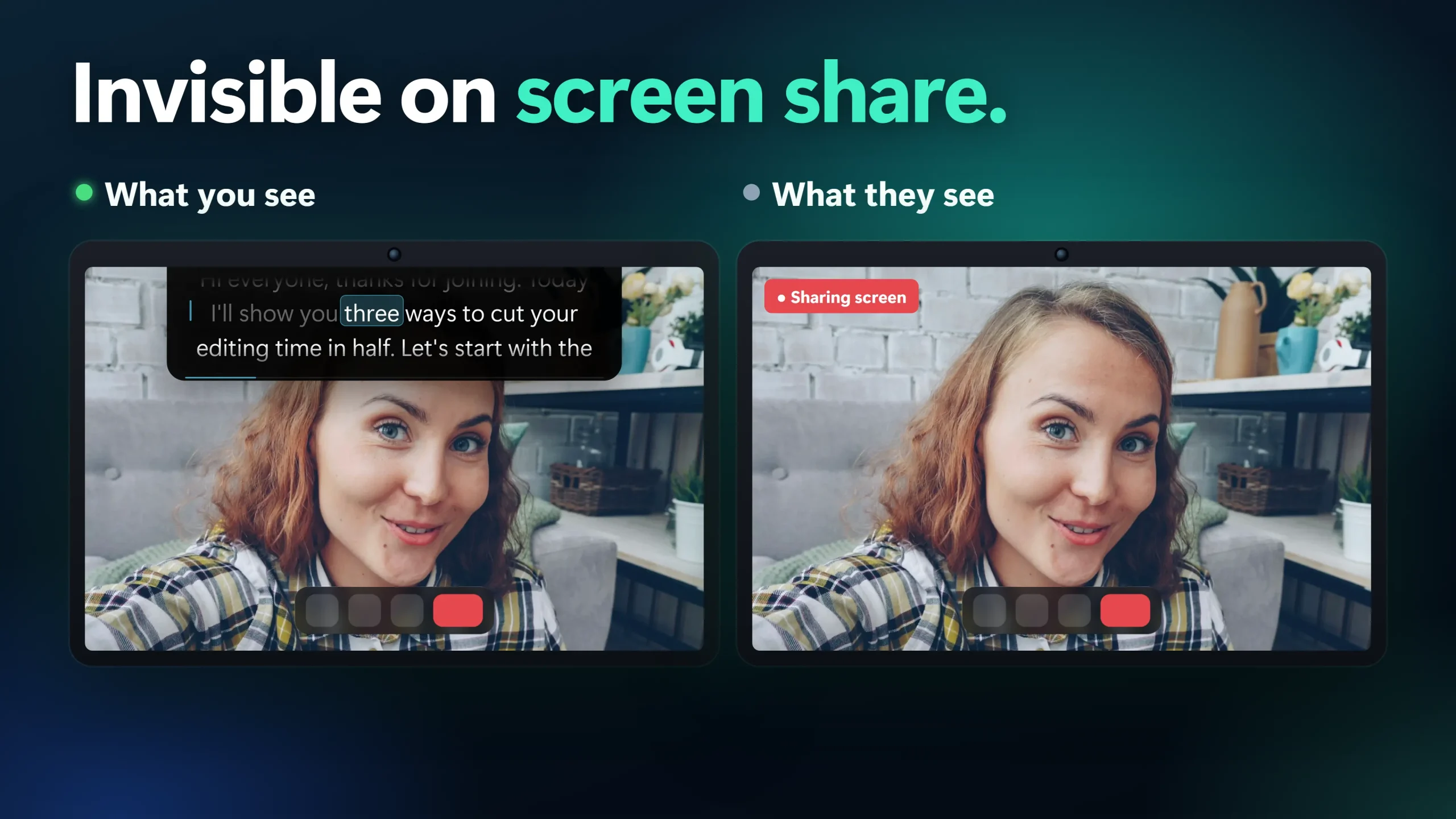
MIRAY reads the speaker notes out of your .pptx and floats them over your slides, so you need no second screen and no particular meeting tool. It is excluded from screen capture on Windows 10 version 2004 or later, so the notes are on your screen and not in the share. Ghost makes the notes see-through and click-through, so you can still click the slide, the meeting bar and the screen-share controls underneath.
MIRAY imports the notes once. It does not follow your slides live, so you move to the next slide yourself and scroll the notes by voice, at a set speed or with the hotkeys.
Set it up in five steps
- Install MIRAY from the Microsoft Store. It needs Windows 10 version 2004 or later.
- Import your deck: choose the .pptx file. MIRAY reads only the speaker notes, in slide order, and each slide’s notes start with a marker such as [Slide 3]. Slides with no notes are skipped. The deck can stay open in PowerPoint.
- Choose Float and drag the window to a quiet part of the slide, or choose Island to dock it under the webcam. Ctrl+Alt+F switches between the two.
- Press Ctrl+Alt+G for Ghost so your clicks go through to the slide.
- Choose Voice scrolling and press Ctrl+Alt+Space to start and pause. Ctrl+Alt+Left goes back a line.
Notes for a whole deck usually run longer than the free session. The free tier ends a session at about 300 words (about 2 minutes at the default speed), at the nearest sentence end. If you only need a few key points per slide, that is enough. For a long deck, Pro removes the limit.
Keep your slide notes on screen, out of the share
MIRAY imports your .pptx speaker notes and floats them over the slides. Ghost lets you click through them, and the share never shows them.
Free: Classic and Voice scrolling for about 300 words a session (about 2 minutes), one script of your own, Island, Float and Ghost, hidden from screen share, every import format, and Follow 3 sessions a week. Pro is a one-time $19.99 (US price; local prices vary), no subscription: unlimited length, unlimited scripts, Follow every time.
When MIRAY Is Not the Right Fit
- You present only in Teams and PowerPoint Live works for you. It is built in and free, so use it.
- You want the notes to change with the slide. MIRAY does not sync with live slides. You advance the slides and the notes separately.
- You have long notes on the free tier. Free sessions stop at about 300 words, and Follow is limited to 3 sessions a week. Pro is a one-time purchase if you need more.
- You use a Mac. MIRAY is Windows only.
- You present over Remote Desktop. MIRAY falls back to visible there and tells you once.
- You speak a language other than English and want word-by-word tracking. Follow is English only. Voice scrolling works in any language.
Test It in 60 Seconds Before You Present
Whichever method you pick, check what the audience sees. This works for all of them.
- Start a test meeting alone in Teams, Zoom or Meet.
- Open your deck and your notes, and start the show.
- Share your entire screen.
- Look at the preview of your shared screen. Your notes should not be in it.
MIRAY needs Windows 10 version 2004 or later and is not hidden over Remote Desktop. Use any notes tool for your own talks and your own slides, not for exams, tests or proctored sessions.
Presenting in Teams specifically? See the teleprompter for Microsoft Teams guide, or how PowerPoint’s own teleprompter view works and where it stops. On Zoom, seeing your notes while sharing your screen on Zoom covers its own options. For the full method, read how to hide notes from screen share, compare the best teleprompter apps for Windows, or see the MIRAY page for every feature.
If your audience also loses track of where you are pointing on a shared slide, highlighting your cursor in Teams and Zoom screen share is the same kind of fix, with SHARA.
Frequently Asked Questions
How do I see my PowerPoint notes while presenting on one monitor?
In a Teams meeting, use PowerPoint Live: select Share, pick your file under PowerPoint Live, and Microsoft says your notes appear beside the slides. In Zoom, Meet or any other share, use a second monitor with Presenter View, or float your notes over the slides with an overlay such as MIRAY, which stays out of the shared screen.
Does Presenter View work on one monitor?
Microsoft’s guide to Presenter View with private notes sets it up on two displays (Extend these displays, then Use Presenter View), and the audience sees only the slides on the second screen. PowerPoint Live in Teams has its own presenter view that you can turn on with Ctrl+Shift+X.
Will the audience see my notes if I share my screen?
If your notes are in a window on the shared screen, yes: everything on that screen is in the share. MIRAY is excluded from screen capture on Windows 10 version 2004 or later, so it is not in the share, but run the 60-second test first. It is not hidden over Remote Desktop.
Is MIRAY free?
Yes. Free: Classic and Voice scrolling for about 300 words a session (about 2 minutes), one script of your own, Island, Float and Ghost, hidden from screen share, every import format, and Follow 3 sessions a week. Pro is a one-time $19.99 (US price; local prices vary), no subscription: unlimited length, unlimited scripts, Follow every time.
Does MIRAY follow my slides automatically?
No. MIRAY imports the speaker notes from a .pptx file once. It does not sync with live slides, so you change slides yourself and scroll the notes with your voice, a fixed speed or the hotkeys.
None of these worked. What now?
If PowerPoint Live does not offer your file, check that it is a .pptx or .ppsx and that you joined as a signed-in participant. If the overlay shows in your share test, check that you run Windows 10 version 2004 or later and are not on Remote Desktop. If the free 300-word session is too short for your notes, Pro is a one-time purchase, or put the notes on a second screen or on paper.
See your PowerPoint notes on one monitor
Import the speaker notes, float them over your slides and keep them off the shared screen. Free for about 300 words a session.
Sources consulted (17 November 2026): Microsoft Support: Share slides in Teams meetings with PowerPoint Live; Microsoft Support: Present on multiple monitors and view speaker notes privately; NDSU: Screen sharing a PowerPoint presentation; University of Toronto FASE: Present in Teams with a single monitor.
About the author: Mashyo is the founder of Creator Kit, the developer of MIRAY. This guide covers the built-in ways first and MIRAY’s own limits, so you can pick the one that fits your meeting.
Last reviewed: .