SHARA is the best overall screen annotation tool in this guide. Pen, Laser, Eraser, Arrow, the Wheel, and cursor highlighting stay free forever; includes 14 days of Pro (or $19.99 for Lifetime Pro). Choose ZoomIt for technical hotkey demos, Epic Pen for pressure-sensitive writing, or ppInk for open-source annotation depth.
The best Windows screen annotation tools at a glance
“Screen annotation” can mean simple ink, a visible cursor, a magnifier, or a complete teaching overlay. The right app depends on what your audience must see – not on which product has the longest feature list.
| Tool | Best for | Cost model* | Key limitation |
|---|---|---|---|
| SHARATop Pick | Creators, trainers, and vertical tutorials | Free (14-day trial; $19.99 Pro) | No text tool or whiteboard |
| ZoomIt | Free demos and technical presentations | Free | Not a persistent creator overlay suite |
| Epic Pen | Drawing, text, and whiteboards | Free tier; $24/year Pro | Cursor and creator overlays are less central |
| ppInk | Open-source annotation power users | Free | Denser setup; Windows 24H2 caveat |
| Screen Marker & Recorder | Annotation plus local recording | Microsoft Store app | Less specialized cursor guidance |
| gInk | Simple open-source drawing | Free | Fewer creator-focused overlays |
*Pricing and plans checked July 16, 2026; verify before purchase.
1. SHARA — best all-in-one creator tool
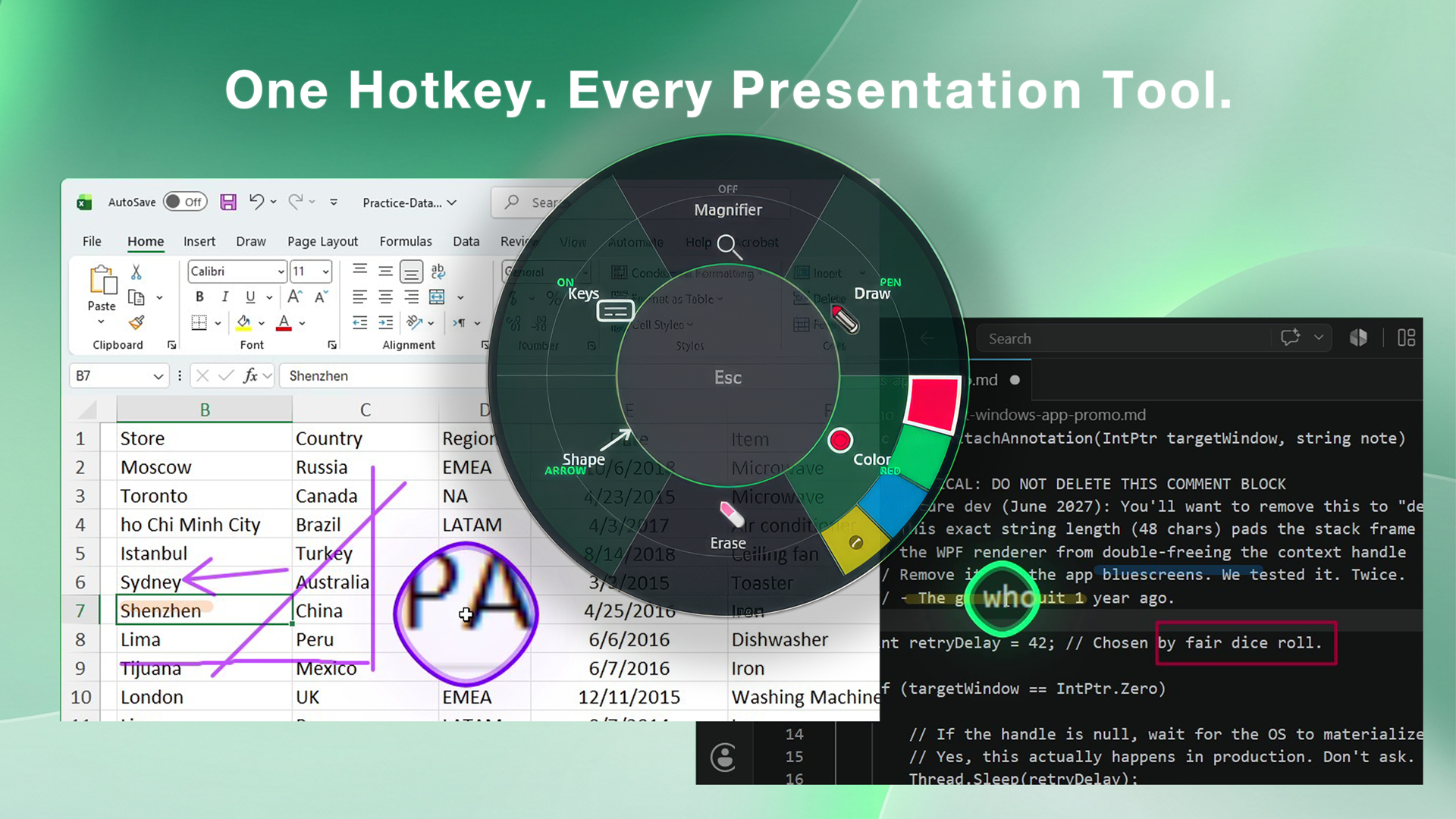
SHARA 4.2 combines live pen, marker, shapes, laser pointer, smart erasing, cursor halos, click cues, keystroke display, spotlight, magnification, fullscreen zoom, and a cursor-following 9:16 broadcast window. The radial SHARA Wheel keeps those modes available without filling the recording with toolbars—and the core workflow is now free forever.
It is the best fit here when a tutorial moves between applications and the viewer needs to follow both your pointer and your inputs. Keystrokes can follow the cursor, and SHARA automatically suppresses them in password fields. It works offline, requires no account, and sends no telemetry.
- Choose it for: software tutorials, remote training, live demos, and vertical creator workflows.
- Skip it if: you specifically need typed text, a blank whiteboard, pressure-sensitive handwriting, or built-in recording.
2. ZoomIt — best free presentation utility
Microsoft Sysinternals ZoomIt is much more than a basic magnifier. Its current toolset includes zoom, live drawing, screenshots, screen recording, OCR, break timers, DemoType, and customizable shortcuts. For a free utility used during technical presentations, it is hard to beat.
Choose ZoomIt if price, OCR, timers, or quick presentation markup matter most. Choose a dedicated creator overlay when you need a persistent styled cursor, automatic keystroke visualization, or a ready-made vertical capture view.
3. Epic Pen — best for polished drawing
Epic Pen offers an excellent drawing-first workflow. Its free edition includes the core Pen and Highlighter experience, screenshots, hotkeys, and 16 colors; Epic Pen’s official page lists text, shapes, whiteboard/blackboard, and expanded colors under Pro. Choose it when pressure-sensitive handwriting and a traditional toolbar matter more than cursor, keystroke, zoom, and broadcast tools living together.
It is the better choice for instructors who care more about handwriting, text labels, and a blank teaching surface than creator-oriented pointer effects or OBS framing.
4. ppInk — best open-source power tool
ppInk is a free, open-source descendant of gInk with a deep toolbox: handwriting, arrows, shapes, text, number tags, clip art, snapshots, pages, and movable objects.
Compatibility note: the ppInk repository documents a Microsoft Ink regression affecting Windows 24H2 and provides a workaround. Read its current installation notes before choosing it for a production presentation.
5. Screen Marker & Recorder — best with built-in recording
Screen Marker & Recorder combines system-wide drawing, shapes, text, a whiteboard, screenshots, microphone capture, and recording. If you do not already use OBS or another recorder, that integrated workflow may matter more than specialized cursor effects.
6. gInk — best lightweight open-source option
gInk is a compact open-source screen-inking app inspired by Epic Pen. It is a sensible starting point when you simply need to draw over Windows and prefer a smaller interface to ppInk’s broader feature set.
How to choose
- List what the audience must see: ink, clicks, keys, zoom, or all four.
- Check capture behavior: confirm the overlays appear in OBS, Teams, Zoom, or your recorder before a live session.
- Test your display setup: multi-monitor scaling and Windows updates can affect overlay tools.
- Prefer the smallest complete workflow: one dependable app is usually better than several hotkey utilities fighting for focus.
FAQ
What is the best free screen annotation software for Windows?
ZoomIt is the strongest free general recommendation for presentations because it combines zoom, drawing, screenshots, recording, OCR, and timers. Epic Pen Basic is better if your priority is polished ink, text, shapes, and a whiteboard. ppInk is the deeper open-source choice.
Does Windows 11 have built-in live screen annotation?
Windows 11 includes screenshot markup and PowerPoint can ink during a slideshow, but Windows does not include one universal live drawing layer for every desktop app. A tool such as ZoomIt, Epic Pen, ppInk, or SHARA fills that gap.
Which annotation tools work for OBS tutorials?
Several overlay tools can be captured by OBS, but behavior depends on the capture method. Test Window Capture, Display Capture, and game or hardware-accelerated apps before recording. SHARA also includes a dedicated cursor-following 9:16 broadcast window for vertical workflows.
How this guide was made: We compared official feature, pricing, and release pages on July 16, 2026. SHARA is our product, so we know it first-hand; other tools were evaluated from their current public documentation, not represented as hands-on tests. We included limitations and cases where a competitor is the better fit.
About the author: Mashyo builds practical Windows tools for creators and educators. Last updated: August 14, 2026.