Windows has no vertical recorder, but free OBS Studio does it: type 1080×1920 for both resolutions in Settings › Video, then fit your screen into the tall frame. For a 9:16 frame that follows your cursor, capture SHARA’s Broadcast window in OBS. It’s included free for your first 14 days, then it’s a one-time upgrade: SHARA on the Microsoft Store.
Creator Kit makes SHARA.
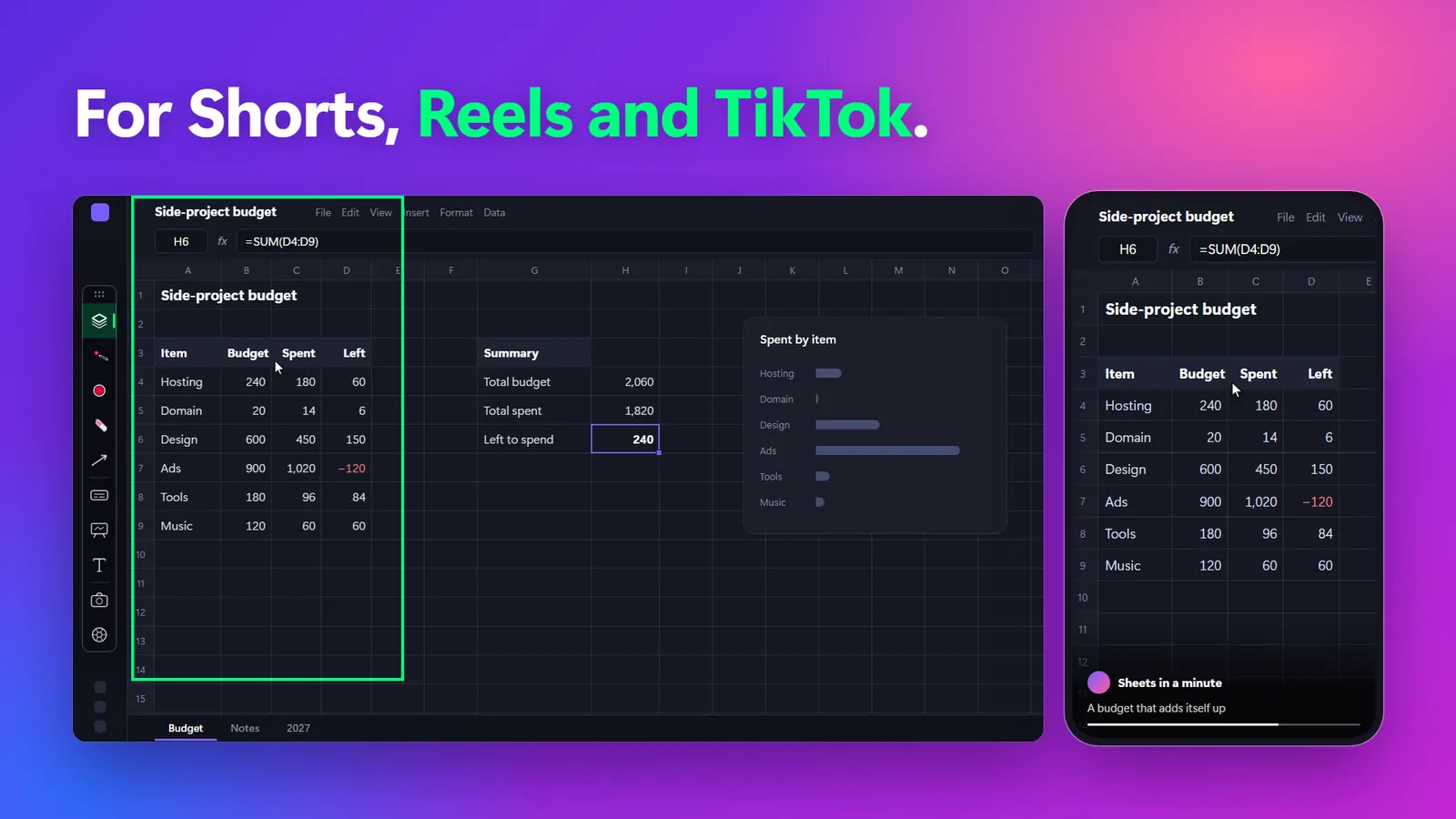
Why a widescreen recording fails as a Short
A Short, Reel or TikTok fills a tall 9:16 phone screen, usually exported at 1080×1920 pixels. Your monitor is 16:9 the other way round. Upload a normal desktop recording and the whole screen shrinks into a thin band in the middle of the phone, with text far too small to read. YouTube treats any square or vertical video up to three minutes as a Short, so the fix is about framing, not length.
You can record only a tall slice of the screen, or record everything and crop to 9:16 later. Here is how the routes compare.
| Method | Frame follows your cursor? | Recorder | Free / Paid | Best for |
|---|---|---|---|---|
| SHARA Broadcast + OBSOur Pick | Yes, automatically | OBS Studio | Free Broadcast: 14 days free, then $19.99 one-time (US price; local prices vary) | Demos that move around a wide screen |
| OBS vertical canvas | No, a fixed strip | OBS Studio | Free | One app that fits in a narrow column |
| Snipping Tool + Clipchamp | No, you place the crop by hand | Built into Windows 11 | Free | Quick clips with no install |
| OBS Mouse Follower script | Yes, after manual setup | OBS Studio | Free / Open Source | Tinkerers comfortable with OBS scripts |
| Aitum Vertical plugin | No, a second fixed canvas | OBS Studio | Free download | Recording landscape and vertical at once |
Method 1: Set up a vertical canvas in OBS Studio (free)
OBS Studio is free, open source and supports Windows 10 and 11 (version 33.0.0 is current). Its canvas takes any size you type, so a 1080×1920 canvas records portrait video directly.
- Open OBS. To keep your landscape setup, choose Profile › Duplicate and name the copy “Vertical”.
- Open Settings › Video. Type 1080×1920 into Base (Canvas) Resolution and into Output (Scaled) Resolution, then select Apply. The preview turns tall.
- In the Sources dock, select + › Display Capture and pick the monitor you will demo on.
- The desktop lands wider than the frame. Drag a corner handle until it fills the height, then drag the source sideways so the part you will use sits inside the frame. To trim an edge instead, hold Alt while you drag it.
- Check the folder and format in Settings › Output › Recording, then select Start Recording.
The catch: on a 1920×1080 monitor, a full-height 9:16 frame shows a strip only about 608 pixels wide. Snap your app into that strip and raise Settings › System › Display › Scale so text survives a phone. The strip never moves, so a menu outside it is lost to viewers. If your demo travels across the screen, use Method 2.
Method 2: Let a 9:16 frame follow your cursor with SHARA
SHARA is a Windows overlay for tutorials. Its magnifier’s Broadcast mode opens a 9:16 window that follows your cursor. Capture that window in OBS and a demo can move from a toolbar on the left to a chart on the right and stay in frame, with no crop to animate in the edit. Broadcast sits next to Lens, Spotlight and Live Zoom among the SHARA screen zoom modes.
- Install SHARA from the Microsoft Store. The 14 days of every Pro tool start at first launch, with no card and no account.
- Hold Ctrl+Space to open the Wheel, open the Magnifier slice and choose Broadcast (the docked toolbar has the same Magnifier button). Afterwards, Ctrl+Win+G turns the magnifier on and off.
- In OBS, on the vertical profile from Method 1, select + › Window Capture and pick SHARA’s Broadcast window. Right-click the source and choose Transform › Fit to screen.
- Select Start Recording and work as usual. Move the mouse and the vertical frame moves with it.
If small text looks soft, switch the magnifier’s image quality from Smooth (the default) to Crisp. SHARA doesn’t record anything itself; OBS does the recording, and SHARA only draws on the screen. The SHARA screen recording guide covers the rest of the recording setup.
When SHARA is not the right fit
- You want to choose the framing later: the frame is baked in while you record. Crop in Clipchamp instead (Method 3).
- You need a landscape and a vertical copy of the same take: Aitum Vertical (Method 4) records both canvases at once.
- You record on a Mac: SHARA is Windows only.
- You make one vertical video a year: Broadcast locks after the 14 days unless you upgrade. Method 1 stays free.
Free vs Pro: Free forever: cursor halo, click animation, Pen, Laser, Arrow, Text, Eraser, Screenshot and the Ctrl+Space Wheel. Every Pro tool is free for your first 14 days, with no card and no account. After that, Pro is a one-time purchase ($19.99 in the US; local prices vary).
Method 3: Crop to 9:16 afterwards with Snipping Tool and Clipchamp
No install needed on Windows 11. Snipping Tool records any area you draw, and Clipchamp changes the aspect ratio to 9:16 and crops the clip to fill it.
- Press Windows logo key + Shift + R, drag a tall area around the app you will show, and select Start. Any existing landscape recording works too.
- Select Stop, then Edit in Clipchamp.
- Select the size button on the floating toolbar above the stage and choose 9:16, the first preset.
- Click the clip in the timeline, then the fill button, so the video fills the tall frame without black bars. Drag the video in the stage to choose which part stays visible.
- Export the video and upload it as a Short, Reel or TikTok.
The crop is fixed per clip, and fill is applied one clip at a time. When the action moves, split the clip and drag each part, which gets slow on a long tutorial. A hand-drawn area also won’t be an exact 9:16.
Method 4: Free OBS add-ons for vertical video
Two community add-ons extend Method 1. Test them on your OBS version before a real recording.
- OBS Mouse Follower (free, GPL-3.0, Windows supported): a Lua script that pans a source to keep the cursor centred. Add it in Tools › Scripts › +; its 9:16 example uses a 608×1080 canvas. Pros: free, and the frame follows the mouse. Cons: setup by numbers, and no tagged releases.
- Aitum Vertical (free download, OBS 29 or later, Windows, macOS and Linux; version 1.6.7, released October 27, 2026): adds a second, vertical canvas, so one take gives a landscape and a vertical recording. Pros: both outputs run together. Cons: each vertical scene is still a fixed crop, and one review mentions promotional pop-ups.
Which method should you use?
- One app that fits in a narrow column: the free OBS vertical canvas (Method 1).
- A quick clip with nothing to install: Snipping Tool and Clipchamp (Method 3).
- A landscape video and a Short from one take: Aitum Vertical (Method 4).
- A demo that moves across a wide screen: SHARA Broadcast in OBS (Method 2), free for 14 days.
Make a vertical screen recording readable on a phone
- Make text bigger than feels normal. Raise the display scale or the app’s zoom before you record.
- Make the pointer easy to follow. A halo or click flash tells viewers where to look. See how to highlight your mouse pointer in Windows, or compare cursor highlighter apps for Windows.
- Point at things instead of explaining them. A quick arrow or circle reads faster than words on a small screen; our guide to drawing on the screen while you record covers the free tools.
FAQ
Can Windows record the screen vertically without extra software?
Partly. Snipping Tool in Windows 11 records any area you draw (Windows logo key + Shift + R), and Clipchamp can switch the video to 9:16 and crop it to fill the frame. Expect to adjust the crop by hand.
What resolution should a vertical screen recording be?
Use 1080×1920 (9:16). In OBS, type it into both Base (Canvas) Resolution and Output (Scaled) Resolution under Settings › Video. YouTube treats square or vertical videos up to three minutes long as Shorts.
Is SHARA free?
Free forever: cursor halo, click animation, Pen, Laser, Arrow, Text, Eraser, Screenshot and the Ctrl+Space Wheel. Every Pro tool is free for your first 14 days, with no card and no account. After that, Pro is a one-time purchase ($19.99 in the US). The Broadcast window is one of the Pro tools.
Does SHARA record my screen?
No. SHARA draws on the screen and opens the 9:16 Broadcast window; a recorder such as OBS Studio does the recording. Add the Broadcast window to OBS as a Window Capture source.
The OBS Window Capture source is black. What now?
Open the source’s properties and change Capture Method from Automatic to the other option; OBS notes that BitBlt is less efficient but may help with certain programs. If it stays black, use Display Capture with the vertical canvas from Method 1.
Sources consulted: YouTube Help: Shorts length; Microsoft: Snipping Tool; Microsoft: Clipchamp aspect ratio; OBS Studio download (33.0.0); OBS: Window Capture; OBS Forum: 1080×1920 canvas; Aitum Vertical releases; OBS Mouse Follower.
About the author: Mashyo is the founder of Creator Kit, the developer of SHARA. This guide leads with the free methods and lists our own app with its limits.
Last reviewed: .