Open PowerToys Settings, select Mouse utilities, turn on Mouse Highlighter, then press Win+Shift+H to show or hide it. Ripple, the default mode, only pulses when you click; Circle highlight and Spotlight keep a mark on the pointer. PowerToys blocked at work? SHARA on the Microsoft Store adds a free always-on halo; its extra tools are a one-time upgrade.
Creator Kit makes SHARA.
What PowerToys Mouse Highlighter does (and what it doesn’t)
Mouse Highlighter is one of the free Mouse utilities in Microsoft PowerToys. It draws a coloured mark at the pointer when you press the left or right mouse button, so people watching a demo, call or recording can see where you clicked. It has three modes, and the mode decides whether anything shows between clicks:
- Ripple (the default in a new settings profile): a short pulse on each click, 60 px and 480 ms by default. Nothing shows between clicks.
- Circle highlight: a click mark plus a persistent circle on the pointer, in the “Always highlight” colour.
- Spotlight: a persistent spotlight on the pointer, with the same radius and fade settings as Circle highlight.
New profiles colour left clicks green and right clicks blue, though many people describe the mark as a yellow circle. Mouse Highlighter doesn’t draw, change the pointer’s shape or show keystrokes. For drawing, PowerToys has ZoomIt (Ctrl+2), and our guide to the ways to draw on your screen in Windows compares it with live overlays. For the built-in Windows settings and the apps side by side, see every way to highlight the mouse pointer in Windows.
How to turn on PowerToys Mouse Highlighter
- Install PowerToys from the Microsoft Store, from its GitHub releases page, or with winget:
winget install --id Microsoft.PowerToys --source winget. It needs Windows 11 or Windows 10 version 2004 or later, on an x64 or ARM64 PC. - Open PowerToys Settings from its tray icon and select Mouse utilities.
- Turn on Mouse Highlighter.
- Press Win+Shift+H to start highlighting. Press it again to stop.
- Optional: turn on Automatically activate on utility startup, so the highlight is on whenever PowerToys starts, without the shortcut.
Pick the mode, colours and shortcut
- Highlight mode: Ripple for click feedback only; Circle highlight or Spotlight when viewers must see the pointer all the time.
- Primary and Secondary button highlight colour: the left-click and right-click colours. Pick colours that stand out against the app you present.
- Radius, Fade delay and Fade duration shape Circle highlight and Spotlight. Size, Intensity and Duration shape Ripple (60 px, 0.7 and 480 ms by default).
- Activation shortcut: change Win+Shift+H here if another app already uses it.
How to turn off the yellow circle around your mouse
If a coloured circle appears every time you click and you never asked for it, Mouse Highlighter has been switched on, often by pressing Win+Shift+H by accident.
- Press Win+Shift+H once. In a Microsoft Q&A thread about a yellow dot on every click, two users confirmed this removed it. Ctrl+Shift+H, the first suggestion in that thread, did not.
- Keep it off: in PowerToys Settings › Mouse utilities, turn off Mouse Highlighter, or turn off Automatically activate on utility startup.
- The circle appears when you press Ctrl, not when you click? That’s a different feature. PowerToys Find My Mouse opens a spotlight when you press Ctrl twice (change its Activation method or turn it off in Mouse utilities). Windows draws a ring when you press Ctrl if Settings › Bluetooth & devices › Mouse › Additional mouse settings › Pointer Options › Show location of pointer when I press the CTRL key is ticked.
- The circle is stuck where you last clicked? Turn Mouse Highlighter off and back on in PowerToys Settings. That is the workaround from the reporter of GitHub issue #35775. A new report for version 0.102, issue #51580 (opened October 26, 2026), is still open.
PowerToys Mouse Highlighter not working? 5 fixes
- The module is on, but highlighting isn’t. Turning on Mouse Highlighter doesn’t start it. Press Win+Shift+H, or turn on Automatically activate on utility startup.
- PowerToys isn’t running. The utilities work only while PowerToys runs in the tray. Start PowerToys, and turn on Run at startup on the General page so it’s there after a reboot.
- You’re in Ripple mode. Ripple shows nothing between clicks. Switch Highlight mode to Circle highlight or Spotlight.
- The shortcut does nothing over one app. If that app runs as administrator, PowerToys may not work while it has focus. Open PowerToys Settings › General and select Restart as administrator (Microsoft’s admin-mode guide). If another app uses Win+Shift+H, change the Activation shortcut.
- A circle stays on screen. Turn Mouse Highlighter off and on in Settings. If it keeps happening on 0.102, add your details to the open GitHub report above.
Still stuck? Update PowerToys (the current release is 0.102), then restart the PC.
PowerToys blocked on your work PC?
PowerToys needs its own installer, and many managed PCs block that. In a Microsoft Tech Community thread on highlighting the cursor in Teams, a user wrote that installing PowerToys is mostly impossible on corporate computers without special permission. A Microsoft staff member suggested asking IT to approve it, since Microsoft software is easier to get approved. Your options:
- No install: the Windows Ctrl locator (the Pointer Options setting above) shows a ring around the pointer when you press Ctrl.
- Ask IT for PowerToys: it’s Microsoft’s own, free and open source.
- A Microsoft Store app: SHARA installs from the Microsoft Store, with no account. Some managed PCs allow Store apps when installers are blocked. If the Store is blocked too, ask IT; don’t try to work around the policy.
PowerToys Mouse Highlighter vs the SHARA halo
SHARA is our app, so weigh this section with that in mind. Both put a mark on the pointer; the difference is what comes with it.
| Tool | Mark between clicks? | Click effect | Free / Paid | Best for |
|---|---|---|---|---|
| SHARAOur pick | Yes (halo on from first launch) | White flash free; ripple and custom click colours in Pro | Free Pro $19.99 one-time; US price, local prices vary | Pointing and drawing in one tool; PCs that allow Store apps only |
| PowerToys Mouse Highlighter | Circle highlight and Spotlight modes only | Ripple pulse; green left, blue right | Free / Open Source | Click feedback in demos, where PowerToys is allowed |
| PowerToys Find My Mouse | On demand (Ctrl twice or a shake) | None | Free | Finding a lost pointer |
| Windows Ctrl locator | On demand (press Ctrl) | None | Free / Built in | PCs where nothing can be installed |
Set up the SHARA halo
- Install SHARA on the Microsoft Store (Windows 10 version 2004 or later, or Windows 11). Every Pro tool is included for your first 14 days.
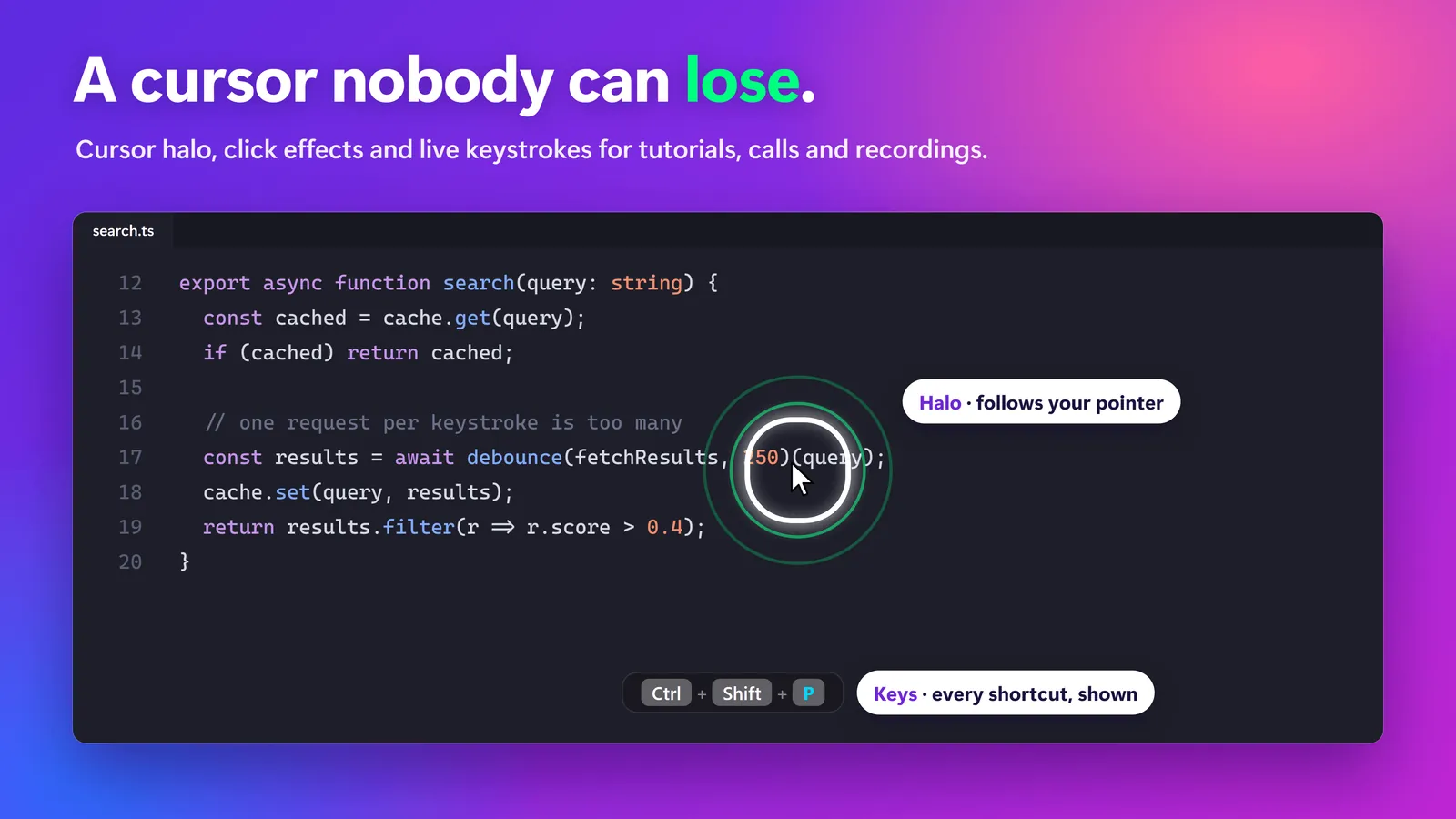
- Launch it. The halo is on from the first launch and follows the pointer, and each click flashes the halo white.
- Press Ctrl+Win+H to hide or show the halo, or Ctrl+Win+Z to turn all of SHARA on or off. Both are rebindable.
- In Settings, pick the halo shape (Squircle, Circle or Rhombus), one of 5 sizes and any colour.
- Need to point at something? Hold Ctrl+Space for the Wheel: Pen, Laser, Arrow and Text are free.
- Use it when: viewers must follow the pointer the whole time, you also need to circle or point at things, or PowerToys can’t be installed but Store apps can. The halo shows in Teams, Zoom and OBS when you share or record the screen (not a single window), and it stays visible in PowerPoint slideshows.
- When SHARA is not the right fit: you only want click feedback and already run PowerToys; you want a fully open-source tool; you want ripple clicks or custom click colours after the 14 days without paying (both are Pro); or your PC blocks the Microsoft Store.
Comparing more apps? See the best cursor highlighters for Windows, compared, or SHARA’s own page on its halo and click effects.
Free vs Pro: Free forever: cursor halo, click animation, Pen, Laser, Arrow, Text, Eraser, Screenshot and the Ctrl+Space Wheel. Every Pro tool is free for your first 14 days, with no card and no account. After that, Pro is a one-time purchase ($19.99 in the US; local prices vary).
Which should you use?
- Click feedback in a demo, PowerToys allowed: Mouse Highlighter in Ripple mode.
- The pointer must stay visible all the time: Mouse Highlighter in Circle highlight or Spotlight mode, or the SHARA halo.
- Finding a lost pointer: Find My Mouse (Ctrl twice) or the Windows Ctrl locator.
- Nothing can be installed: the Windows Ctrl locator.
- Pointing and drawing in one tool, or PowerToys blocked but the Store allowed: SHARA.
FAQ
What is the PowerToys Mouse Highlighter shortcut?
Win+Shift+H turns Mouse Highlighter on and off. You can change it in PowerToys Settings › Mouse utilities › Mouse Highlighter › Activation shortcut. Ctrl+Shift+H is not the PowerToys shortcut.
How do I get rid of the yellow circle when I click?
Press Win+Shift+H once. To keep it off, turn off Mouse Highlighter in PowerToys Settings › Mouse utilities. If the circle appears when you press Ctrl instead, turn off PowerToys Find My Mouse or untick the Windows option Show location of pointer when I press the CTRL key (Mouse › Additional mouse settings › Pointer Options).
Can PowerToys highlight the mouse all the time?
Yes. Set Highlight mode to Circle highlight or Spotlight; the default Ripple mode only reacts to clicks. Turn on Automatically activate on utility startup so the highlight starts with PowerToys.
Can PowerToys draw on the screen?
Mouse Highlighter can’t. ZoomIt, which is part of PowerToys, has a draw mode: turn on ZoomIt in PowerToys Settings, then press Ctrl+2 to draw without zooming.
Is SHARA free?
Yes. Free forever: cursor halo, click animation, Pen, Laser, Arrow, Text, Eraser, Screenshot and the Ctrl+Space Wheel. Every Pro tool is free for your first 14 days, with no card and no account. After that, Pro is a one-time purchase ($19.99 in the US).
None of these worked — what now?
Update PowerToys to the latest release, use Restart as administrator on the General page, and turn Mouse Highlighter off and on. If it still fails, report it on the PowerToys GitHub issues page. If you need a visible pointer today, the Windows Ctrl locator needs no install, and SHARA’s free halo installs from the Microsoft Store.
Sources consulted: Microsoft Learn: Mouse utilities in PowerToys; Microsoft Learn: Install PowerToys; Microsoft Learn: PowerToys administrator mode; Microsoft Learn: ZoomIt in PowerToys; Microsoft Support: Change mouse settings; PowerToys releases on GitHub; Microsoft Q&A: yellow dot on every click; Microsoft Tech Community: highlight cursor during presentations.
About the author: Mashyo is the founder of Creator Kit, the developer of SHARA. This guide covers Microsoft’s free tools first and names where SHARA fits and where it doesn’t.
Last reviewed: .