Windows 11 can’t show mouse clicks on its own. The free fix is SHARA on the Microsoft Store: its halo follows your pointer and flashes on every click, free forever. The click ripple and left/right colors are free for your first 14 days. Only want ripples? Turn on PowerToys Mouse Highlighter and press Win+Shift+H.
Creator Kit makes SHARA.
Can Windows 11 show mouse clicks without an app?
No. Windows 10 and Windows 11 have no setting that flashes the cursor or draws a ring when you click. What Windows does have helps people find the pointer, not see your clicks:
- Ctrl locator: Settings › Bluetooth & devices › Mouse › Additional mouse settings › Pointer Options, then tick Show location of pointer when I press the CTRL key under Visibility. Press Ctrl and rings close in on the pointer.
- Bigger, colored pointer: Settings › Accessibility › Mouse pointer and touch, then raise the size and pick a color.
Both are free and worth turning on, and our guide to five ways to highlight the mouse pointer walks through them. But neither reacts to a click. For a tutorial, a lesson or a demo where viewers ask “where did you just click?”, you need one of the two free tools below.
Method 1: Make your cursor flash on every click with SHARA (free)
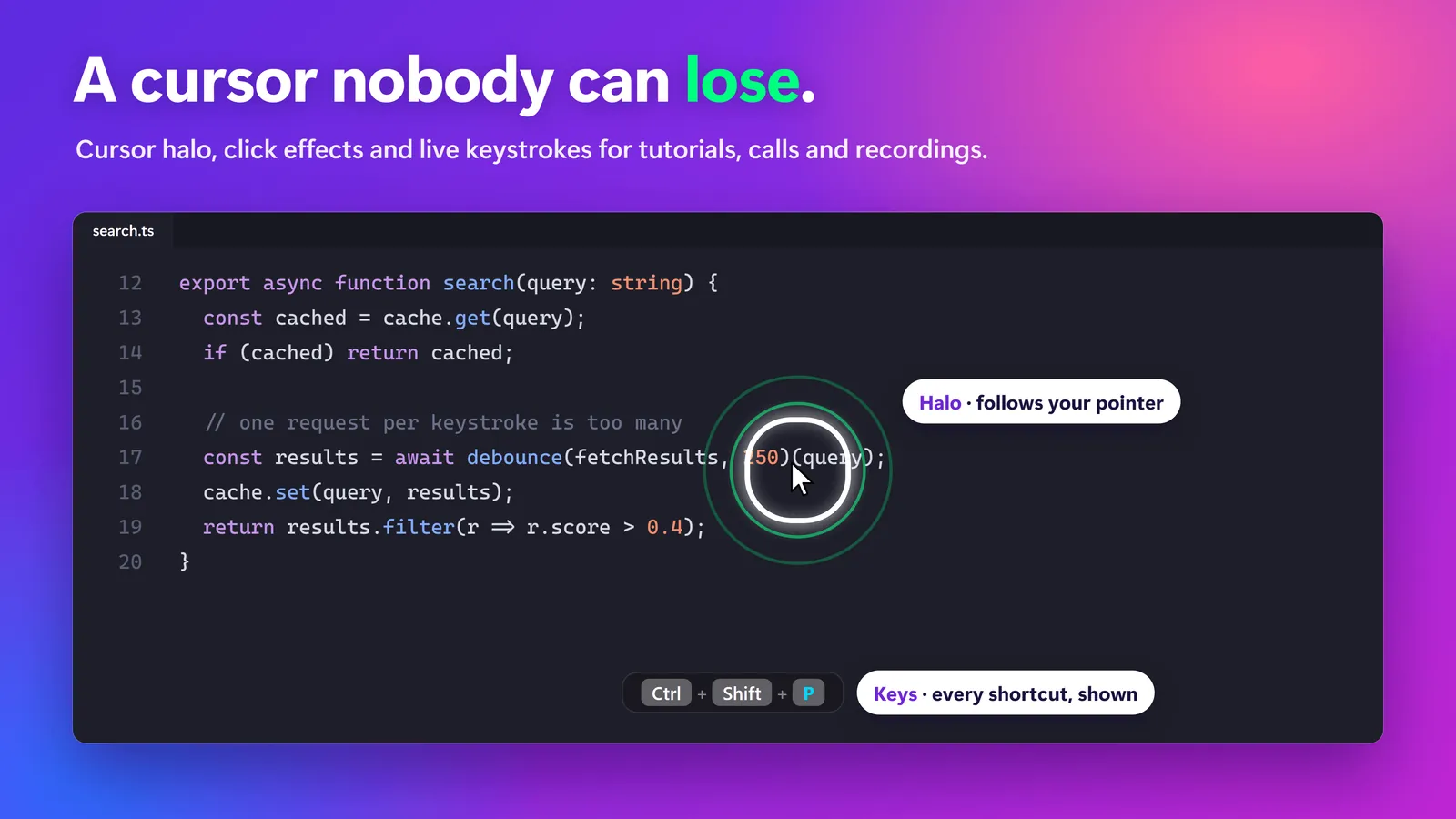
SHARA is our Windows overlay app. It puts a halo around your pointer that stays visible while you move, and flashes white each time you click, so viewers see both where the pointer is and the moment you press. The halo and the click flash are free forever, with no account and no time limit.
- Install SHARA free from the SHARA page on the Microsoft Store. It runs on Windows 10 (version 2004 or later) and Windows 11.
- Launch it. The halo is on from the first launch, so there is nothing to enable.
- Click anywhere. The halo flashes white on every click.
- In SHARA’s settings, pick the halo shape (Squircle, Circle or Rhombus), one of five sizes and any color, so it stands out against your app.
- Press Ctrl+Win+H to hide or show the halo, or Ctrl+Win+Z to turn all of SHARA on or off. Every hotkey can be changed in settings.
For your first 14 days every Pro tool is on, including the click ripple and separate colors for left and right clicks. After the trial those two go back to the free white flash; nothing else changes and nothing is deleted. The same overlay also lets you draw on your screen over live apps with the free Pen, Laser, Arrow and Text tools, and the SHARA cursor highlighter page shows every halo option.
Free vs Pro: Free forever: cursor halo, click animation, Pen, Laser, Arrow, Text, Eraser, Screenshot and the Ctrl+Space Wheel. Every Pro tool is free for your first 14 days, with no card and no account. After that, Pro is a one-time purchase ($19.99 in the US).
Method 2: Show colored click ripples with PowerToys (free)
Microsoft’s free, open-source PowerToys suite includes Mouse Highlighter, which draws a colored pulse each time you press the left or right mouse button. If you already run PowerToys, it takes a minute to set up.
- Install PowerToys from the Microsoft Store, from its GitHub releases page, or with
winget install --id Microsoft.PowerToys --source winget(Windows 10 version 2004 or later, x64 or ARM64). - Open PowerToys Settings and select Mouse utilities.
- Turn on Mouse Highlighter.
- Press Win+Shift+H to start highlighting, and press it again to stop. Turn on Automatically activate on utility startup if you want it on every time.
- Choose the Highlight mode. Ripple is the default in a new profile and pulses only on clicks (size 60 px and 480 ms by default). Circle highlight and Spotlight also keep a highlight on the pointer between clicks.
- Set the Primary button highlight color (yellow-green by default) and the Secondary button highlight color (blue by default) so left and right clicks look different.
PowerToys is the better choice if all you want is a colored ripple with free left/right colors. Its limits: in the default Ripple mode nothing shows between clicks, you have to press Win+Shift+H each session unless you turn on auto-activate, and the full suite is often blocked on managed work PCs.
SHARA vs PowerToys: which click indicator fits you?
| Tool | On a click | Between clicks | Left/right colors | Free / Paid | Best for |
|---|---|---|---|---|---|
| SHARAOur pick | White halo flash (ripple in Pro) | Halo stays on | Pro | Free Pro $19.99 one-time, US price; local prices vary | Tutorials, lessons and calls where viewers lose the pointer |
| PowerToys Mouse Highlighter | Colored ripple | Only in Circle highlight or Spotlight mode | Yes, free | Free / Open Source | Click ripples only, on a PC that already runs PowerToys |
| Windows 11 built-in | Nothing | Ctrl locator rings, bigger pointer | No | Free | Finding a lost pointer |
We pick SHARA for most readers because the question behind “show my clicks” is usually “can you see my mouse?”: its halo answers both, and it installs from the Microsoft Store as a single app. Want to compare more pointer tools first? See our cursor highlighter comparison for Windows.
When SHARA is not the right fit
- You want different left and right click colors for free, forever: PowerToys does that; in SHARA it is a Pro feature after the 14-day trial.
- You only need a ripple for a quick recording and PowerToys is already installed: use it, there is nothing extra to install.
- You need a screen recorder: SHARA is an overlay, not a recorder. Keep your recorder and run SHARA on top.
- You are on a Mac: SHARA is Windows only.
Will your clicks show in recordings and screen shares?
SHARA draws on the real screen, so its halo and click flash appear in Teams, Zoom, OBS and other recorders when you share or record the whole screen. Sharing a single window, or using OBS Window Capture instead of Display Capture, can leave desktop overlays out. SHARA’s toolbar and Wheel can be hidden from capture while the halo and ink stay visible.
Whichever tool you use, record ten seconds with your real setup before you go live and check that the clicks show. On the OBS forum, the long-running “Show mouse click” thread points users to overlay tools such as PowerToys rather than to an OBS setting.
Clicks not showing, or a circle you didn’t ask for?
- A yellow circle appears every time you click: that is PowerToys Mouse Highlighter. Press Win+Shift+H to turn it off, or switch Mouse Highlighter off in PowerToys Settings › Mouse utilities. A Microsoft Q&A user confirmed the shortcut fixed it.
- PowerToys is installed but nothing shows: check that PowerToys is running and Mouse Highlighter is on, then press Win+Shift+H. If another app uses that shortcut, set a new activation shortcut.
- The SHARA halo disappeared: press Ctrl+Win+H to bring the halo back, or Ctrl+Win+Z if all of SHARA was switched off.
- Two effects on every click: SHARA and PowerToys are both running. Keep one.
- The clicks are missing from the recording: capture or share the whole display, not a window.
FAQ
Is SHARA free?
Yes. Free forever: cursor halo, click animation, Pen, Laser, Arrow, Text, Eraser, Screenshot and the Ctrl+Space Wheel. Every Pro tool is free for your first 14 days, with no card and no account. After that, Pro is a one-time purchase ($19.99 in the US).
How do I make my cursor flash when I click?
Windows has no setting for it. Install SHARA free: its halo flashes white on every click and stays around the pointer between clicks. Or turn on PowerToys Mouse Highlighter and press Win+Shift+H for a colored ripple on each click.
Why does a yellow circle appear when I click?
That is PowerToys Mouse Highlighter: its default left-click color is a yellow-green. Press Win+Shift+H to turn it off, or switch Mouse Highlighter off in PowerToys Settings › Mouse utilities. A Microsoft Q&A user confirmed the shortcut fixed it.
Can I show left and right clicks in different colors?
Yes. PowerToys does it free, with yellow-green for the primary button and blue for the secondary by default. In SHARA, custom left and right click colors are included free for your first 14 days, then it’s a one-time upgrade.
Will viewers see my clicks in Zoom, Teams or OBS?
SHARA draws on the real screen, so its halo and click flash appear when you share or record the whole screen. Sharing a single window or using OBS Window Capture can leave overlays out, so share the screen and test a short recording first.
None of these worked — what now?
Check that only one tool is running, then press Ctrl+Win+H (SHARA halo) or Win+Shift+H (PowerToys) once to switch the effect back on. If PowerToys is blocked on a work PC, SHARA installs from the Microsoft Store; if the Store is blocked too, ask your IT team to approve one of them.
Sources consulted: Microsoft Learn: PowerToys Mouse utilities (Mouse Highlighter settings and defaults); Microsoft Learn: Install PowerToys; Microsoft Q&A: yellow circle around the mouse cursor; OBS Forums: Show mouse click; SHARA 4.3.3 application behavior.
About the author: Mashyo is the founder of Creator Kit, the developer of SHARA. This guide gives the free Microsoft option its full steps next to our own app, so you can pick the lighter tool that does the job.
Last reviewed: