If your mouse cursor is not locking to a game in Windows, start by cycling the game from Fullscreen to Windowed and back, then repair or reset Xbox Game Bar and test once with every overlay closed. If the cursor still escapes to a second monitor, Windows does not include a universal per-game cursor lock. LockSpot can automatically confine the cursor to the active game window and release it when you Alt-Tab. One game is included free.
Why Windows 11 Games Stop Locking the Cursor
Most PC games confine the Windows pointer while the game window is active. On Windows, a normal way to do that is cursor clipping, which Microsoft documents through the ClipCursor function. The game, launcher, overlay, or a companion utility must keep that boundary current while the window has focus.
The lock can fail when Xbox Game Bar steals focus, a fullscreen mode changes, an overlay opens, a Windows update changes input behavior, display scaling confuses the window boundary, or a game shows a visible pointer in menus. Microsoft Q&A threads describe the exact symptom: the pointer rolls onto another monitor, the next click tabs the game out, and players use tools such as Dual Monitor Tools as a workaround.
First Diagnose the Pattern
| What you see | Most likely cause | First move |
|---|---|---|
| One game loses the cursor | Display mode, game update, cursor setting, launcher, or permissions | Cycle Fullscreen and check that game’s mouse settings |
| Every fullscreen game loses it | Xbox Game Bar, Windows update, GPU overlay, or system-wide focus behavior | Repair/reset Game Bar and run one clean no-overlay test |
| Only menus, inventory, or maps fail | The game switches from camera input to a visible Windows pointer | Test a window-aware lock while that menu is open |
| The cursor crosses only at one edge | Display layout, mixed scaling, or a bad window boundary | Verify monitor order, primary display, and DPI scaling |
Best Fixes for a Cursor That Will Not Lock
| Fix | Time | Best for | Risk |
|---|---|---|---|
| 1. Reset Fullscreen Capture | Instant | One game that suddenly stopped locking | Low |
| 2. Repair or Reset Xbox Game Bar | 2 mins | Game Bar cursor lock failures | Low |
| 3. Test Without Overlays | 3 mins | Discord, Steam, GPU, capture, or mouse software conflicts | Low |
| 4. Check Display and Scaling | 2 mins | Multi-monitor edge or DPI boundary problems | Low |
| 5. Update Windows, GPU Driver, and Game | 10 mins | Bugs introduced or fixed by recent builds | Medium |
| 6. Match Permission Levels | 1 min | Games intentionally running as administrator | Medium |
| 7. LockSpot Smart Auto-JailMost Reliable | 1 min | Persistent Windows 11 cursor escape in one or more games | Low (focus-aware release) |
1. Reset the Game’s Fullscreen Cursor Capture
- Open the game’s Video or Display settings.
- Switch from Fullscreen to Windowed or Borderless.
- Apply the change.
- Switch back to Fullscreen.
- Restart the game and test all monitor edges.
This is the fastest fix because it forces the game to rebuild its window and request cursor confinement again. Do it before changing drivers, registry settings, or Windows updates.
2. Repair or Reset Xbox Game Bar
If the problem started after pressing Win+G or opening Xbox Social, repair Game Bar first. On current Windows 11 builds, go to Settings > System > System Components > Game Bar > Advanced options, then choose Repair. If Repair does not change anything, use Reset. Some builds list Game Bar under Settings > Apps > Installed apps instead.
Restart the game after the repair. Do not open Game Bar during the test. If the cursor stays locked, re-enable only the Game Bar features you actually use and test again.
3. Run One Clean No-Overlay Test
Close Discord Overlay, Steam Overlay, NVIDIA or AMD overlays, capture tools, RGB utilities, and mouse-profile software for one test session. If the cursor lock works, turn overlays back on one at a time. This keeps the diagnosis clean and avoids disabling useful tools permanently.
4. Verify Monitor Layout and Scaling
Open Settings > System > Display. Select your gaming monitor, set it as the main display if appropriate, and align the monitor rectangles to match the real desk layout. Mixed DPI scaling, such as 150% on a 4K display and 100% on a 1080p display, can reveal boundary bugs in apps that handle per-monitor scaling poorly.
Do not lower your preferred scaling forever just to hide a game bug. Use this step to identify the cause, not to make your desktop uncomfortable.
5. Update the Game, Windows, and GPU Driver
Install normal stable updates from Windows Update, the game launcher, and your GPU vendor. If the issue began immediately after a Windows update, first look for a newer cumulative update. Uninstalling an update is a last-resort diagnostic step because it can remove security fixes and may be reinstalled automatically.
6. Match Administrator Permission Levels
Windows separates normal and elevated processes. If a game is intentionally running as administrator, a cursor-lock utility may need the same permission level to affect that elevated window. The cleaner fix is to remove unnecessary Run this program as administrator settings from the game whenever possible.
7. Add an Automatic Per-Game Cursor Boundary
Windows 11 has no built-in switch that says “lock the mouse to whatever game is focused.” If the game or overlay fails to maintain the boundary, use a focused cursor-lock utility instead of disabling your second monitor.
How to Lock One Windows 11 Game With LockSpot
- Install LockSpot from the Microsoft Store.
- Launch the affected game and wait until the actual game window is focused.
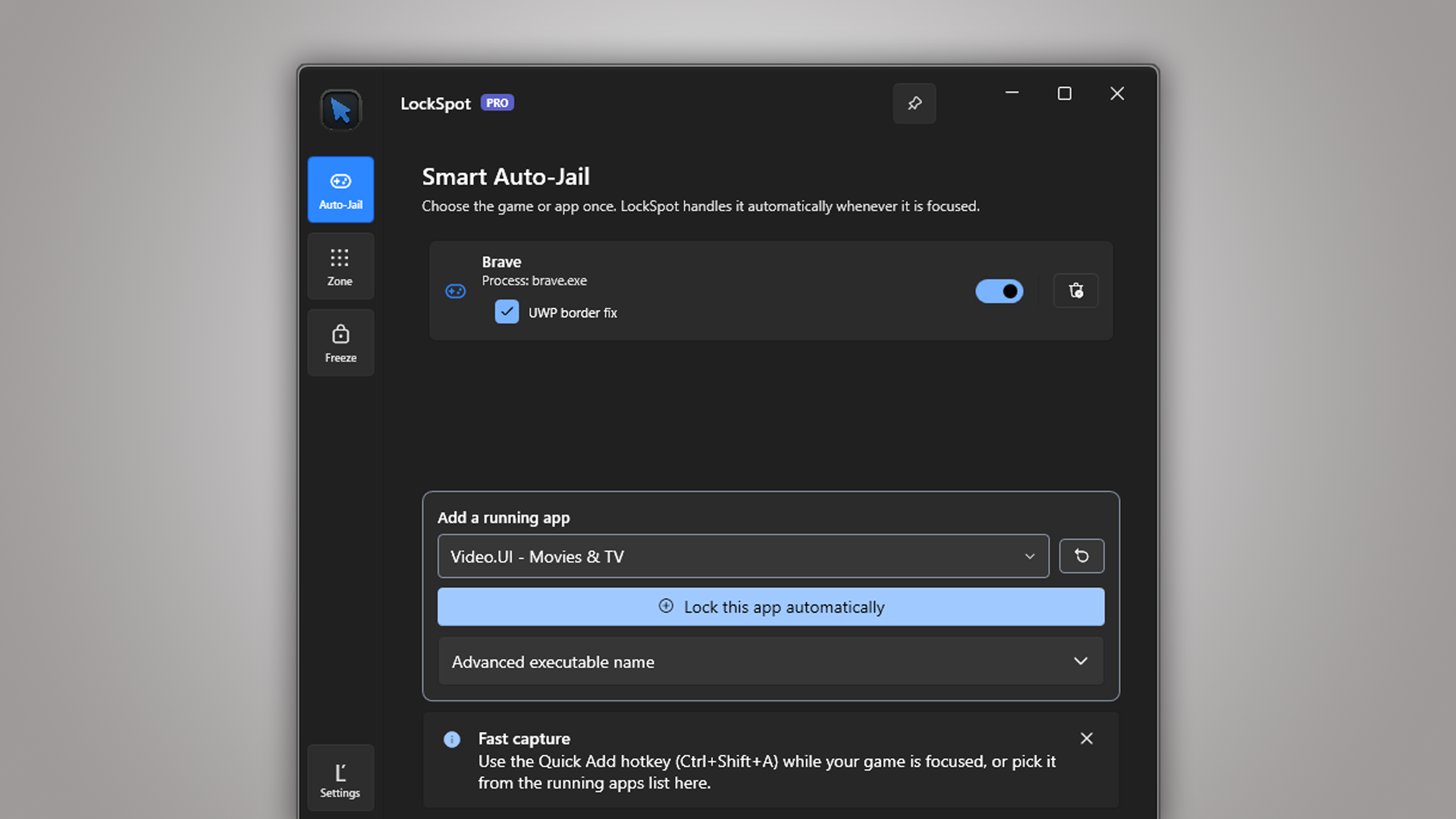
- Press Ctrl+Shift+A, LockSpot’s default Quick Add focused app hotkey.
- Open LockSpot’s Auto-Jail tab and confirm the game process appears, not the launcher.
- Return to the game and push the pointer against every monitor edge.
Why Quick Add matters: launchers and games often use different processes. Capturing the focused game avoids setting a rule for Steam, Epic Games Launcher, Riot Client, or another launcher that is not the window you play in.
LockSpot confines the Windows pointer while the selected app has focus. It does not move your mouse, replay input, inject into the game, lock your keyboard, or block Alt-Tab. Auto-Jail releases when focus changes, the default Left Alt override suspends the lock for up to three seconds, and Ctrl+Shift+U releases every LockSpot boundary. All hotkeys are configurable.
Stop Windows 11 games from losing the cursor to another monitor
Use Smart Auto-Jail to confine the pointer only while the selected game is active. Alt-Tab out, use your other monitor normally, then return and LockSpot reapplies the boundary.
Frequently Asked Questions
Is Xbox Game Bar always the cause?
No. Game Bar is a documented trigger in Microsoft support discussions, but game updates, GPU overlays, display scaling, and focus changes can cause the same symptom. Test Game Bar first if the issue started after pressing Win+G.
Why does the cursor escape only when a menu is open?
Many games use relative mouse input during camera movement, then show a normal Windows pointer in menus, inventories, maps, or launch screens. If confinement is weak, that visible pointer can move to another monitor.
Can Windows 11 lock the cursor to one game by itself?
Not reliably. Windows display settings can arrange monitors and choose a main display, but they do not provide a universal per-game cursor-lock rule. The game must request confinement, or a utility must maintain it.
Will LockSpot stop Alt-Tab or add input lag?
No. LockSpot confines the pointer rectangle only. It releases on focus loss, does not block keyboard shortcuts, and does not simulate or replay mouse input.
Sources consulted: Microsoft Q&A: cursor not locked to game screen; Microsoft Q&A: mouse moving to a second monitor; Microsoft Win32 ClipCursor documentation.
About the author: Mashyo is the founder of Creator Kit, developer of LockSpot. The product relationship is disclosed so readers can separate free diagnostic steps from the publisher’s own cursor-lock recommendation.
Last reviewed: