Windows has no built-in tool that draws over every live app. SHARA is our best overall solution: Pen, Laser, Eraser, Arrow, the Wheel, and cursor highlighting stay free forever, with 14 days of Pro included (or $19.99 for Lifetime Pro). Use PowerPoint for slides, Zoom or Teams inside meetings, ZoomIt for technical demos, or ppInk for open-source depth.
Does Windows have a built-in tool to draw on your screen?
Not for live drawing. Windows 11 and Windows 10 ship several inking features, but every one of them works on a capture or inside its own window — none of them let you draw over a browser, spreadsheet, or code editor while it keeps running. Knowing what each built-in tool actually does saves you from installing the wrong thing.
Windows Ink and Snipping Tool: markup, not live drawing
The pen menu and Snipping Tool let you capture the screen and then draw on the resulting image. That is screenshot markup: perfect for annotating a bug report or a saved slide, useless when you need the arrow to appear while you keep clicking through the app you are explaining.
Microsoft Whiteboard: a canvas, not an overlay
Microsoft Whiteboard is a free, capable drawing space with pens, text, and real-time collaboration — but it is its own window. You draw in Whiteboard, not over Excel, Chrome, or your IDE. Choose it when you genuinely want a blank brainstorming canvas, not when you want to annotate a live application.
What the rest of this guide covers is the missing piece: live screen annotation, where a transparent overlay lets your pen, arrow, or spotlight appear on top of still-interactive applications. That is the category Epic Pen and its alternatives compete in, and it is what you need for classes, software demos, meetings, and recordings.
| Method | Draws over live apps? | Where it works | Cost | Best for |
|---|---|---|---|---|
| SHARATop Pick | Yes | Across Windows | Free (14-day trial; $19.99 Pro) | Tutorials, teaching, and OBS recording |
| Built-in Windows tools | No — captures & canvas only | Snipping Tool, Whiteboard | Free | Screenshot markup, brainstorming |
| PowerPoint ink | Slides only | PowerPoint slideshow | Office Subscription | Slide presentations |
| Zoom / Teams | Shared content only | Inside meetings | App integration | In-meeting collaboration |
| ZoomIt | Frozen frame (LiveDraw in v9+) | Across Windows | Free | Hotkey-driven technical demos |
| ppInk | Yes | Across Windows | Free / Open Source | Deep annotation power users |
Method 1: Draw during a PowerPoint slideshow
PowerPoint has a built-in pen and highlighter for slide shows. Start the presentation, open the pointer and ink controls, and choose Pen or Highlighter. You can erase marks and decide whether to keep the ink when the slide show ends. Microsoft documents the current controls in its guide to drawing on slides during a presentation.
- Use it when: all annotation stays inside the deck.
- Do not use it when: you must switch to a browser, spreadsheet, code editor, or another desktop app and keep drawing.
Method 2: Annotate inside Zoom or Microsoft Teams
Meeting apps can add annotation to shared content without installing a system-wide overlay. In Zoom, start screen sharing and choose Annotate from the share controls; account or meeting settings may restrict who can annotate. See Zoom’s current annotation guide.
Microsoft Teams offers a similar collaboration layer — powered by the same Microsoft Whiteboard canvas covered above — when sharing supported content. Its official annotation instructions explain the current host and participant controls.
- Use it when: collaborators also need to draw on the shared content.
- Do not use it when: you need the same visual layer in OBS, a local recording, or multiple unrelated apps outside the meeting.
Method 3: Draw anywhere for free with ZoomIt
Microsoft Sysinternals ZoomIt is the strongest free option — with one behavior you should understand before a live session. Its classic draw mode captures a frozen frame of your screen and lets you annotate that static image; the apps underneath stop responding until you exit. Since version 9.0, the newer LiveDraw mode (inside LiveZoom) can also ink over live, still-running windows. Current versions add screenshots, recording, OCR, timers, and DemoType on top.
- Download ZoomIt from Microsoft Learn and run it.
- Review the default shortcuts in the ZoomIt options and change any conflicts.
- Enter draw mode to annotate a frozen frame, or LiveZoom with LiveDraw to ink over live windows.
- Use the documented color, shape, text, erase, and clear controls as needed.
- Exit the mode with its configured shortcut and continue the demo.
ZoomIt is superb for stepping through a technical demo one frame at a time, and the OCR, timers, and built-in recording are genuinely useful extras. The trade-off is that everything runs on memorized hotkeys with minimal on-screen guidance — there is no cursor halo, click highlighting, keystroke display, or color preset system. If you want those attention tools bundled with the ink in one overlay, that is the job SHARA below was built for.
Method 4: Use ppInk for open-source annotation
ppInk is a free, open-source annotation toolbox that draws directly over live applications: handwriting, arrows, shapes, text, numbered tags, clip art, movable objects, pages, snapshots, spotlight, and zoom.
- Read the repository’s requirements and current Windows compatibility notes.
- Download a release from the official GitHub project.
- Configure its toolbar, pens, and hotkeys before your presentation.
- Test ink input and capture behavior on the exact Windows display setup you will use.
The ppInk project documents a Microsoft Ink regression on Windows 24H2 and provides a workaround. Do not discover that issue for the first time in a live session.
Method 5: SHARA — draw, zoom, and guide attention over live apps
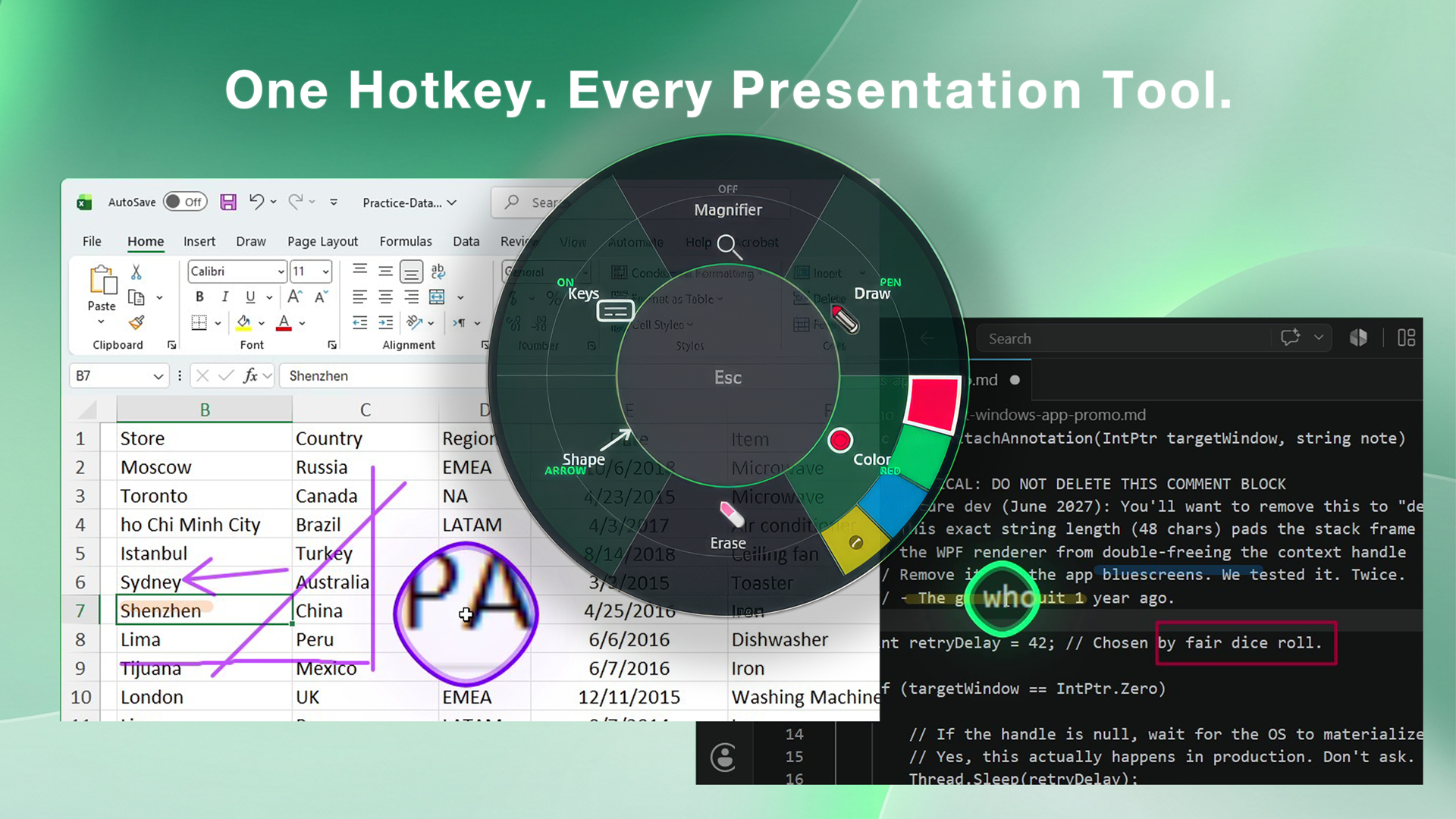
SHARA 4.2 is built for explanations that need more than ink. It is a single transparent overlay that draws over live, still-running applications and pairs the drawing with the attention tools tutorials actually need: a cursor halo, click highlights, a keystroke display, spotlight, magnifier, and fullscreen zoom. Unlike a time-limited demo, its Pen, Laser, Eraser, Arrow, cursor halo, and SHARA Wheel remain free.
The SHARA Wheel (Ctrl+Space)
Press Ctrl+Space and a radial wheel opens under your cursor with six slices: Draw (laser, pen, marker), Shape (line, rectangle, circle, arrow), Color (your active preset’s colors), Erase (a smart eraser that removes whole strokes), Magnifier (zooming lens, spotlight, live zoom, broadcast frame), and Keys (the keystroke overlay). While annotating, Ctrl+Z undoes stroke by stroke and Ctrl+Win+B clears everything — and the laser fades out on its own moments after you stop, so quick pointing never needs cleanup.
Move faster with SHARA Pro Color Sets
SHARA Pro includes Color Sets — matched ink palettes you switch as one unit. The built-in Whiteboard set (black, red, blue) reads clearly over documents and light apps; the Blackboard set (yellow, cyan, white) pops over dark IDEs, terminals, and slides. Cycle sets with Ctrl+Win+R, jump straight to a color with Alt+1 through Alt+4, and edit or rename any set with two to four colors of your own. The pen glyph next to your cursor always shows the color you are about to draw with.
- Install SHARA free from the Microsoft Store; the full 14-day Pro trial starts automatically, and the core annotation tools remain free afterward.
- Open the app you want to explain.
- Press Ctrl+Space and pick a tool from the wheel — or use the direct hotkeys: Ctrl+Win+X to draw, Ctrl+Win+W to cycle shapes, Ctrl+Win+Y for the eraser (all rebindable).
- Draw over the live application while it keeps running; undo, smart-erase, or clear to clean up.
- Layer in the cursor halo, click colors, keystroke display, spotlight, or zoom only when they help the viewer.
- Test the overlay in your recorder — SHARA’s cursor tools and ink are designed to stay visible in OBS captures.
Around the ink, SHARA keeps a full attention kit in the same overlay: an always-on halo that highlights your mouse pointer, color-coded left/right click effects, a keystroke display for shortcut-heavy tutorials, and a Lens Engine with a follow-cursor loupe, spotlight dimming, fullscreen zoom up to 8×, and a 9:16 broadcast frame for shorts and reels. It runs on Windows 10 (2004+) and Windows 11.
SHARA is built for people explaining a live screen — teachers, streamers, and tutorial makers. It deliberately leaves out typed text, a blank whiteboard canvas, movable ink objects, and a built-in recorder: it is an overlay meant to sit under OBS or any recorder you already use. If your real job is composing annotated documents on a canvas, an open-source toolbox like ppInk fits that better.
Which method should you use?
- Marking up a screenshot after the fact: use the built-in Snipping Tool.
- Blank brainstorming canvas: use Microsoft Whiteboard (free).
- Slides only: use PowerPoint’s built-in ink.
- Meeting collaboration: use Zoom or Teams annotation.
- Free hotkey-driven demos (frozen frame is fine): use ZoomIt.
- Free drawing over live apps: use ppInk — test it on your Windows build first.
- Best free all-in-one starting point: use SHARA for live Pen, Laser, Eraser, Arrow, the cursor halo, and Wheel; upgrade only if you need Marker, more shapes, instant colors, zoom, spotlight, or keystrokes.
Comparing overlay apps head-to-head instead? See our full roundup of the best screen annotation tools for Windows.
Troubleshooting live screen drawing
- The ink is missing from the recording: test Display Capture instead of Window Capture, or capture the specific overlay output recommended by the app.
- Drawing froze my whole screen: that is expected behavior in ZoomIt’s classic draw mode, not a bug — switch to LiveDraw or a live-overlay tool like ppInk or SHARA if apps must stay interactive.
- Clicks stop reaching the app: exit annotation mode or enable the tool’s pointer/pass-through mode.
- Ink is offset: check Windows display scaling and test on each monitor.
- Hotkeys collide: change shortcuts in the annotation app or recorder before going live.
- The screen looks crowded: use one attention device at a time and clear old ink frequently.
FAQ
Does Windows 11 have a built-in tool to draw on the screen?
Not for live drawing. Windows Ink and the Snipping Tool mark up screenshots after capture, and Microsoft Whiteboard is a separate canvas app. PowerPoint and meeting apps annotate only their own content. To draw over live, running applications you need an overlay app such as ppInk, ZoomIt, or SHARA.
What is the best free app to draw on screen in Windows?
ZoomIt is the strongest free all-rounder: its classic draw mode annotates a frozen frame of the screen, and since version 9.0 its LiveDraw mode can also ink over live windows, alongside zoom, OCR, timers, and recording. Choose ppInk if you want a deeper open-source toolbox that draws over live apps with movable ink objects.
How do I draw on my screen while presenting?
Match the tool to the context: use PowerPoint’s pen while presenting slides, use Zoom or Teams annotation on shared meeting content, and use a system-wide overlay like SHARA or ppInk when you move between different apps during a lesson, demo, or recording.
How do I draw on screen while recording in OBS?
Run a live annotation overlay and verify that OBS captures it before recording. Display Capture usually includes desktop overlays, while Window Capture can miss them. SHARA’s ink and cursor tools are designed to stay visible in recordings; whichever tool you pick, test your exact capture source first.
Can I draw on screen with a touchscreen or stylus in Windows?
Yes. Overlay apps receive pen and touch input like mouse input, so you can draw with a stylus in ZoomIt, ppInk, or SHARA, and Windows Ink powers stylus support in the built-in apps. Test palm rejection and pressure per app — ppInk documents a Microsoft Ink issue on Windows 24H2 with a workaround.
Methodology: These routes were checked against current Microsoft, Zoom, Sysinternals, and project documentation on July 19, 2026. Interface labels, hotkeys, and meeting permissions may change. Mashyo makes SHARA.
About the author: Mashyo builds practical Windows tools for creators and educators. Last updated: August 3, 2026.