The best screen marker for PC in 2026 is SHARA Free: unlike browser-only page markers, it is a hardware-accelerated desktop overlay that marks over any live app, slide, or video on Windows 11 and 10. Its Pen, Laser, Eraser, Arrow, text labels, and cursor halo stay free forever; every install includes 14 days of Pro, with the semi-transparent Marker and a Whiteboard for teachers (or $19.99 for Lifetime Pro). Choose ZoomIt for hotkey demos or ppInk for deep open-source toolboxes.
The best Windows screen markers at a glance
A true screen marker acts like a transparent dry-erase layer across your entire operating system. Unlike browser extensions that disappear when you leave Chrome, desktop screen markers let you draw freely over spreadsheets, presentations, code editors, and video calls while applications remain live underneath.
| Rank | Tool | Price | Live Inking | Laser & Eraser | Cursor Halo | Store Install | Rating |
|---|---|---|---|---|---|---|---|
| #1 |
SHARA Winner |
Free (14d trial; $19.99 Pro) | MS Store | ||||
| #2 | ZoomIt LiveDraw | Free | MS Store | ||||
| #3 | ppInk | Free (MIT) | |||||
| #4 | Page Marker (Ext) | Free | Chrome | ||||
| #5 | Screen Marker & Rec | Free | MS Store | ||||
| #6 | gInk | Free (OSS) | |||||
| #7 | ScreenMarker (.exe) | Abandoned |
What Makes a Great Screen Marker in 2026?
A great screen marker for PC must do more than draw an opaque red line over a frozen desktop. With 4K displays, multi-monitor setups, and remote presentations via Zoom or Teams, the ideal tool must meet five criteria:
- System-wide live drawing: The marker must ink directly over running software (browsers, Excel, code editors, videos) without freezing the background or blocking mouse clicks to the app below.
- Hardware-accelerated rendering: Modern overlays must render at 60+ FPS via DirectX or Direct2D so inking feels as responsive as a physical pen, with zero cursor latency or stroke stutter.
- Semi-transparent highlighters & laser decay: Thick opaque lines cover up valuable text. The tool should offer a semi-transparent marker that highlights without hiding words, and a fading laser trail for quick pointing without requiring manual erasing.
- Pointer & attention integration: Marking is only half of explaining. The tool must combine drawing with cursor halos, click cues, or magnification in one unified overlay rather than forcing you to run three separate utilities.
- Modern Windows 11 compatibility: Full support for per-monitor DPI scaling so lines are never offset on secondary monitors, packaged via clean sandboxed installers (Microsoft Store MSIX) rather than unverified
.exedownloads.
#1: SHARA — Best Screen Marker for PC & Windows 11 (Free)
SHARA is our #1 ranked desktop screen marker for Windows 11 and 10, available directly from the Microsoft Store. While most tools simply draw lines, SHARA integrates a complete presenter toolkit: a semi-transparent marker, vector pen, decaying laser pointer, smart eraser, arrow, line, rectangle and circle shapes, text labels, a whiteboard, screenshots, and an always-on cursor halo that stays visible between interactions.
Why SHARA Outperforms Traditional Markers:
Unlike browser extensions that vanish when you switch windows, SHARA floats over any application via hardware-accelerated DirectX rendering. Pressing Ctrl+Space summons the radial SHARA Wheel directly under your pointer, giving you instant access to your tools with nothing parked on your screen. Prefer a fixed bar? Dock the same tools in the SHARA toolbar at any screen edge instead (Ctrl+Win+A).
- Semi-Transparent Marker & Auto-Fading Laser: Use the Marker (Pro, included in the 14-day trial) to highlight text without obscuring words underneath, or flick the free Laser trail to guide eyes during fast explanations—it decays automatically, saving you from cleaning up ink.
- Always-On Cursor Halo: Pairs your marker with a kinetic 3D halo that highlights the mouse pointer, with a white flash on every click (click ripples and custom left and right click colors are Pro).
- Smart Stroke Eraser & Undo: Erase entire strokes with a swipe (Ctrl+Win+Y), undo step-by-step (Ctrl+Z), or wipe the canvas clean instantly (Ctrl+Win+B).
- Whiteboard for Teachers: Switch the screen to a white, black, or grid board with Ctrl+Win+K and write on it like a classroom board, then drop back to your slides or app in one step. The Whiteboard is Pro and included in the 14-day trial.
- Text Labels, Shapes & Screenshots: Type a label anywhere on screen (Ctrl+Win+I, free), draw arrows for free, add lines, rectangles and circles with Pro, and capture the marked-up screen as a screenshot (free).
- OBS & Meeting Integration: Cleanly captured by OBS Display Capture, Zoom, Microsoft Teams, and Google Meet without causing black-screen compositor glitches.
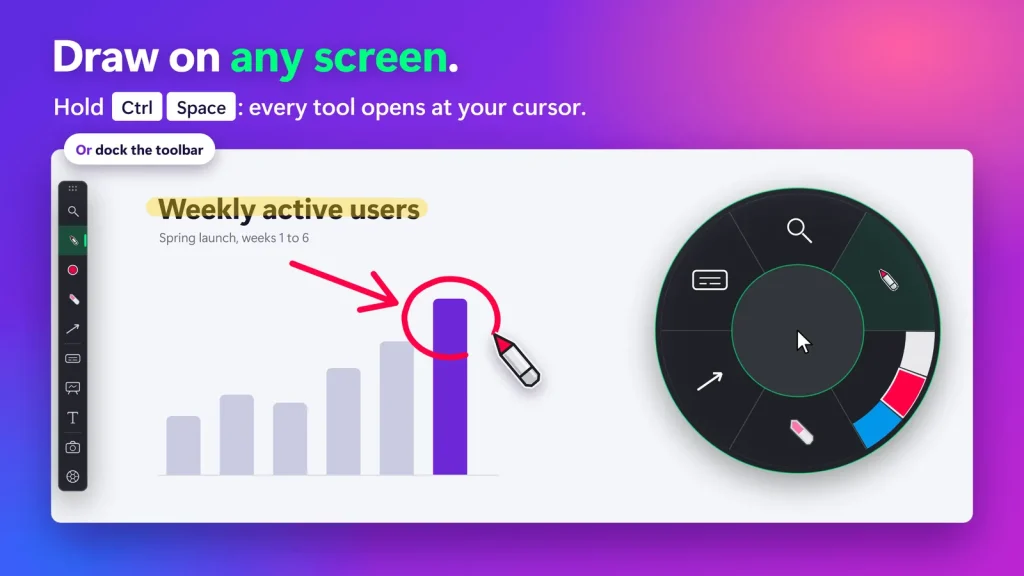
Key takeaway: SHARA wins because the free tier already handles core screen marking, live laser pointing, and cursor visibility end-to-end. Every install includes 14 days of Pro (Marker, shapes, Whiteboard, keystrokes, 4-mode magnifier, color sets), and Pro is an optional $19.99 one-time upgrade—never a recurring subscription.
#2: ZoomIt LiveDraw — Best Free Technical Presentation Utility
ZoomIt from Microsoft Sysinternals is the default free recommendation for IT administrators and developers. While classic ZoomIt takes a static snapshot of the screen to draw on (freezing apps), its newer LiveDraw mode lets you ink over running applications while zooming.
ZoomIt provides a clean pen, straight lines, arrows, rectangles, and text entry, alongside break timers and screen recording. The trade-off is that it relies entirely on memorized hotkeys (pressing ‘R’ for red, ‘G’ for green, ‘W’ for whiteboard) with no visual toolbar, no cursor halo, and no click indicators. Read our complete comparison in the guide to drawing on Windows screens or see our full roundup of screen annotation tools for Windows.
#3: ppInk — Best Deep Open-Source Toolbox
ppInk is an expansive open-source screen marker descended from gInk. It features an extensive floating toolbar equipped with pens, highlighters, numbered callout badges (1, 2, 3…), arrows, movable ink stamps, and multiple canvas snapshots.
For educators who want deep annotation control without spending money, ppInk is an exceptional tool. Note that on recent Windows 11 updates (specifically 24H2), ppInk requires tweaking settings due to a documented Microsoft Ink API regression.
#4: Page Marker (Chrome Extension) — Best for In-Browser Only
If 100% of your work happens inside Google Chrome and you never switch to desktop software, the popular Page Marker extension is a convenient browser-level tool. It injects an HTML5 canvas directly into the active webpage DOM, allowing you to sketch notes, highlight paragraphs, and erase marks using a simple floating palette.
| Pros | Cons |
|---|---|
Instant 1-click install from the Chrome Web Store Works across Windows, Mac, and Chromebooks 100% free with zero configuration | Cannot draw on desktop apps, PowerPoint, or taskbars Ink vanishes if the browser page refreshes or navigates Cannot scroll the page smoothly while drawing mode is active |
#5: Screen Marker & Recorder — Best with Integrated Capture
Available on the Microsoft Store, Screen Marker & Recorder combines live desktop drawing with a built-in screen capture and microphone recording module. If you don’t want to configure OBS Studio or third-party capture suites, this app gives you pens, highlighters, shapes, and an “export to MP4” button in one package.
#6: gInk — Best Minimalist Drawing Bar
gInk is the minimalist predecessor to ppInk. It places a tiny, non-intrusive stylus tray at the bottom edge of your screen. When clicked, it freezes your display and lets you draw high-contrast marks before clicking the green checkmark to dismiss. It is completely open-source, bloat-free, and ideal for basic screenshot marking.
#7: Classic ScreenMarker.exe — Why You Should Avoid the 2000s Freeware
Many teachers search for “ScreenMarker download” remembering the classic portable freeware utility (ScreenMarker.exe) widely used during the Windows XP and Windows 7 eras. It offered a vertical floating toolbar with basic colored markers and erasers.
Warning: The original ScreenMarker has been abandoned for well over a decade. On Windows 11 and 4K displays, it exhibits severe cursor offset bugs, lacks high-DPI scaling, flickers over modern GPU-accelerated windows, and lacks an undo shortcut. Many third-party download sites distributing old ScreenMarker executables bundle unwanted adware. Use modern native alternatives like SHARA, ppInk, or ZoomIt instead.
What About Epic Pen? (Price & Subscription Comparison)
When searching for professional Windows drawing overlays, Epic Pen is often the first commercial tool people find. While Epic Pen has polished inking, its pricing model pushes many users to seek alternatives:
| Tool | Model / Price | Cursor Halo & Clicks | Keystroke Display | Magnifier & Zoom |
|---|---|---|---|---|
| Epic Pen Pro | Subscription (yearly or monthly) | Cursor only | ||
| SHARA | Free core / $19.99 Lifetime |
Epic Pen charges a recurring subscription for features like shapes, text, and whiteboard backgrounds, and its Pro tier highlights the cursor but has no click cues, keystroke display, or magnification. SHARA provides a full screen marker and attention toolkit for a single one-time payment of $19.99.
The Bottom Line
For everyday screen marking on Windows, SHARA is our clear winner: unlike Chrome extensions that vanish outside browser tabs, its hardware-accelerated DirectX overlay marks over any live desktop app. Its Pen, Laser, Eraser, Arrow, text labels, and always-on halo are completely free to keep. Install it free from the Microsoft Store; if the Marker, Whiteboard, extra shapes, 4-mode magnifier, keystrokes, and color sets streamline your lessons or presentations, Pro is an optional $19.99 one-time upgrade.
Frequently Asked Questions
What is the best screen marker for PC?
SHARA is the best overall screen marker for PC in 2026. It renders over all live Windows apps via DirectX 11, gives you every tool in a radial wheel (Ctrl+Space) or a docked toolbar, combines markers with laser pointers, a teaching whiteboard and cursor halos, and runs locally without subscriptions.
Can I use Chrome Page Marker on desktop apps?
No. Chrome extensions like Page Marker only function inside Google Chrome browser tabs. To mark over PowerPoint, Excel, Zoom, or your Windows desktop, you need a system-wide desktop screen marker such as SHARA or ppInk.
Is there a free screen marker for Windows 11?
Yes. SHARA offers free-forever access to its Pen, Laser, Eraser, Arrow, text labels, and cursor halo; the Marker and Whiteboard are Pro, included in the 14-day trial. For open-source alternatives, ppInk and ZoomIt are completely free.
Is classic ScreenMarker.exe safe to download?
Most original links for classic ScreenMarker (from the 2000s) are dead, and unofficial re-upload sites frequently bundle adware or malware. Additionally, the software is incompatible with Windows 11 display scaling. It is safer to install modern, sandboxed tools from the Microsoft Store or trusted GitHub repositories.
About the author: Mashyo is an architect and founder of Creator Kit, building high-performance Windows presentation utilities. For inquiries: support@creatorkit.mashyo.com.
Last updated: 17 October 2026.