For the best free cursor highlighter on Windows 11, install SHARA. Its always-on halo, click flash, docked toolbar, Wheel, Laser, Pen, Eraser, Arrow, and text labels stay free forever, and every install includes 14 days of Pro (or $19.99 for Lifetime Pro). Use Windows’ Ctrl locator to find a lost pointer or PowerToys for click ripples.
Why Highlight Mouse Pointer in Windows 11?
With modern 4K monitors and multi-screen workstation setups, losing track of your cursor is incredibly common. For educators, remote presenters, software developers, and video content creators, a tiny default white arrow is a massive usability problem. When you share your screen over compressed video feeds like Zoom, Microsoft Teams, or Google Meet, your viewers spend up to 30% of their cognitive load just playing a visual “scavenger hunt” to locate your mouse.
By highlighting your mouse pointer, you establish an instant Visual Anchor. This keeps your audience focused, eliminates visual fatigue, and ensures your actions are easy to follow. Below are the 5 best ways to highlight your cursor on Windows 11, ordered from native built-in tricks to professional presentation utilities.
Method 1: The Native Windows “Sonar Ring” (Quickest to Find a Lost Cursor)
If you constantly lose your cursor across multiple high-density displays, Windows 11 has a quick, native locator feature built-in. Pressing the Ctrl key triggers a collapsing concentric circle animation (a visual “sonar” radar) directly around the mouse pointer.
How to Enable It:
- Press Win + I to open the Windows 11 Settings app.
- Navigate to Bluetooth & devices in the left sidebar, then click on Mouse. (On Windows 10 it is Devices > Mouse.)
- Scroll down and click on Additional mouse settings (located under the “Related settings” group). This opens the classic Win32 Mouse Properties dialog.
- Select the Pointer Options tab at the top.
- Under Visibility, check the box labeled: “Show location of pointer when I press the CTRL key.”
- Click Apply and then OK.
| Pros | Cons |
|---|---|
100% free and already installed Zero PC resource consumption Works system-wide instantly | Fades out in less than a second Requires manual keyboard triggers Useless for continuous tracking or recordings |
Verdict: Great for locating a lost mouse, but completely inadequate for presentations, live coding, or tutorial videos.
Method 2: Native Accessibility Customization (Permanent Pointer Size & Color)
Windows 11 features a major upgrade to its Accessibility tools, allowing you to permanently change the default white arrow pointer to a massive, custom-colored cursor that stands out against light and dark backgrounds alike.
How to Enable It:
- Open Settings (Win + I) and click on Accessibility in the left sidebar.
- Under the “Vision” section, click on Mouse pointer and touch.
- Under Mouse pointer style, choose the Custom color pointer option (the green neon arrow icon on the far right).
- Select one of the pre-set vibrant colors (Neon Green, Gold, Purple, Pink) or click the “+” (Choose another color) button to input a specific hex code.
- Adjust the Size slider (ranging from 1 to 15) to scale your cursor. A size of 3 or 4 is highly visible for presentations without feeling overly bulky.
| Pros | Cons |
|---|---|
Built directly into Windows 11 core Vibrant high-contrast colors Perfect scaling with zero cursor latency | No background circle or halo overlay Does not highlight mouse click actions No on-screen drawing, spotlights, or zooms |
Verdict: A solid option for day-to-day work, but it lacks the visual overlay halo and click animation cues that make presentations easy to follow.
Method 3: Microsoft PowerToys Mouse Highlighter (Best Free Option)
For presenters and tutorial creators who need clear click indicators, Microsoft offers a free utility inside its official open-source suite, PowerToys. It draws a colored circle around your cursor every time you click.
How to Setup:
- Download and install Microsoft PowerToys from the Microsoft Store or its official GitHub page.
- Launch PowerToys and select Mouse utilities from the navigation sidebar.
- Toggle the Enable Mouse Highlighter switch to On.
- Use the global keyboard shortcut Win + Shift + H to turn the highlight on or off at any time.
- Customize your settings:
- Primary color (Left-click): Green by default.
- Secondary color (Right-click): Blue by default.
- Appearance: Pick a mode (Ripple is the default; Circle highlight and Spotlight keep a highlight on the pointer), then adjust the size or radius and the fade timing so elements remain visible underneath.
| Pros | Cons |
|---|---|
Free, official, and open-source Highly customizable click colors Includes “Find My Mouse” shake spotlight | Ripple mode (the default): Nothing shows between clicks Halo has one shape and no tilt or glow No on-screen sketch drawing annotation tools |
Verdict: The absolute best free choice if you only need click indicators. Its default Ripple mode shows nothing between clicks, so viewers can still lose track of the cursor unless you switch to a persistent mode; for a polished halo, click flash and drawing tools, look at Method 5.
Method 4: Custom Cursor (.cur) Themes (The Old-School Hack)
You can replace your standard cursor with a custom cursor file (a `.cur` file) that has a permanent, colorful circle pre-drawn directly into the icon graphic itself. This works natively on any version of Windows.
How to Setup:
- Download a cursor highlight pack from a reputable library like RealWorld Designer or DeviantArt.
- Go to Settings > Bluetooth & devices > Mouse > Additional mouse settings.
- Select the Pointers tab.
- Highlight “Normal Select” and click Browse.
- Select the downloaded `.cur` file and click Open.
- Click Apply and save the scheme under a custom name.
| Pros | Cons |
|---|---|
Runs natively with zero CPU overhead Always-on highlighting No third-party apps running in background | Wrong site downloads risk malware infections Can look blurry and pixelated on 4K displays Static colors that cannot adapt to clicks or state shifts |
Verdict: A decent, lightweight workaround, but installing untrusted files presents security risks, and static cursors cannot scale dynamically or highlight click actions.
Method 5: SHARA — Best Free Cursor Highlighter and Presentation Suite
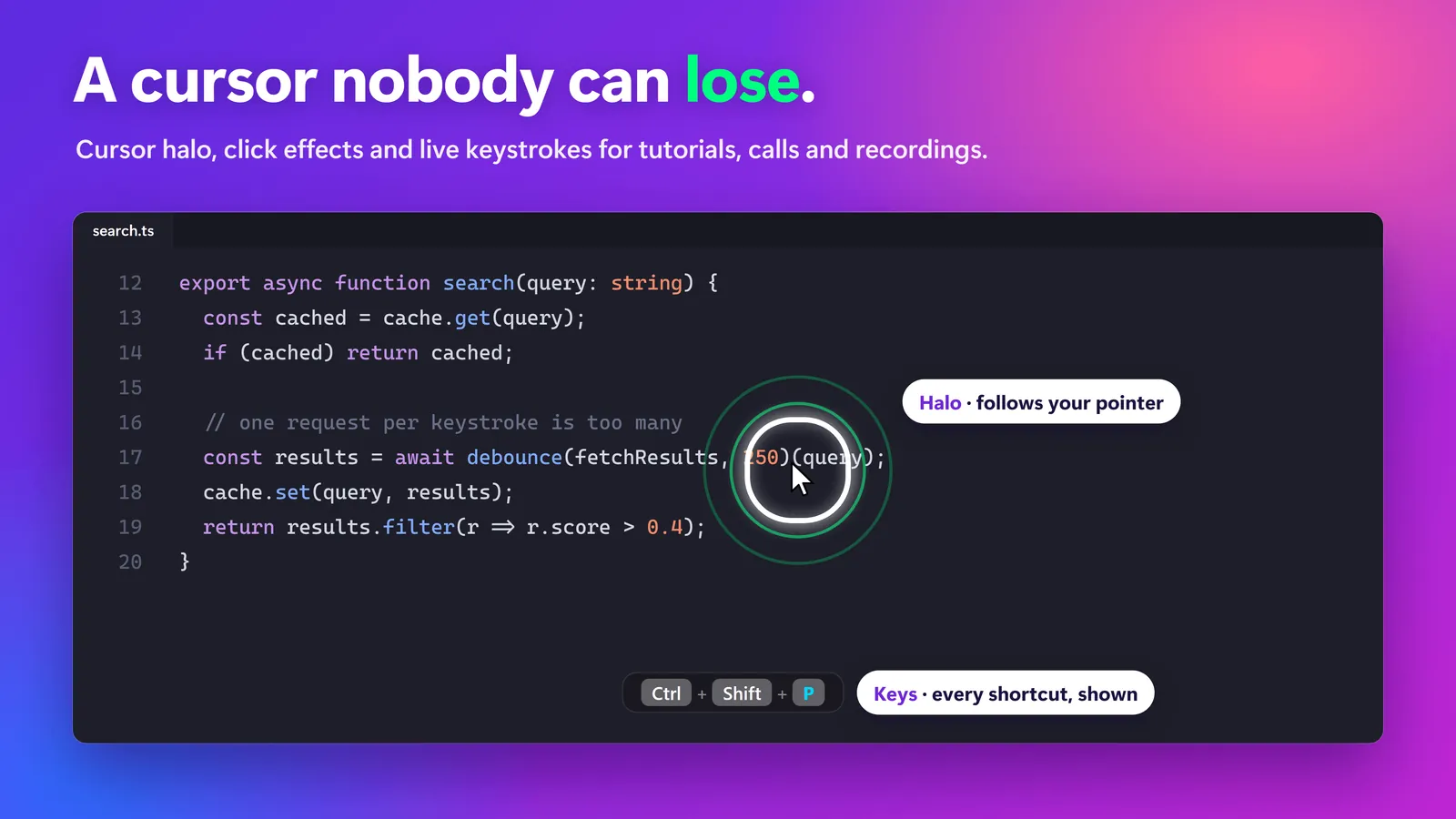
For educators, developers, remote teams, and content creators, SHARA Free is the best overall cursor highlighter in this guide. It stays visible between clicks, offers a polished always-on overlay, and combines cursor guidance with live screen annotation from one lightweight Windows app, opened from the Ctrl+Space Wheel or the docked toolbar. The core is free forever; every new install begins with the complete 14-day Pro experience, and the optional Pro add-on is $19.99 once.
Key Features:
- 3D Kinetic Halo: An always-on visual circle, squircle, or rhombus overlay, on from the first launch and free in three sizes. In Pro it also drifts and tilts dynamically based on mouse velocity and weight, creating a premium sense of physical depth.
- Nested Accents & Dreamy Glows (Pro): Customize the halo with solid rings or tick accents, and enable a dreamy border glow that keeps the cursor visible against any color palette.
- Click Flash, and Ripples in Pro: Every click flashes the halo white for free. Pro adds separate left-click and right-click colors and elegant expanding wave animations that are clearly visible through highly compressed video streams.
- 4-Mode Lens Suite (Pro): Move instantly between a classic picture-in-picture *Magnifier* (with crisp nearest-neighbor scaling or smooth bilinear filter), a background-dimming *Spotlight*, a full-screen *Live Zoom*, and an OBS-ready *Broadcast Window*.
- On-Screen Sketch Pen & Laser: Annotate directly on top of slides or live software. Use the sketch *Pen* with Ctrl+Z undo and escape clearing, or guide eyes with a decaying *Laser* trail. Arrow, text labels, erase, and screenshots are free too; Highlighter, Line, Rectangle, Circle, and Whiteboard are Pro.
- Tutor Keystroke Display (Pro): Show keyboard shortcuts, modifiers, drags, and mouse scrolls in a floating visual pill. Includes full Unicode translation and automatic password-field privacy protection that suppresses logs when you type passwords.
| Feature | Microsoft PowerToys | SHARA Free 14-day Pro trial |
|---|---|---|
| Always-On Halo | Optional (Circle mode) | Always-on Halo |
| Shape Choices | Circle, Spotlight, Ripple | Circle, Squircle, Rhombus |
| Click Animation | Ripple or fading circle | Click flash; Pro ripple |
| Lens Suite | Spotlight only | 4 modes (Pro, in the trial) |
| Screen Drawing | Pen, Laser, Arrow, Text | |
| Keystroke Display | Pro, hides passwords | |
| Footprint | ~1.2 GB (entire suite) | 283.3 MB (highly optimized) |
| Execution | Local | Local, no telemetry |
Verdict: Start with SHARA Free if your job involves sharing a screen, presenting software, or recording tutorials. The free halo and annotation core already solve the everyday visibility problem; the 14-day Pro trial shows whether magnification, keystrokes, instant colors, premium shapes, and halo polish are worth the optional one-time upgrade.
Summary: Which Method Should You Choose?
- Choose Method 1 if you just want to find a lost cursor on a massive multi-monitor layout occasionally.
- Choose Method 2 if you want a simple, color-tinted native cursor for everyday computer use.
- Choose Method 3 if you want a basic, free highlighter that ripples whenever you click.
- Choose Method 5 if you are a professional educator, video creator, SaaS developer, or remote team member who wants to eliminate editing overhead, keep audiences locked-in, annotate screens live, and look polished on every single call.
Frequently Asked Questions
Is there a lag when using a cursor highlighter?
Cheap Win32 overlay tools can lag significantly behind your actual mouse cursor, which causes eye strain. Native accessibility features and highly optimized tools like SHARA render at 60+ FPS at your monitor’s native refresh rate (up to 144Hz+), resulting in zero perceivable cursor latency or background stutter.
Can I highlight my mouse pointer on Windows 10?
Yes. All of the methods described above — including Microsoft PowerToys, custom cursor schemes, and SHARA — are fully compatible with both Windows 10 and Windows 11.
Does PowerToys keep a yellow circle around the mouse constantly?
Not by default. PowerToys Mouse Highlighter starts in Ripple mode, which only draws a colored pulse when you click a mouse button; its Circle highlight and Spotlight modes can keep a highlight on the pointer. For an always-on halo with shapes, a click flash and drawing tools, try a dedicated app like SHARA.
About the Author
Mashyo is the founder of Creator Kit, building highly-optimized desktop presentation utilities for modern Windows professionals. For support: support@creatorkit.mashyo.com.
Last updated: .